Three tabs in the Scheduling section of Site Admin decide how bookings are made at this site:
- Smart Slots: how slots are recommended, and the breaks they avoid.
- Booking rules: when a slot may be booked, how long it is, and which bookings wait for approval.
- Booking form: what carriers fill in.
The rules apply on every booking channel: your planners' form, the carrier and supplier portals, booking links and integrations.
Smart Slots
Open Site Admin and click Smart Slots.
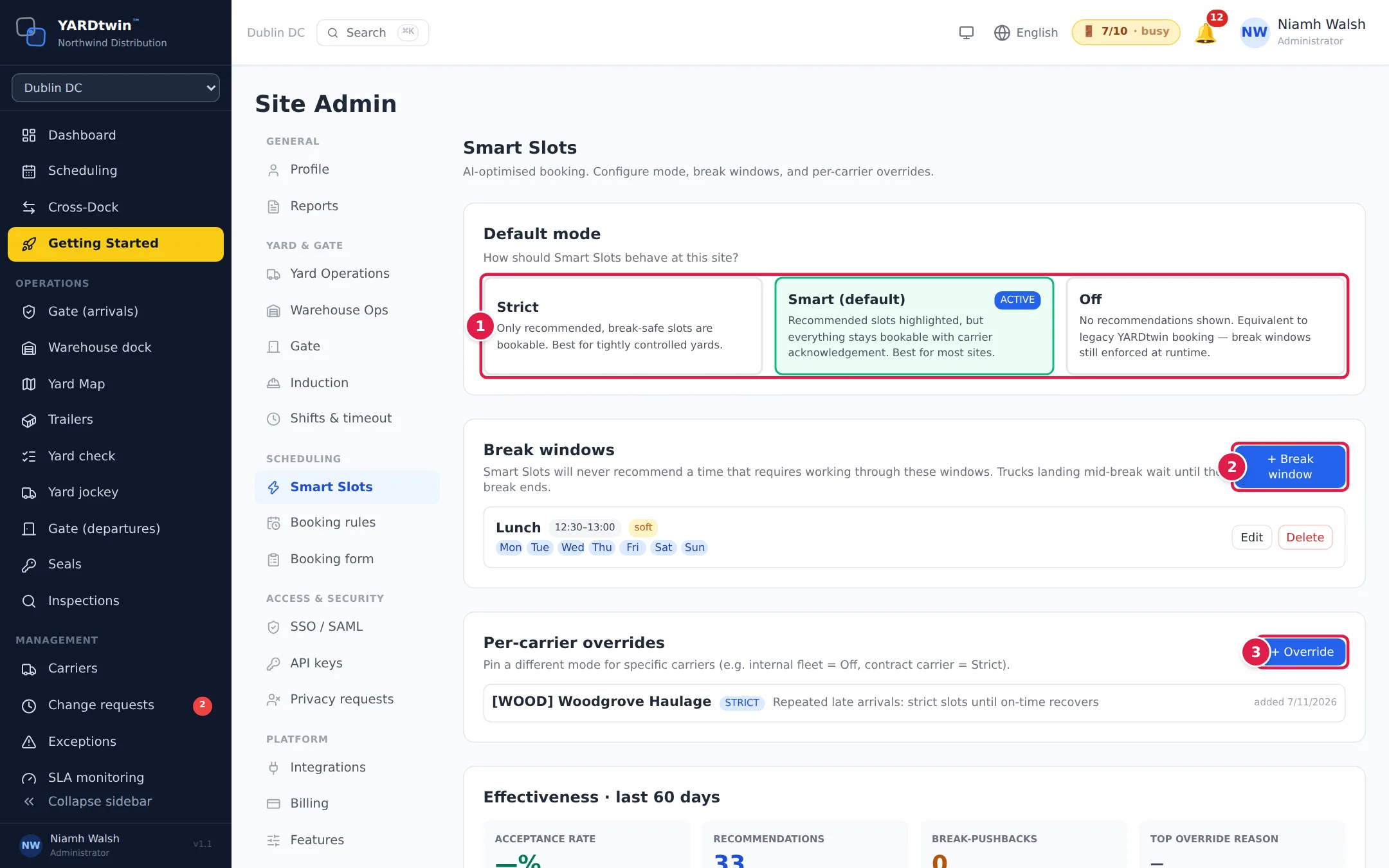
- Default mode. Click a card to change it straight away:
- Strict: only recommended, break-safe slots can be booked.
- Smart (default): recommended slots are highlighted, but every slot stays bookable once the carrier acknowledges it.
- Off: no recommendations. Break windows still apply.
- + Break window adds a break, such as lunch: a Name, Start, End and Days. Tick Hard constraint if no work may run through it in any mode. You can have up to 8.
- + Override gives one carrier a different mode, for example Off for your own fleet or Strict for a contract carrier.
Effectiveness · last 60 days shows how often carriers took the recommended slot. Below it, Smart Slots — Labor Management makes your team's capacity part of the recommendation; see Plan by labour capacity. For how bookers see Smart Slots, see Pick a slot with Smart Slots.
Booking rules
Click Booking rules. Every rule is off until you switch it on. Changes save as you make them.
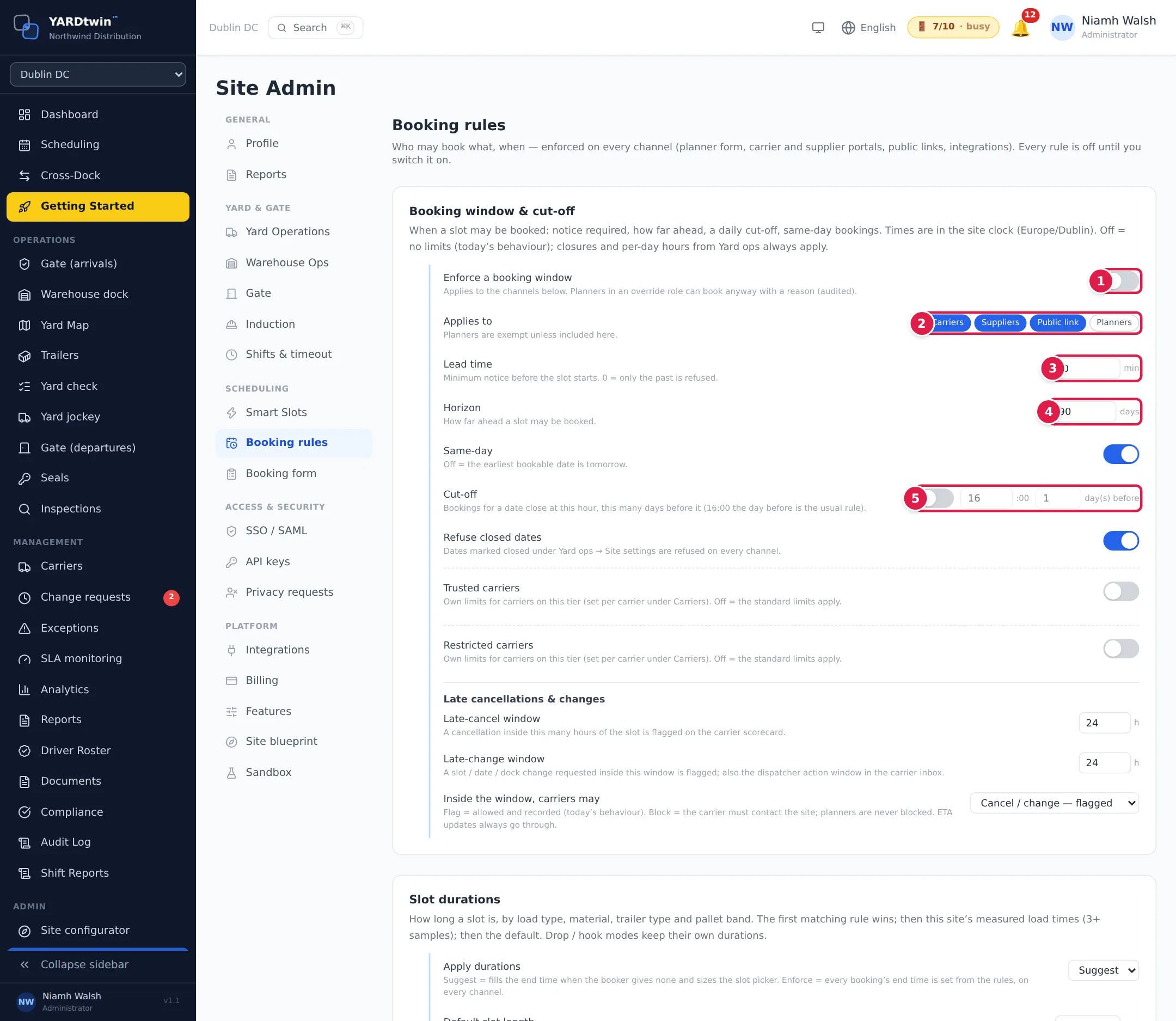
- Enforce a booking window switches the rules below on. Planners in an override role can still book outside them, with a reason that is recorded.
- Applies to: which channels the window covers: Carriers, Suppliers, Public link and Planners. Planners are exempt unless you include them.
- Lead time: the minimum notice before a slot starts, in minutes.
- Horizon: how many days ahead a slot may be booked.
- Cut-off: bookings for a date close at this hour, this many days before it (16:00 the day before is the usual rule).
The same section also has:
- Same-day: switch off to make tomorrow the earliest bookable date.
- Refuse closed dates: refuses dates closed on the site's closure calendar. See Set your site's details and hours.
- Trusted carriers and Restricted carriers: their own limits, for carriers you have put in either tier on the Carriers page.
- Late cancellations & changes: a cancellation or change requested inside the Late-cancel window or Late-change window is flagged on the carrier's scorecard. Inside the window, carriers may either cancel or change with a flag, or must contact the site instead.
Further down the tab:
- Slot durations: how long a slot is. Apply durations can Suggest a length or Enforce it on every booking. Add Rules by load type, material, trailer type and pallet count; otherwise YARDtwin uses the site's own measured load times (once it has 3 of them) or the Default slot length.
- Approval of carrier bookings: which carrier bookings wait for a planner before they are confirmed: Off, New carriers, Unverified carriers or All carrier bookings. A pending booking holds its slot, and the carrier sees Awaiting approval. Planners decide from Scheduling → Approvals. See The scheduling board.
- Waitlist for full days: lets carriers join a standby list for a full day. A slot freed by a cancellation or no-show is offered to the first matching request, for the time you set.
- Booking by link (no account): links for suppliers and hauliers who have no portal login. See Share a booking link.
The booking form
Click Booking form. This decides which optional fields carriers see on the booking form. The core fields (site, slot, dock, load type, commodity, truck registration, driver and pallet count) are always there.
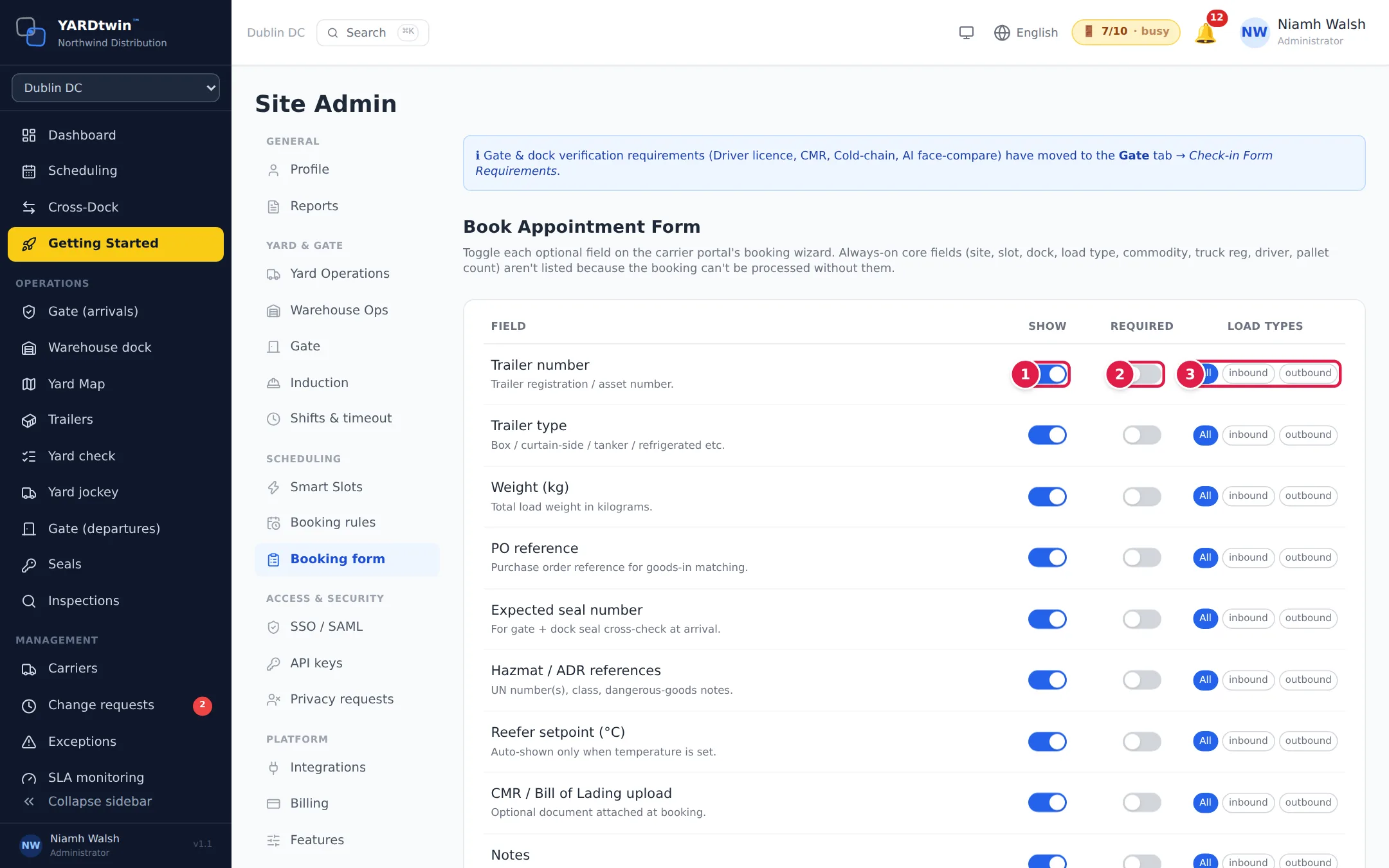
- Show: switch a field on or off.
- Required: make a visible field compulsory.
- Load types: show the field for All loads, or only inbound or outbound ones.
Each switch saves as you click it. Hiding a field also clears anything a carrier had entered in it.
Further down:
- Custom booking fields: your own questions, such as a customer order number. Click + Add field, give it a Label and a Type, and choose the load types and Who sees it. Answers are stored on the booking and can be used in exports and in dock rules.
- Booking attestations: statements the carrier must tick before booking. Two come as standard, the GDP training attestation and the Trailer cleanliness declaration; switch each on and choose if it is required. + Add custom adds up to three of your own. Click Save after adding custom ones.
- Site safety document: upload a PDF or image. It is attached to the booking confirmation e-mail, the driver's QR page and the carrier's booking page, so drivers see it before they arrive.
The checks the gate makes at check-in, such as the driver's licence and CMR, are on the Gate tab. See Set up the gate, induction and shifts.