The kiosk is a tablet or touch screen at the gate, running one YARDtwin page full screen. Drivers check themselves in with large buttons in their own language; nobody signs in to it. When the site runs an unmanned gate, a booking that passes every check is checked in on the spot; otherwise the check-in waits for the gatehouse to approve it.
For the driver
The screen says Driver check-in and Touch to begin.
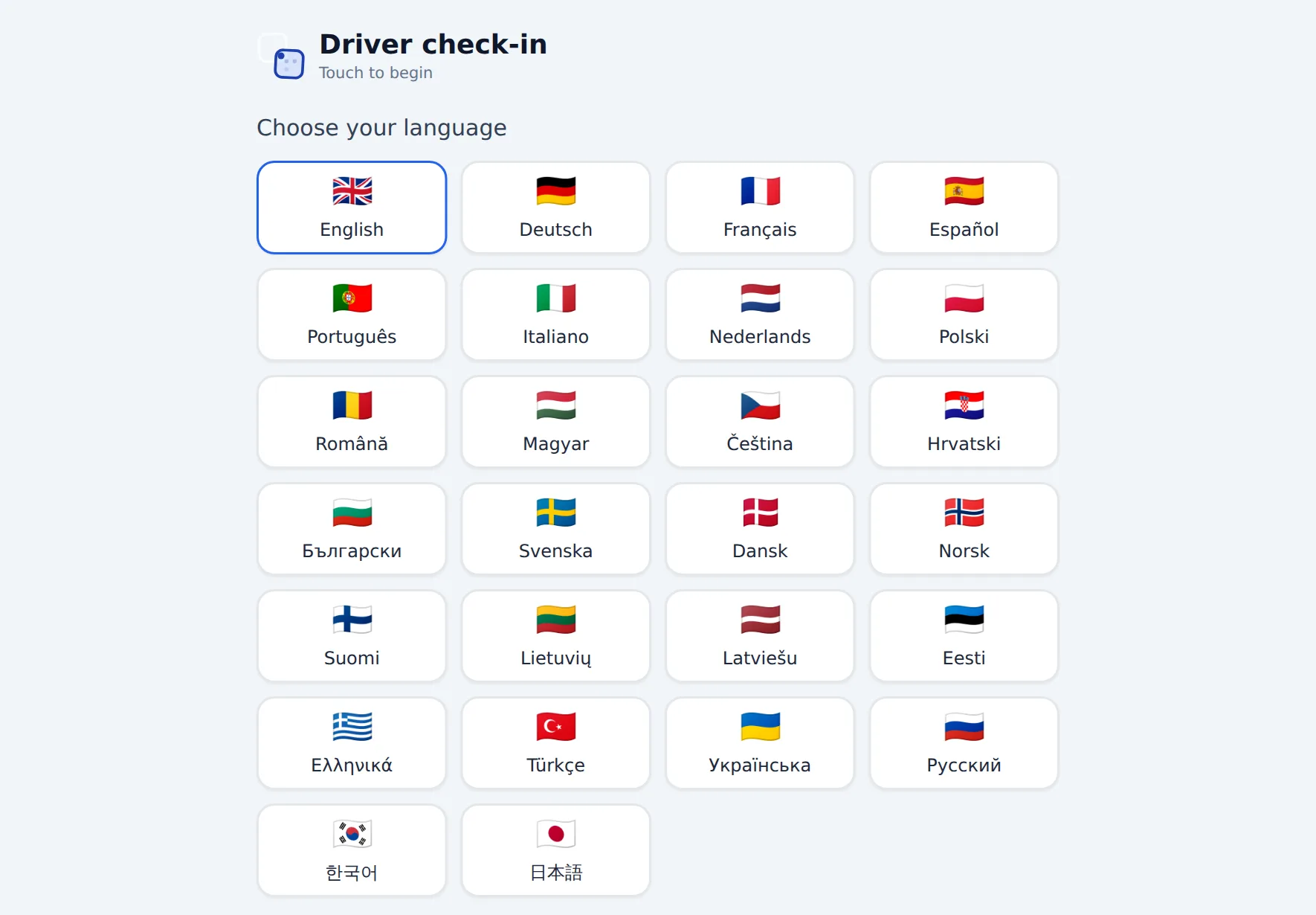
Tap your language under Choose your language. If the site lets visitors sign in here too, the kiosk then asks What brings you here?: tap I am delivering or collecting.
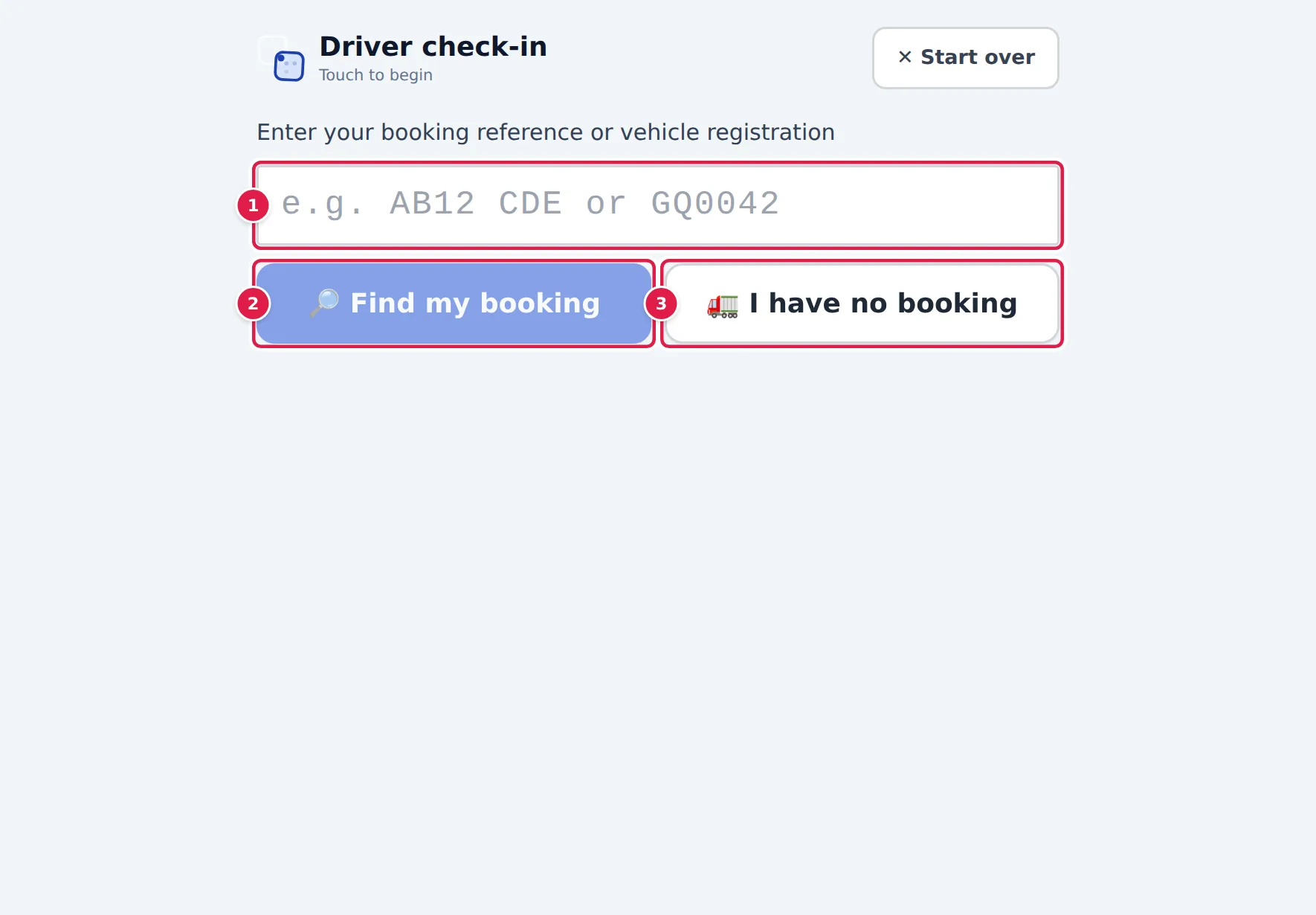
- Type your booking reference or vehicle registration.
- Tap 🔎 Find my booking. (On terminals with a camera, 📷 Scan my QR pass reads the QR code on your gate pass instead.)
- No booking? Tap 🚛 I have no booking (see below).
Check the booking shown (Booking, Slot, Carrier, Driver), enter Your name, the Vehicle registration and, if you have one, the Trailer number (optional), and tap ✅ Check in.
The kiosk then shows ✅ Checked in with your dock, or ⏳ Please wait — the gatehouse will assist you, and your Queue position if the gate runs a queue. It can also show your gate pass as a QR code to scan with your phone, and 🖨 Print pass. Tap Done when you've finished. ✕ Start over goes back to the beginning at any point, and the kiosk resets itself after a short idle time.
No booking
🚛 I have no booking opens No booking found — register at the gate. Enter your name, the vehicle registration, the carrier and your Mobile number (to be called forward), say what you're here for, and tap 📝 Register and wait to be called. The gatehouse sees you in its queue. If the site lets the kiosk create bookings for unplanned trucks, the planners also see you as an unplanned truck on the scheduling board. See Register a walk-in.
Visitors and contractors
If the site lets visitors sign themselves in, I am a visitor or contractor opens Please sign in: your name, company, Who are you here to see?, the purpose of your visit and your mobile number. The site may ask you to take a short safety induction first. Tap ✅ Sign in, and wait for your host.
Set up the kiosk
An Administrator sets up the kiosk under Site Admin → Integrations, in the 🖥 Kiosk mode card:
- Switch on Enable the kiosk.
- Copy the Kiosk URL (open full screen on the terminal) and open it on the terminal's browser, full screen. The address includes a secret token; Rotate token issues a new one, and the terminal must then open the new address.
- Set Reset after idle (seconds), whether to Show the QR pass on screen, whether to Offer "Print pass" (terminal printer), and which Languages offered (none selected means every language).
Walk-up registration, visitor sign-in and the unmanned gate are switched on in the gate settings. See Gate settings.
If something goes wrong
- "Kiosk mode is not enabled at this site." The kiosk is switched off. An administrator switches it on in Site Admin.
- "Kiosk token missing or wrong" The terminal is using an old address. Copy the current Kiosk URL onto the terminal.
- "The check-in service is not reachable." The terminal has lost its connection. Check its network.
- "This booking is already checked in." The truck has already been checked in at the gate.
- "Too many check-in attempts from this address — please report to the gatehouse." The kiosk has made too many check-ins in a short time. Drivers report to the gatehouse until it clears.
- "Please report to the gatehouse before entering the site." The gate's checks flagged the driver or vehicle. The gatehouse will see why.