Before anyone opens the trailer, check its seal against the gate's record and, for a chilled or frozen load, read the trailer's temperature. Starting the trailer starts the clock that the monitor and your shift numbers use.
Steps
On the dock board, tap Start on the truck's card. The Seal & temperature panel is where you record what you find. The About to start panel sums up the visit: booking code, carrier, truck and trailer, driver, dock, the pallets and commodity, and the SLA target in minutes. For an inbound load the target includes put-away; for an outbound load it includes pre-load.
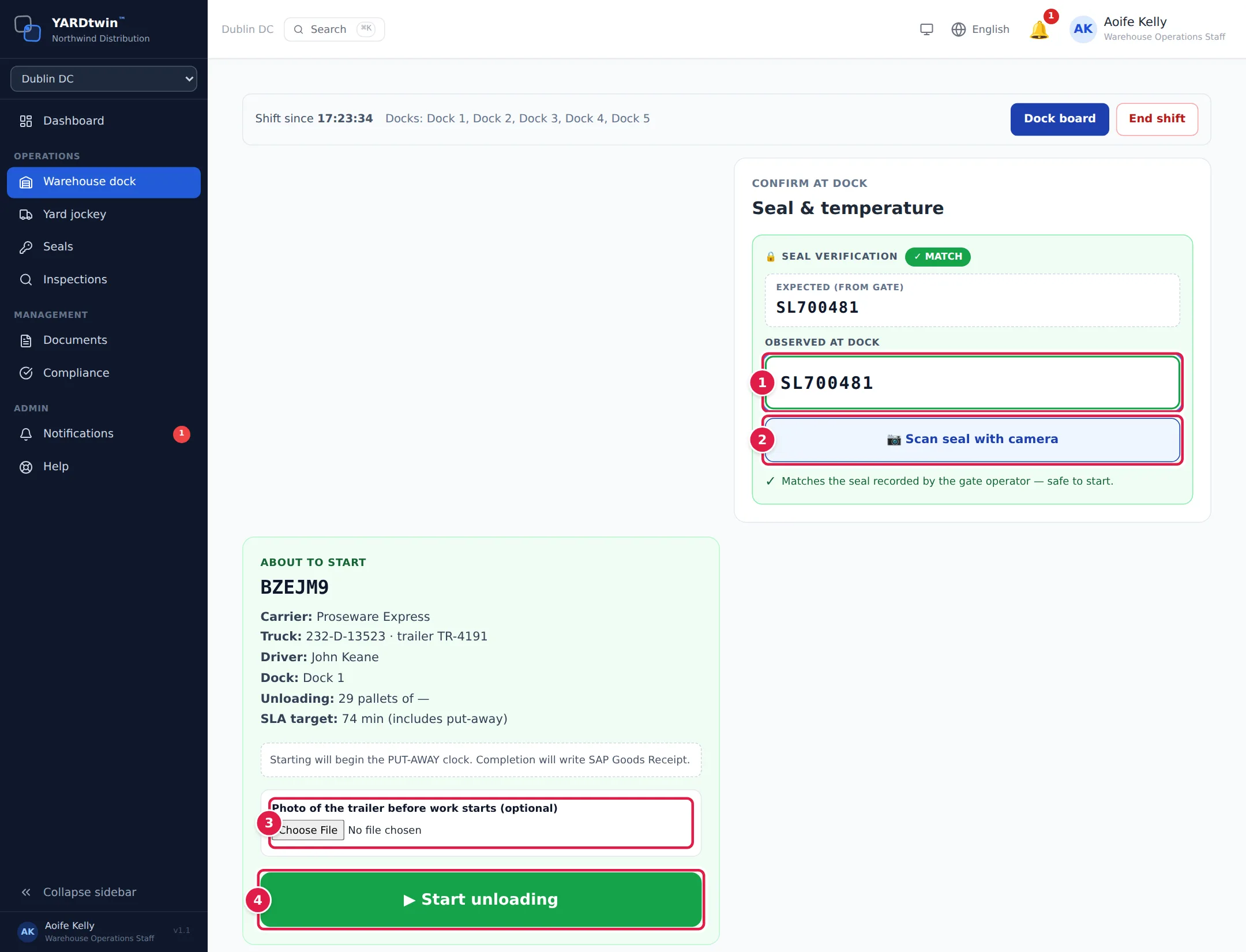
Read the seal number on the trailer and type it in Observed at dock. The box starts empty on purpose: you record what is on the trailer rather than confirm a number you've been shown. Above it, YARDtwin shows the number it compares with:
- Expected (from gate): the seal the gate recorded at check-in, or
- Booked seal (not yet verified at the gate): the seal on the booking, when the gate didn't record one, or
- No gate record on file — capture the actual seal below.
When the numbers agree, ✓ MATCH appears with Matches the seal recorded by the gate operator — safe to start. Spaces, dashes, dots, slashes and capitals don't count as differences.
Or tap 📷 Scan seal with camera and photograph the seal. YARDtwin reads the number into the box. Check it before you go on.
Take a photo of the trailer as you found it. It's optional at most sites. If your site requires it, the label says (required at this site) and Start stays grey until you've added one.
Tap ▶ Start unloading for an inbound load, or ▶ Start loading for an outbound load. The clock starts and the monitor opens.
If the seal check at the dock is switched off for the load's material type, the screen says so. A seal you type is still recorded, but it isn't compared.
Chilled and frozen loads
For a load with a temperature range, Trailer temperature (°C) appears under the seal, with the Required range:.
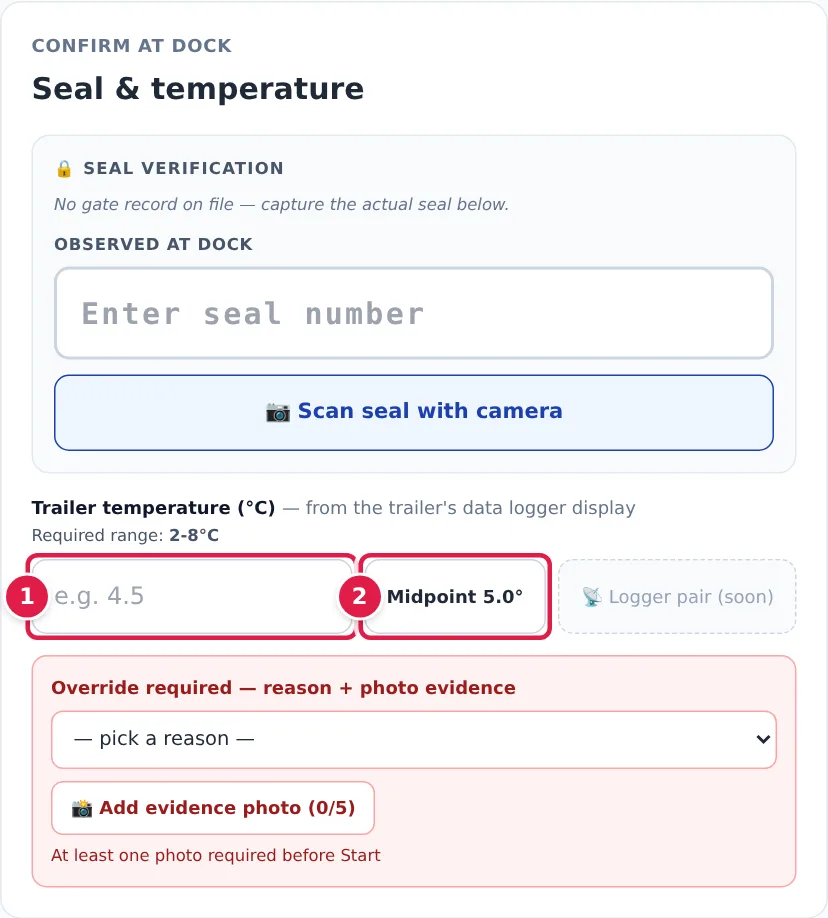
- Type the reading from the trailer's data logger display. The box turns green inside the range and red outside it, with OUT OF RANGE — excursion will be logged.
- Midpoint fills in the middle of the required range. Use it only when that's what the display shows.
Until you've typed a reading inside the range, the screen also shows the override box described below; it goes away once the reading is in range.
📡 Logger pair (soon) is not available yet.
When the seal doesn't match, or the temperature is out of range
If the seal you type differs from the gate's record, the box turns red. You can still start, but you have to say why and show it.
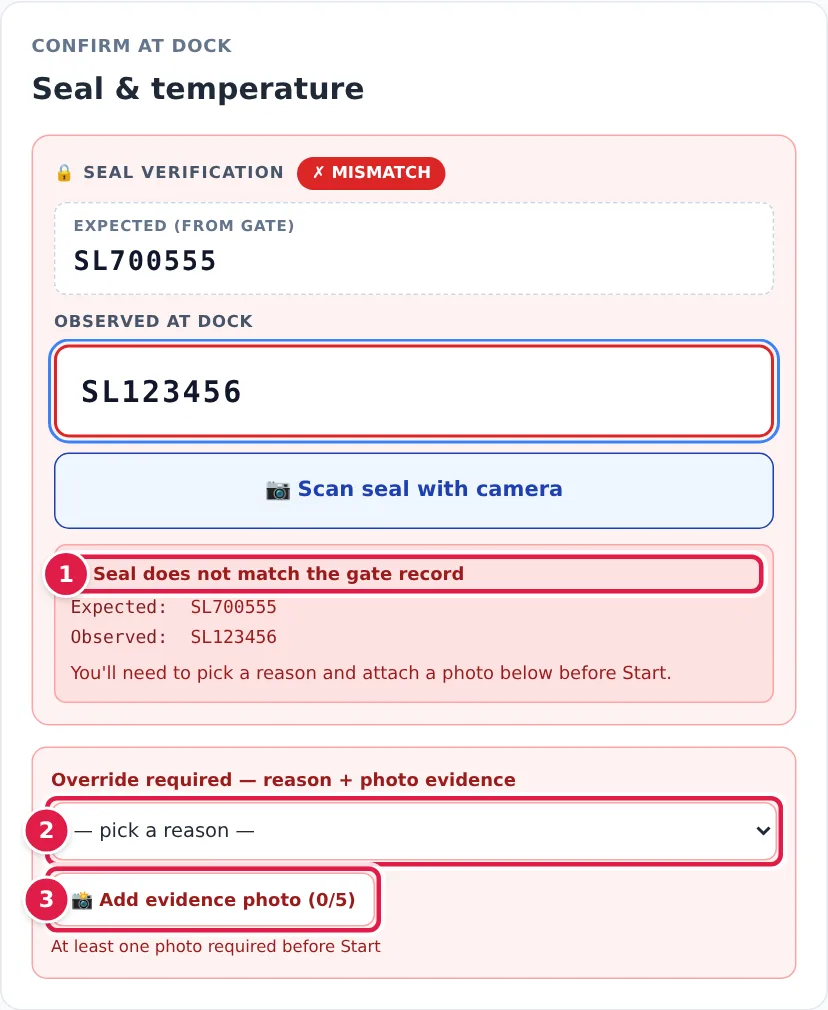
- Check the red box, Seal does not match the gate record, which shows the Expected and Observed numbers side by side. Read the seal again before you go on.
- Under Override required — reason + photo evidence, pick the reason:
- Carrier confirmed seal change en route
- CMR updated en route
- Emergency reseal at roadside
- Temp logger briefly out of spec (now in range)
- Other (describe), then fill in Describe the circumstances.
- Tap 📸 Add evidence photo and photograph the seal and the paperwork. You need at least one photo, and you can add up to five.
Then tap Start unloading or Start loading. The override, its reason and the photos are recorded in the audit log as a GMP-relevant event. The same override box appears for a chilled or frozen load when the temperature is missing or out of range.
An override doesn't clear the seal problem. If the goods look wrong once the doors are open, raise a hold when you complete the load.
When SAP has blocked the stock
At a site that blocks loading on SAP blocks (see Warehouse settings), SAP can tell YARDtwin that the stock of an outbound delivery is blocked or not releasable, for example a batch still in quality inspection. Until SAP releases it, the start screen shows a red ⛔ Blocked in SAP box: SAP has blocked the stock of this delivery — loading cannot start until SAP releases it, or QA / an admin releases the block with a reason. Under it are the blocks SAP sent, with SAP's reason. ▶ Start loading stays grey.
You can't release the block from this screen. Ask QA or an admin: they release it on the booking (Scheduling → the booking → SAP loading block → Release the block (QA)) with a written reason, or SAP releases it. The screen then says SAP block released by QA / an admin — loading may start. Reload the page to see the change.
If a block arrives while the truck is already loading, QA and the operations manager are told to stop loading. You can still complete a load that is already on the truck; the completion is recorded with a warning and the truck can't leave until the block is released (see Departure).
A SAP block never stops an inbound load.
Other things you may see
- Required documents — dock. If the load's material type needs documents at the dock, they're listed here as REQUIRED or RECOMMENDED. Tap 📎 Attach to add one. Start stays grey until every required document is attached. A document counts when its title contains the required document's name.
- Observed weight (kg), when the booking has a weight. It's an optional spot-check against the booked weight. A difference of more than 5% shows Variance … vs booked — will flag an audit event; it never blocks the start. It doesn't replace the weighbridge readings taken at the gate.
- Where pallets are scanned depends on your site: in YARDtwin, or in your WMS or SAP EWM. See Monitor a load at the dock.
If something goes wrong
- Start is grey. Hover over it to see why: the seal number hasn't been typed in yet, a required document or start photo is missing, the override needs a reason and a photo, or SAP has blocked the stock (Blocked in SAP, above).
- "Could not read the seal — try a closer photo or enter manually." Take a closer, sharper photo, or type the number.
- "Seal code is required for …. Enter the seal number from the trailer." The load's material type needs a seal at the dock.
- "Seal does not match the gate record (verified at gate: …). Provide an override reason + photo to start anyway." Pick an override reason and add a photo.
- "Trailer temperature required for cold-chain load": enter the reading, or record an override.
- "Override requires at least one photo of evidence": add a photo under the override.
- "Required documents missing at dock: …": attach the listed documents.
- "This site requires at least one photo of the trailer before work starts — take a start photo first."
- "Booking … has not been checked in at the gate." Work can only start on a truck that came through the gate. Ask the gate to check it in.
- "SAP has blocked the stock of … Loading cannot start until SAP releases it, or QA / an admin releases the block with a reason." See When SAP has blocked the stock.
- "The SAP loading-block state of this booking could not be determined, so loading is held." Try again in a moment; if it keeps happening, tell your administrator.
- **"Cannot start from status …": the truck isn't at the gate, in staging or on the dock, or it has already been started. Go back to the dock board.
- "ASPHYXIATION HAZARD — dry-ice ventilation not cleared …" (sites with Life Sciences): the trailer holds dry ice and hasn't been ventilated for long enough. Don't open it. The message shows how many minutes are left.