In a cross-dock, goods come in on one truck and go straight out on another without being put away. YARDtwin tracks this in two ways, and your site can use either or both:
- Pallet-driven (load composition). You build each outbound load from pallets received on one or more inbound trucks, plus lines picked from warehouse stock. This is switched on by default.
- Truck-driven (delivery dependencies). You link an outbound load to the inbound deliveries it waits for. YARDtwin then tells you whether the outbound can leave on time, or whether a late delivery puts it at risk.
Everyone on your site's staff who can see the scheduling board can see the Cross-Dock page. Driver accounts can't: they see only their own bookings. Administrators and Operations managers build loads, link deliveries and switch the modes.
The Cross-Dock board
Open Cross-Dock from the menu.
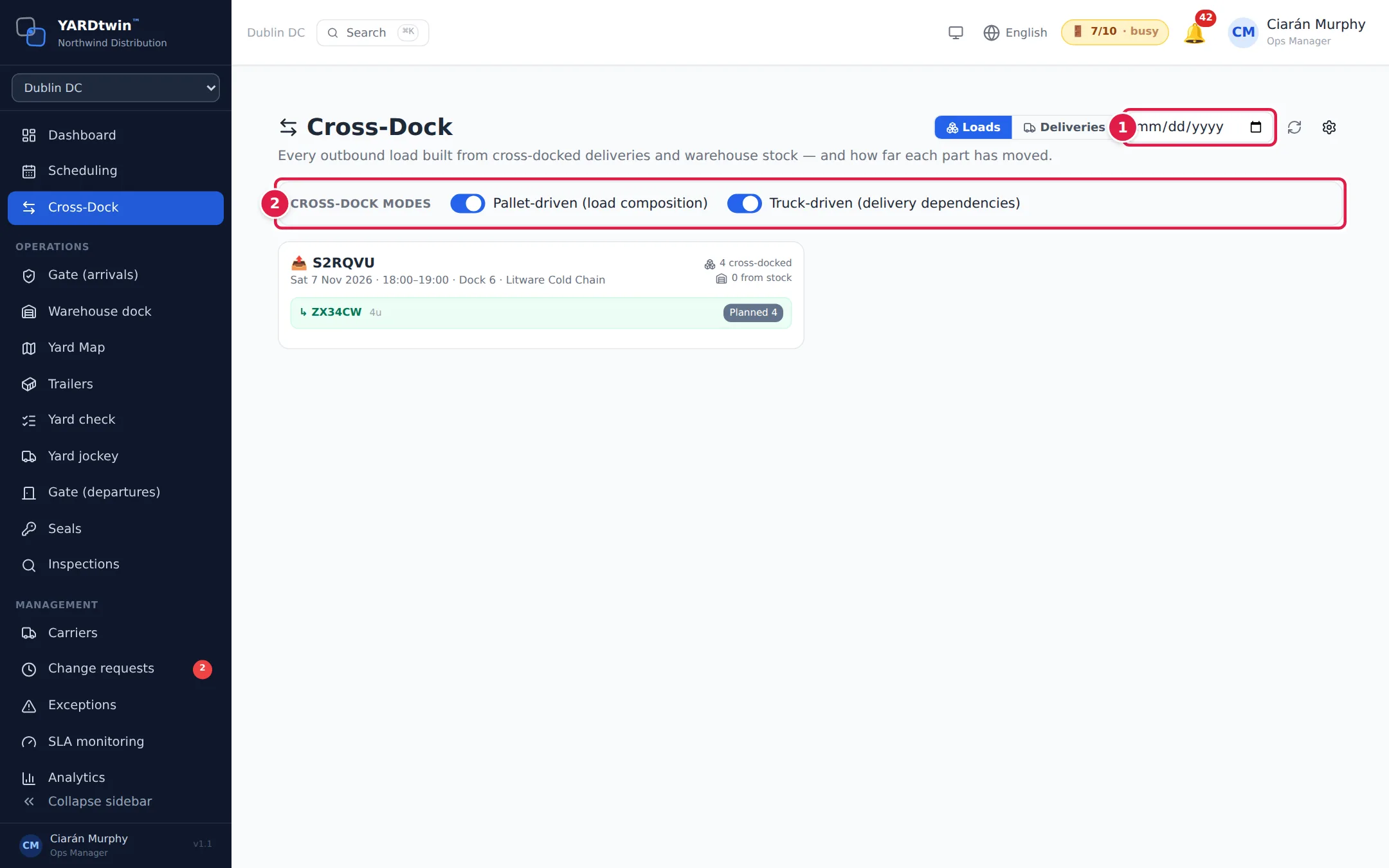
- Date. Show the loads for one day. All dates clears it again. The ⟳ button next to it reloads the board.
- Cross-dock modes. Click the gear at the top right to show the two switches, Pallet-driven (load composition) and Truck-driven (delivery dependencies), and click a switch to turn that mode on or off for your site. Only Administrators and Operations managers see the gear.
When both modes are on, Loads and Deliveries at the top switch between the two views.
- Loads shows every outbound load with its booking code, date, time, dock and carrier, how many units are cross-docked and how many come from stock. Under it are the inbound deliveries it draws from and a warehouse stock line, each with coloured chips showing how many units are planned, received, staged, loaded or shipped (stock lines use planned, picked, loaded and shipped).
- Deliveries shows every outbound with the inbound deliveries it waits for. ✓ clear means it can leave on time. ⚠ at risk means an inbound won't be received in time; the badge suggests a later start. Each inbound shows its status (for example scheduled, en route, arrived or received) and its ETA when there is one.

Build a load from pallets
You build a load on the outbound booking itself. On the scheduling board, open the outbound booking (click its bar, or ✏️ in its row). In the Edit Appointment window, scroll to Cross-dock.
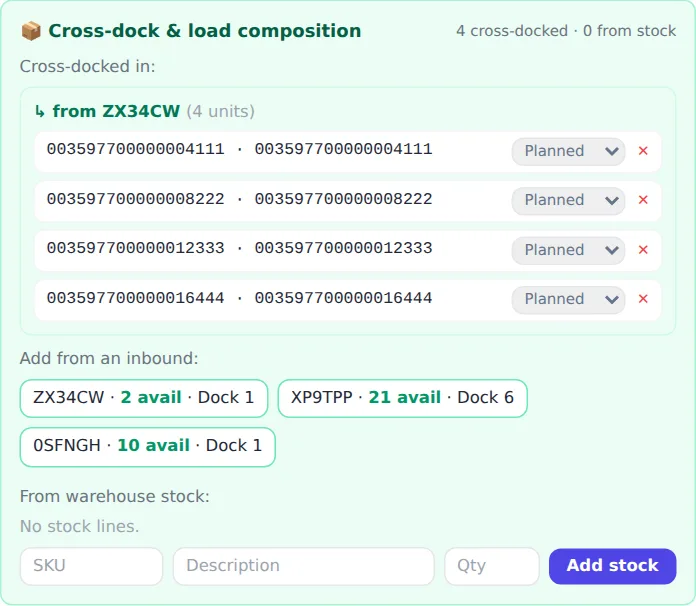
- Cross-docked in lists the pallets already allocated, grouped by the inbound they came from.
- Add from an inbound lists inbound bookings at the same site that have received pallets not yet allocated, with how many are available. Click one, tick the pallets under Pull from …, and click Cross-dock selected →. An inbound can feed several outbound loads, and an outbound can take pallets from several inbounds.
- From warehouse stock adds stock to the same load: enter the SKU, a Description and the Qty, then click Add stock.
- Change a line's status as it moves through the dock, for example from staged to loaded, with the small list on the line. ✕ removes a line.
Pallets become available once they have been scanned in during receiving. See Monitor unloading.
On an inbound booking, the same section shows Cross-docked out to: which outbound loads its pallets went to, and how many pallets are still available.
Link a load to the deliveries it waits for
When Truck-driven (delivery dependencies) is on, outbound bookings show 🚚 Waiting on inbound deliveries in the Edit Appointment window.
Click + Add an inbound dependency and pick the inbound booking from the list.
YARDtwin compares the outbound's start with when its inbounds will be received:
- ✓ Clear to depart at … — inbounds ready by … means the timing works.
- ⚠ At risk — departs before its inbounds are received means it doesn't. Click Push to … → to move the outbound to the suggested time.
Times are the site's local time, and so is a delivery's ETA, so the suggested time is the one the outbound is booked at.
✕ next to a delivery removes the link.
On an inbound booking, Loads waiting on this delivery shows which outbound loads depend on it.
Pair two bookings as one visit
To record that one truck drops and another collects, or that the same truck does more than one leg, open either booking and click Pair with another booking… in the Edit Appointment window.
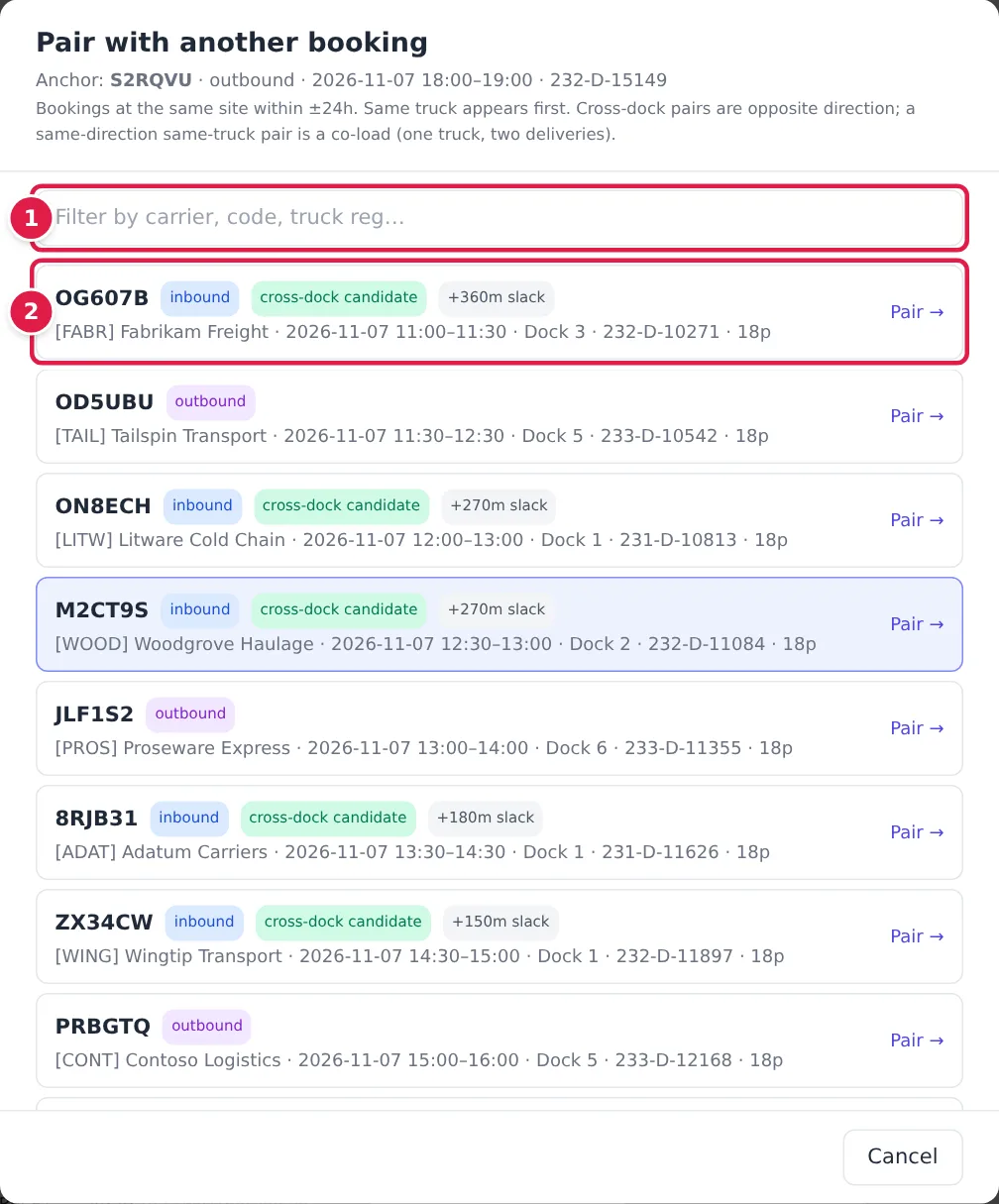
- Type in Filter by carrier, code, truck reg… to narrow the list. It shows bookings at the same site within 24 hours either side; bookings with the same truck come first.
- Click Pair → on the booking to link.
The list labels each candidate. A booking in the opposite direction is a cross-dock candidate, with the slack between the inbound being received and the outbound starting; tight means little slack, and outbound before receiving means the timing can't work. A booking in the same direction on the same truck is a co-load candidate. Paired bookings show 🔗 and a purple outline on the board. Unpair in the Edit Appointment window separates them again.
If something goes wrong
- "No cross-dock loads. Build one from an outbound booking in Scheduling." Nothing has been allocated yet. Build a load as described above.
- "No delivery-linked loads. Link an outbound to the inbounds it waits on, from its booking in Scheduling." No outbound has dependencies yet, or the date filter hides them.
- "No unallocated pallets." Every pallet received on that inbound is already allocated to a load.
- "Pallet … is already allocated" Someone allocated that pallet while you were choosing. Reopen the booking and pick again.
- "Already linked" The inbound is already a dependency of this outbound.
- "Appointments must be at the same site" Cross-docking works between bookings at one site only.
- "No eligible bookings within ±24h at this site." There is nothing to pair with in that window.