The Site tab holds the basics of the site you have selected: its name, address, time zone, opening hours and closed days. Bookings can only be made inside the opening hours, and every time in YARDtwin is shown in the site's time zone.
The Assets tab is your register of company-owned equipment, such as forklifts and yard tractors, and the inspection checklists used for them.
Set the site details and opening hours
Open Settings and click the Site tab.
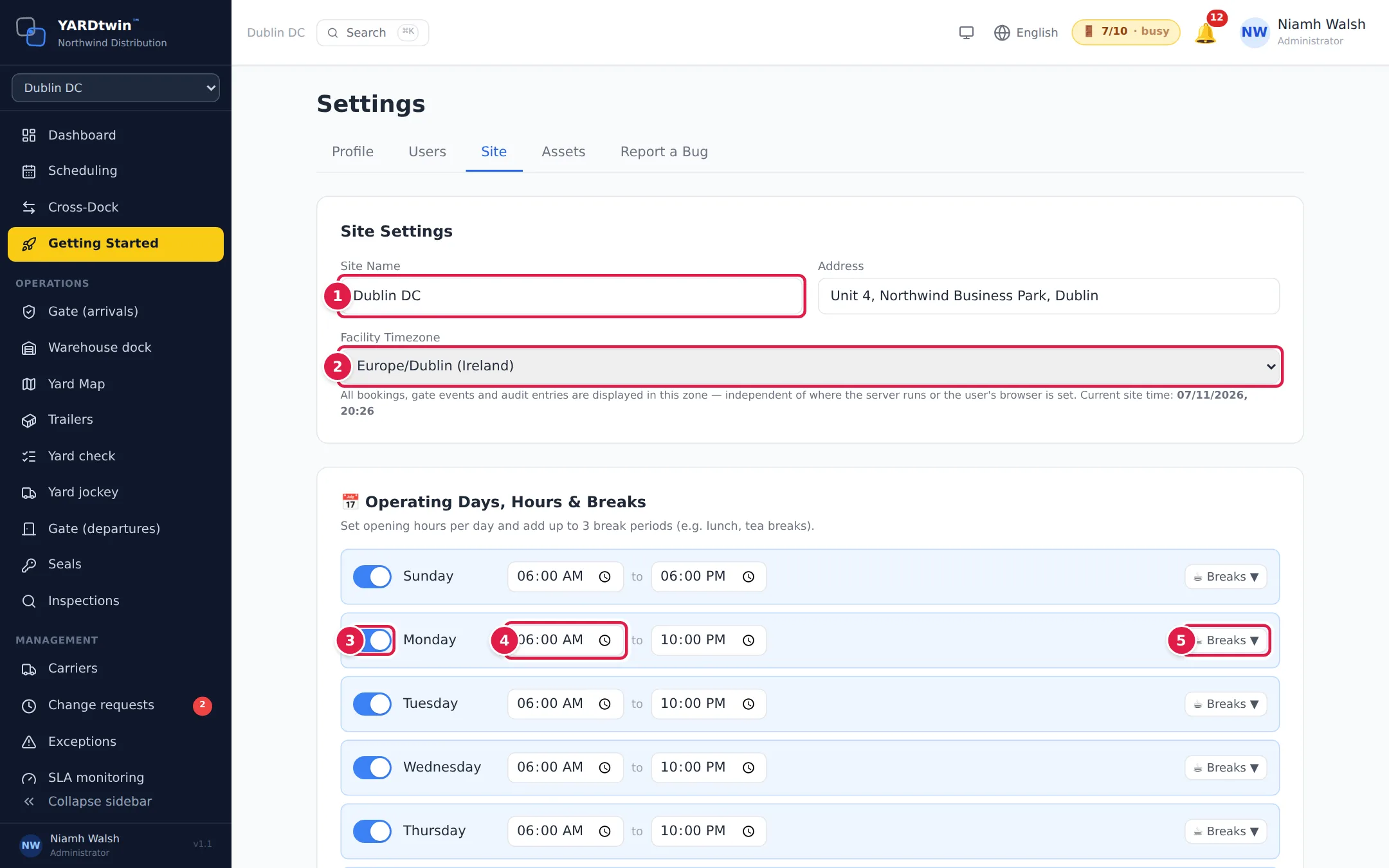
- Check the Site Name and Address.
- Choose the Facility Timezone. Every booking, gate event and audit entry is shown in this zone, whatever the time zone of the person looking. The Current site time under it lets you check. Only a named zone such as Europe/Dublin is saved; an abbreviation such as IST is refused with timezone must be an IANA time zone name.
- Under Operating Days, Hours & Breaks, switch each day on or off. A day that is off shows Closed.
- Set the opening and closing time for each open day.
- Click Breaks to add up to three breaks for that day, for example a lunch break. Apply to all open days copies one day's breaks to every open day.
Then scroll down.
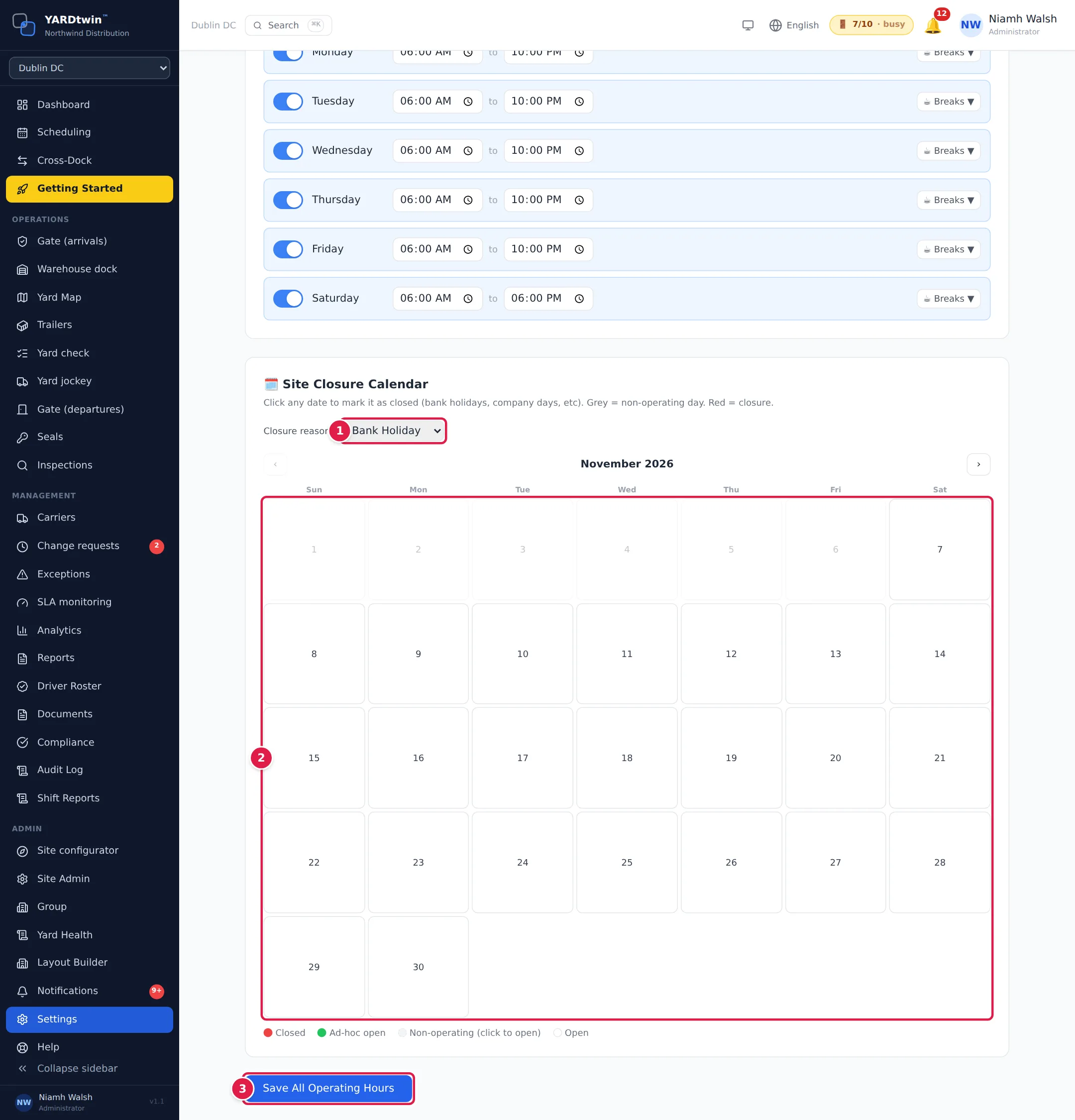
- Under Site Closure Calendar, choose the Closure reason: Bank Holiday, Company Day, Maintenance, Emergency or Other.
- Click a date to close the site that day; it turns red. Click it again to reopen it. A grey day is a day the site is normally closed: click it to open the site that day as a one-off (Ad-hoc open, green). You can plan up to 18 months ahead.
- Click Save All Operating Hours to save the name, address, time zone, hours and breaks.
What you'll see
Site operating hours saved. Closed dates are saved as soon as you click them; they don't need the Save button.
Saving the hours for the first time also completes the Setup New Account step of the Getting Started checklist.
If your site uses booking rules, closed dates are refused on every booking channel as long as Refuse closed dates is on. See Set booking rules.
Register equipment and inspection checklists
Click the Assets tab.
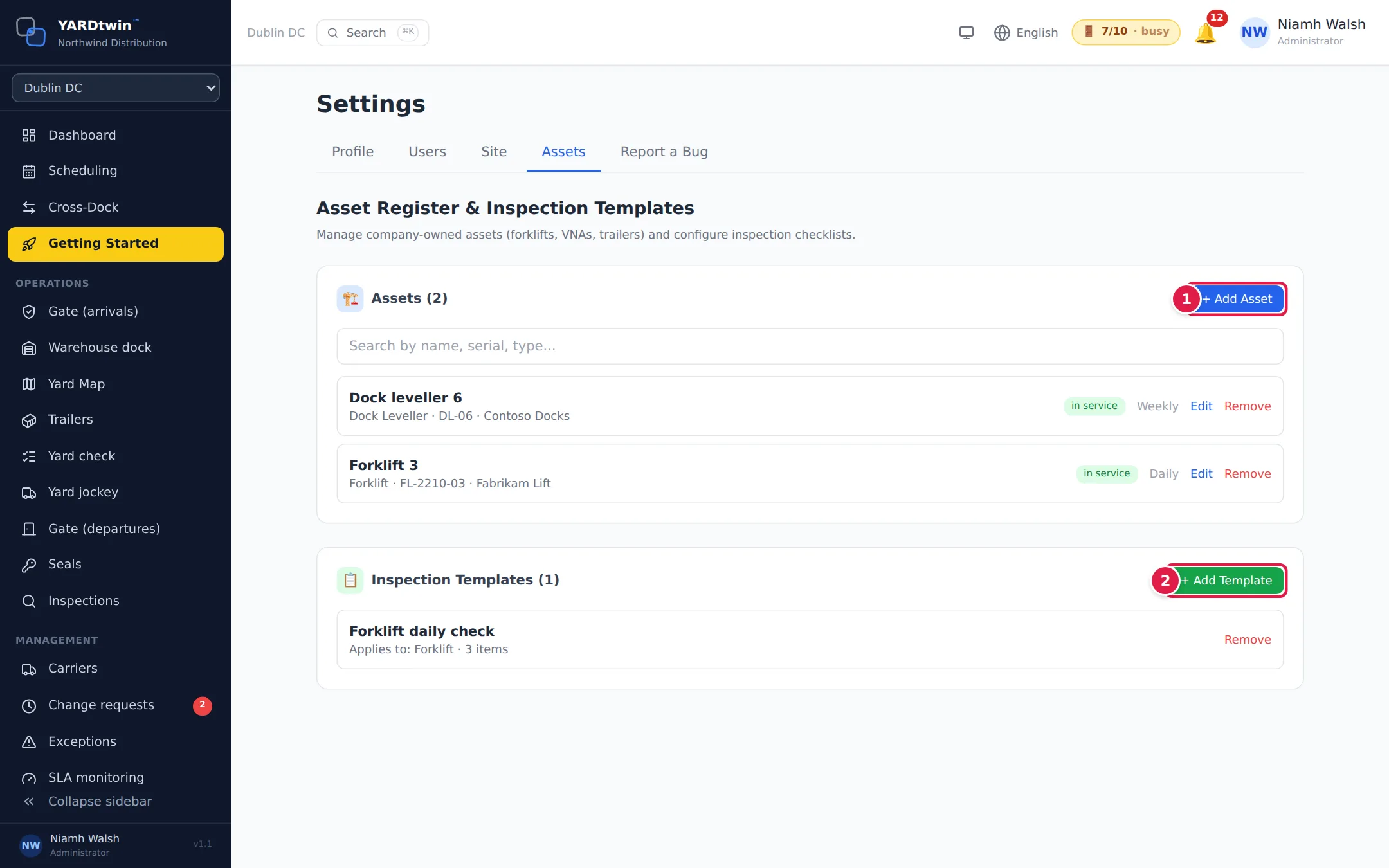
- Click + Add Asset to register a piece of equipment. Give it an Asset Name, an Asset Type (for example Forklift, Reach Truck, Company Trailer or Yard tractor (shunter)) and an Inspection Frequency from daily to annually. Serial Number, Manufacturer, Model and Year are optional.
- Click + Add Template to create an inspection checklist. Give it a Template Name, choose what it Applies To (all asset types, one type, or Visiting Vehicles (Ad-hoc)), and add the Checklist Items. Tick Photo on an item that needs a photo as evidence. Click Create Template.
Your team uses these assets and checklists when they record an inspection. See Inspections.
Docks are set elsewhere
The dock list isn't on this page. Draw docks in the Layout Builder, and set each dock's details under Site Admin → Yard Operations.