Some sites still use the original gate screen, Gate Operations, instead of the Gate v2 tablet screens. If Gate (arrivals) opens a page called Gate Operations with tabs across the top, your site uses the classic gate. Your administrator chooses which gate a site uses.
The screen
- Tabs for each job: 🚛 Check In, 🚪 Check Out, 📋 Queue, 📥 Driver Self Check-In, 🚧 Exceptions and 📂 Records. Sites that switch them on also get 🚶 Walk-up and 👥 On site. A badge on a tab counts what's waiting there.
- Check-In Method: find the booking by Booking Ref, Vehicle Reg or QR Code.
- Booking Ref: pick today's booking from the list, or type the reference and tap Search.
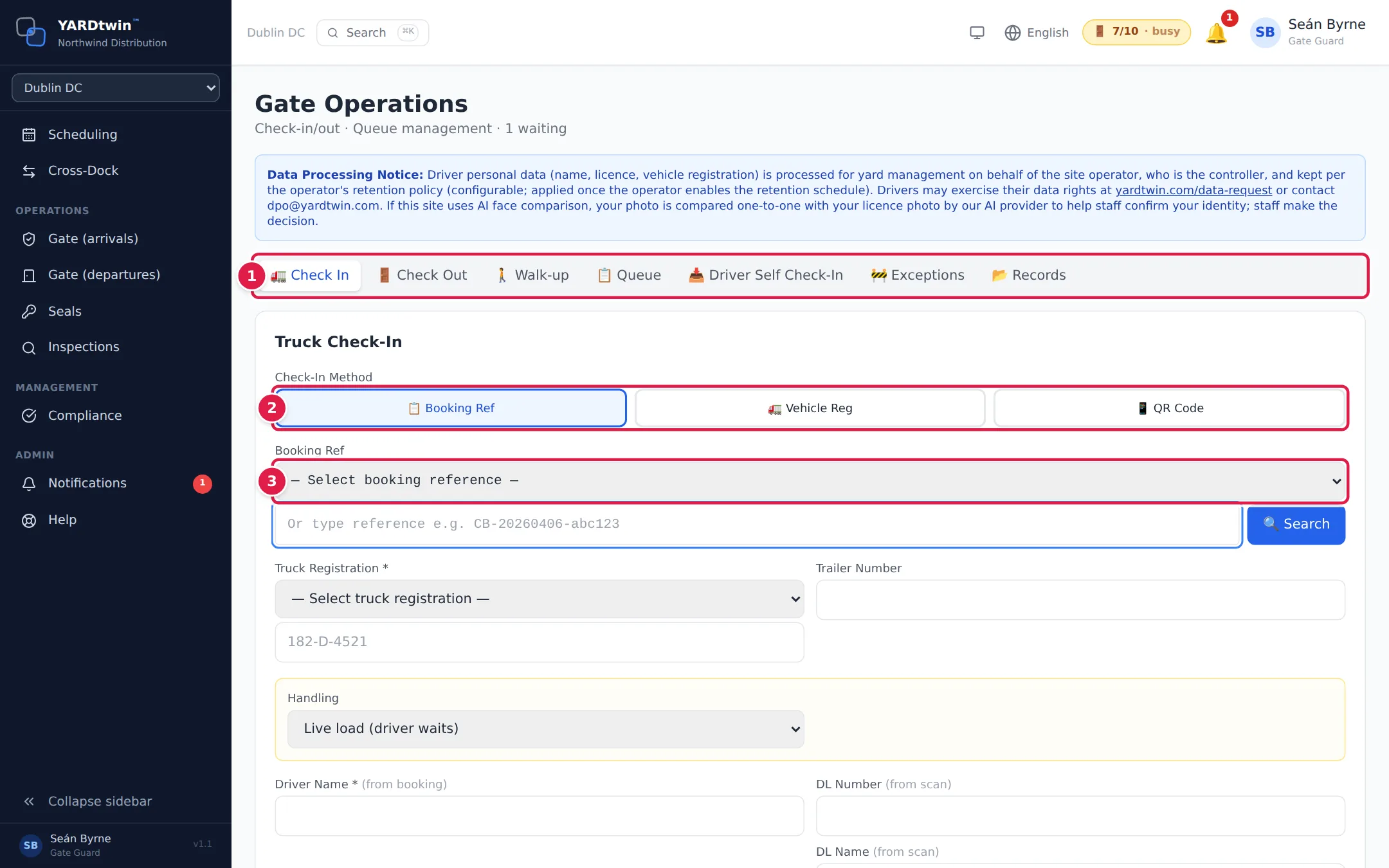
Check a truck in
On Check In, find the booking, check the Truck Registration, Trailer Number, handling and driver details that fill in from it, scan the driver's licence if your site asks, and tap ✅ Process Check-In. YARDtwin shows Check-in successful and the dock assigned to the truck. If a compliance check fails, it shows Checked in — compliance FAILED.
Check a truck out
On Check Out, type the Truck Registration and tap 🚪 Process Check-Out. YARDtwin checks the truck's departure clearance and asks for the outbound seal if it's needed.
The truck's check-out compliance checklists open first, before the truck is checked out. Complete them and the check-out carries on; Skip (or Not now) carries on without them. At a site that holds departures for mandatory checklists, a mandatory one that hasn't been completed opens first, and closing it with Not now — departure stays blocked stops the check-out: an administrator, ops manager or QA is taken to the outstanding-items box to release the truck with a written reason; anyone else sees Not checked out: a mandatory checklist for this truck is not completed.
The other tabs
- Queue lists trucks waiting at the gate.
- Driver Self Check-In lists check-ins drivers submitted themselves, waiting for you to approve.
- Exceptions lists drive-through reads the system couldn't settle, such as a plate with no booking. Link each one to a booking, queue it as a walk-in, or dismiss it.
- Records lets you search past gate movements by registration, direction and date.
You can open the classic screen at any site from its own address, /app/gate-classic, but Gate (arrivals) in the menu always opens the screen your site is set up for.
If something goes wrong
- "Checked in, but the files were not saved: … is not an accepted file type …" The truck is checked in; don't check it in again. The photos you attached were not kept, because one of them isn't a photo the gate stores (JPG, PNG, WebP or HEIC). When one file is refused, none of the batch is saved.