Sometimes a truck turns up at the barrier with no booking. If your site allows walk-up registration, you can put it on the yard record and check it in with one form. The office then accepts or rejects the arrival afterwards; a truck that's already at the barrier is never turned away for a planning reason.
Register the truck
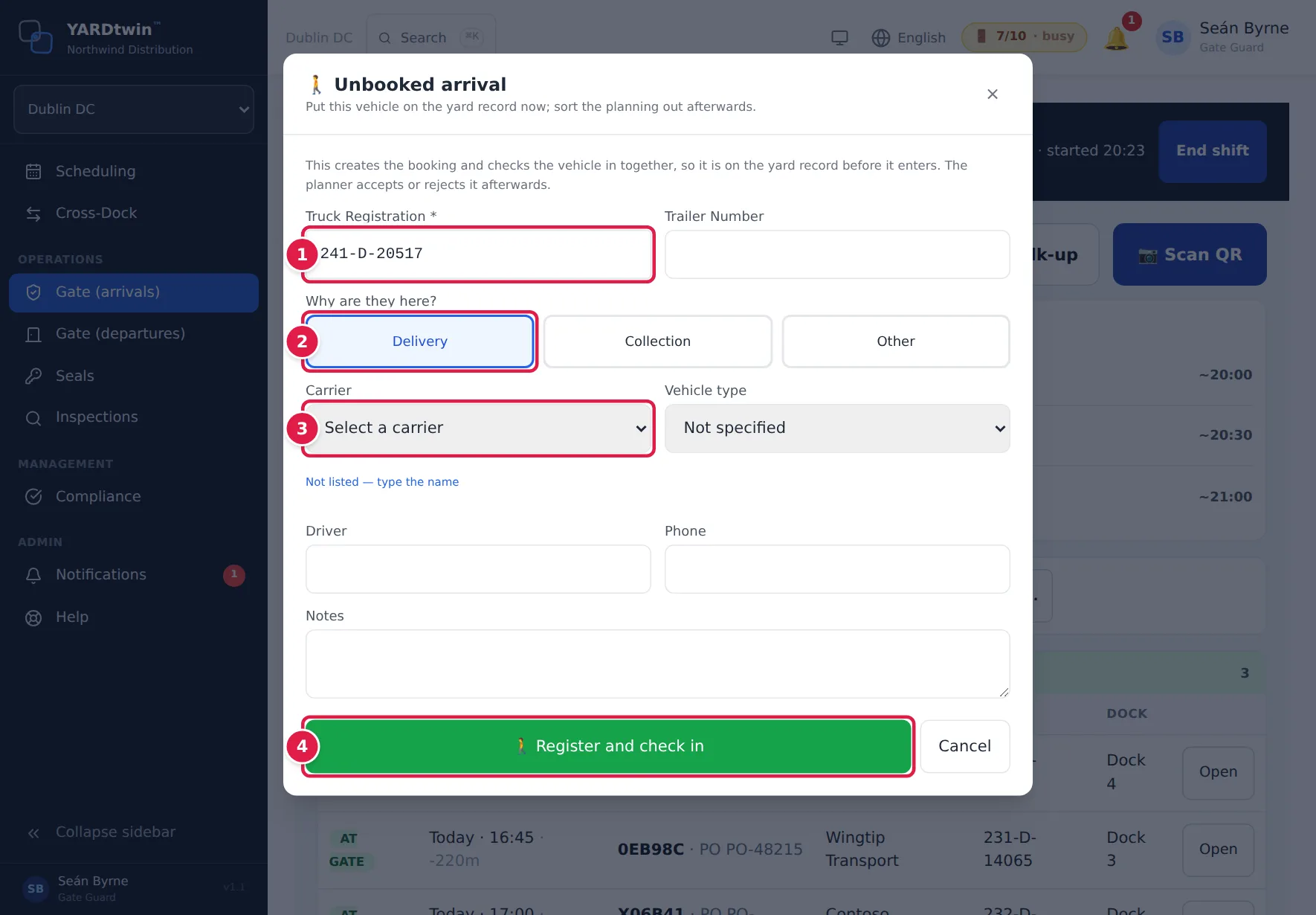
On the arrivals screen, tap 🚶 Walk-up (next to Scan QR). The Unbooked arrival form opens.
- Type the Truck Registration. It's the only field you must fill in. Add the Trailer Number if there is one.
- Under Why are they here?, pick Delivery, Collection or Other.
- Pick the carrier from Select a carrier. If it isn't listed, tap Not listed — type the name and type it as the driver gives it. Fill in the Vehicle type, Driver, Phone and Notes if you know them.
- Tap 🚶 Register and check in.
If your site asks for arrival photos, the form also has a photo section; take the ones it asks for before you register.
What happens next
- YARDtwin creates a booking for the truck, marked as a walk-up, and checks it in straight away. The truck appears in the arrivals list, on the yard map and on the departures board, and its detention clock starts like any other visit.
- Depending on your site's setting, the walk-up either gets no dock (the planner assigns one) or takes a free dock if there is one.
- The site's ops managers get a notification: Unplanned arrival — accept or reject.
- Planners see an Unplanned button on the scheduling board. It opens Unplanned arrivals, where they Accept the arrival (optionally choosing a dock) or Reject it with a reason. A rejection needs a reason of at least 5 characters, and sends the gate and the ops managers a notification, Unplanned arrival rejected, asking for the truck to be checked out at the gate. Accepting changes nothing at the barrier.
When the truck leaves, clear it like any other: see Clear a truck to leave.
No Walk-up button?
Walk-up registration is off unless your site switches it on. An administrator turns it on in Site Admin → Yard & gate → Gate, under Unbooked arrivals (Allow walk-up registration). See Gate settings.
While it's off, a truck with no booking can't be checked in from the gate tablet. Keep the truck outside the barrier and ask an ops manager or administrator to book it on the scheduling board. Once the booking exists, it appears in your arrivals list and you check it in as usual.
If something goes wrong
- "Walk-up registration is not switched on for this site": see No Walk-up button? above.
- "A vehicle registration of 2 to 20 characters is required": check the registration.
- "… already has an open visit (…) — check that one in instead": this truck already has a booking that's open at the site. Close the form, find that booking in the arrivals list and check it in from there.
- A red panel says Check-in blocked: the driver or vehicle was stopped by the site's screening (roster block, induction or watchlist). See Problems at the gate.
- "The walk-up could not be registered": something else stopped it, for example the carrier failed the site's carrier vetting. Read the message, then ask the office.