You sign in at yardtwin.com/login with three things: your company's Organisation ID, your e-mail address and your password. Your invitation e-mail tells you the Organisation ID.
Sign in
- Type your Organisation ID, for example northwind. It's in your invitation e-mail, labelled Your Organisation ID (needed to sign in).
- Type your Email.
- Type your Password.
- Click Sign In.
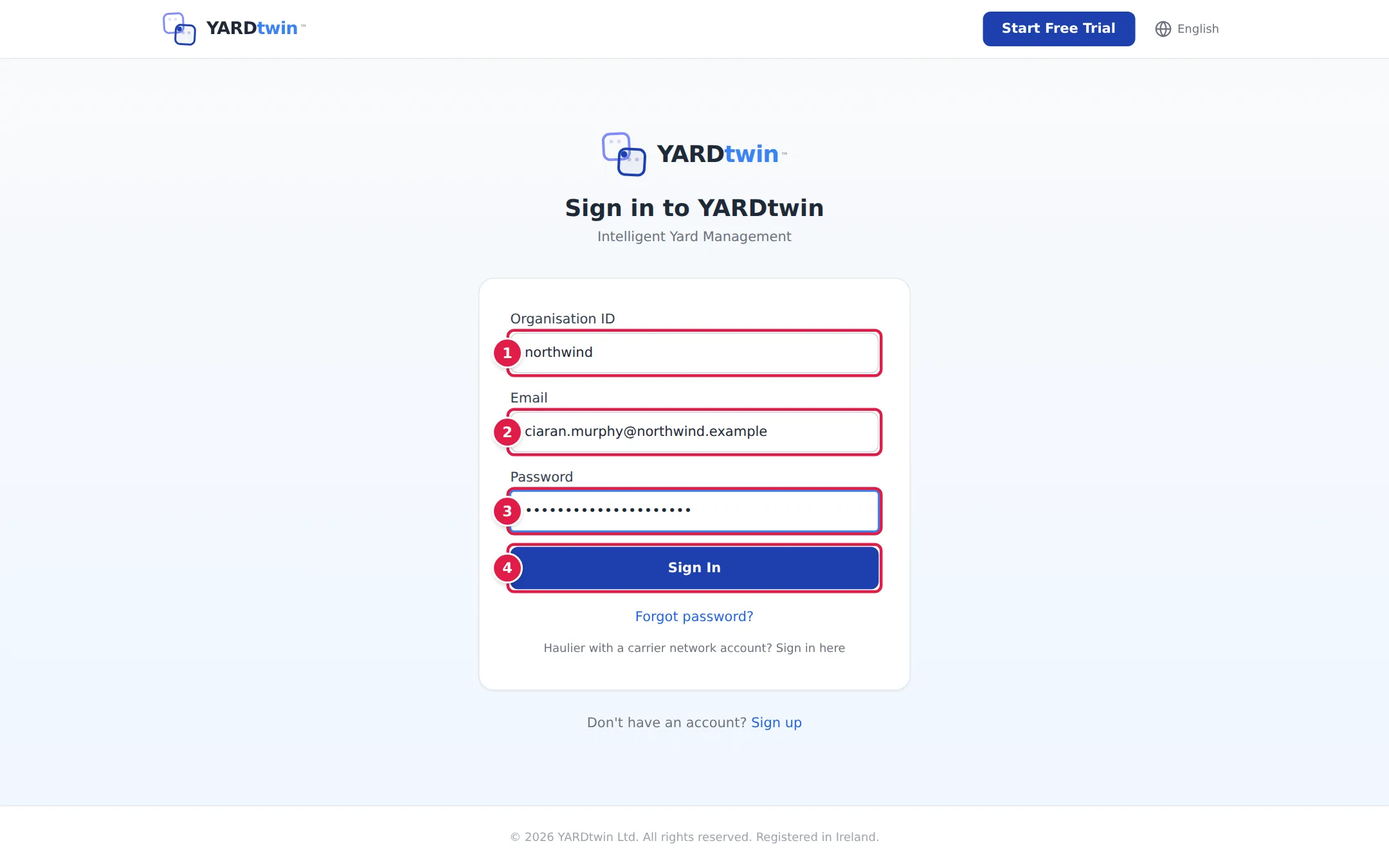
YARDtwin opens the page for your role: the gate for gate operators, the dock board for warehouse operations staff, the task list for yard jockeys, the scheduling board for most office roles and for drivers. See Roles. Next time, it remembers your Organisation ID and e-mail on this device, so you only need your password.
Email, Password and Sign In stay greyed out until you type an Organisation ID.
If you're a haulier with a carrier network account, use the link Haulier with a carrier network account? Sign in here under the form. See The carrier portal.
If your company uses single sign-on
Your administrator may have connected YARDtwin to your company's sign-in. You'll see one or more extra buttons once you've typed your Organisation ID:
- Sign in with SSO (your company) appears when your organisation uses SAML single sign-on. It takes you to your company's sign-in page and back. If your organisation requires it, the form says Your organisation requires SSO login, and your password won't work.
- Google and Microsoft appear under or continue with when they're switched on.
- Google signs you in to the YARDtwin account with the same e-mail address as your Google account, and opens the page for your role, as a password sign-in does.
- Microsoft only works after you've linked your Microsoft account to YARDtwin. Sign in with your password once, then link it under Profile & Settings. See Your profile.
Two-step sign-in
If you've turned on two-step sign-in, YARDtwin asks for a second code after your password:
- Open your authenticator app (for example Google Authenticator or Microsoft Authenticator) and find the 6-digit code for YARDtwin.
- Type it into Authentication code. If you don't have your phone, type one of your backup codes instead.
- Click Verify code.
Back to login takes you back to the password form. You have five minutes to type the code after your password.
When your organisation requires two-step sign-in
Your administrator can make two-step sign-in compulsory for everyone. If you haven't set it up yet, the next time you sign in you see Set up two-factor authentication instead of the app:
- Scan the QR code with your authenticator app, or type in the key shown under it.
- Type the 6-digit code from the app and click Verify code.
- Save the backup codes shown, then continue. You're signed in.
If you sign in with single sign-on (SSO) or Microsoft, YARDtwin asks for its own code only when your company's identity provider hasn't already confirmed a second factor.
Keep the backup codes you were given when you turned on two-step sign-in somewhere safe, away from your phone. Each one gets you in once if you lose your phone. See Your profile.
Forgotten your password
On the sign-in page, click Forgot password?.
- Type your Organisation ID.
- Type your Email address.
- Click Send Reset Link.
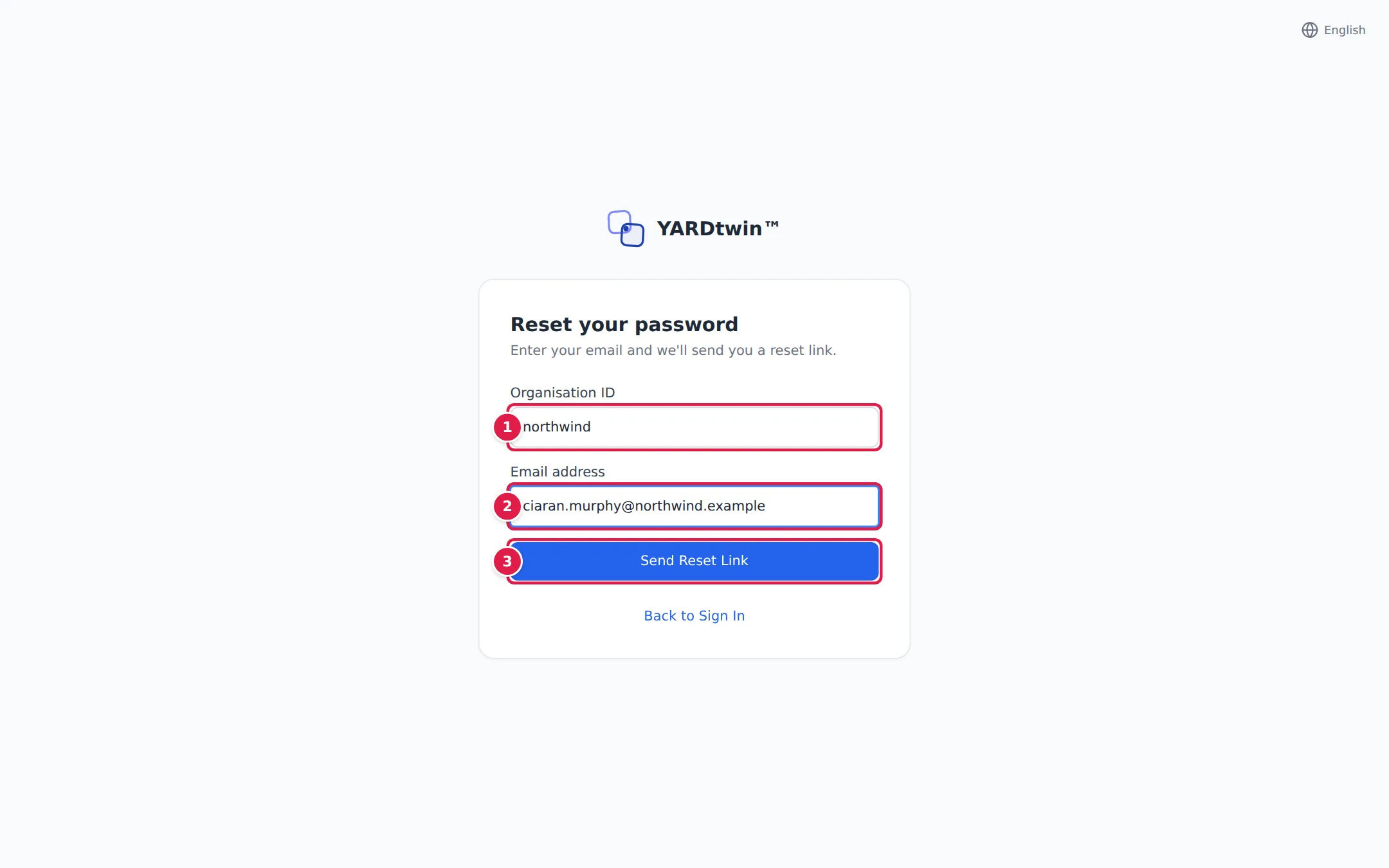
YARDtwin e-mails you a link. Open it and you reach Set new password:
- Type your new password in New Password. Unless your organisation has set stricter rules, it needs at least 12 characters, with an uppercase letter, a lowercase letter and a digit, and it can't contain the first part of your e-mail address.
- Type it again in Confirm Password.
- Click Reset Password, then Sign In with the new password. Sign In and Back to Sign In take you to the sign-in page.
The reset link works for one hour. If you ask for a second link within five minutes, no new e-mail is sent, and the first link still works.
Sign out
Click your name at the top right, then Sign Out.
Automatic sign-out
YARDtwin signs you out if you don't touch the screen, mouse or keyboard for a while. This stops the next person at a shared gate or dock tablet working under your name.
- By default, administrators and ops managers are signed out after 2 hours. Every other role is signed out after 15 minutes.
- On the gate, warehouse and yard screens, the limit is never more than 15 minutes, whatever your role.
- Your administrator can change the times for each role in Site Admin → Shifts & timeout, anywhere from 5 minutes to 2 hours. See Site Admin.
Thirty seconds before you're signed out, a yellow bar appears at the bottom of the screen: Signing you out in 30s due to inactivity. Click Stay signed in, or just move the mouse.
If you're signed out, YARDtwin shows Session Expired. Click Sign In Again. The sign-in page then says why, once: for example Signed out after 15 min idle. Please sign in again.
YARDtwin's server also ends a session that has had no activity for a while, even if a browser was left open somewhere. It never does this sooner than the screen timeout above (it waits 5 minutes longer), unless your administrator has set a shorter time in Site Admin → Profile → Sign-in policy. The sign-in page then says You were signed out after a period of inactivity. Please sign in again. Sign in again as usual.
If something goes wrong
- "Login failed. Please check your credentials." or "Invalid credentials": the Organisation ID, e-mail or password is wrong, or your account has been deactivated. Check the Organisation ID in your invitation e-mail, then try again. If it still fails, ask your administrator to check your account.
- "Too many failed attempts. Try again in 15 minutes." (or in … minute(s)): after five wrong passwords, sign-in is locked for 15 minutes. Your organisation can make this stricter (fewer attempts or a longer lock), never looser. Wait, or use Forgot password?. Completing a password reset also lifts the lock.
- "Your organisation requires SSO sign-in. Use the SSO button to sign in.": your company signs you in through its own system. Use the Sign in with SSO button, not your password.
- "No account was found for you in this organisation. Ask your administrator for access." after Google: the Google account's e-mail address has no YARDtwin account in this organisation, or the Organisation ID is mistyped. Check the Organisation ID, use the Google account with the address you were invited with, or sign in with your password.
- "Google authentication failed": Google's answer could not be checked. Try again in a moment, or sign in with your password.
- "Sign in with your password first, then link Microsoft from your profile": your Microsoft account isn't linked yet. See Your profile.
- "The password must have …": the new password doesn't meet your organisation's rules. The message lists what's missing, for example an uppercase letter, a digit.
- "Invalid code": the two-step code was wrong or had expired. Codes change every 30 seconds, so type the current one. After five wrong codes in 15 minutes you see Too many wrong codes. Try again in … minute(s).
- "MFA session expired. Please login again.": more than five minutes passed between your password and the code. Click Back to login and start again.
- "Your organisation requires two-factor authentication. Please sign in again.": your administrator made two-step sign-in compulsory. Sign in again and set it up when asked.
- "Password must be at least 12 characters" or "Passwords do not match": fix the new password and try again.
- "Invalid Reset Link": the link is incomplete or has expired. Click Request New Reset Link.
- No reset e-mail arrives: check your spam folder. If your company uses single sign-on, there's no YARDtwin password to reset. Sign in with the SSO button instead.
- "Subscription expired. Please renew your plan.": your company's subscription has ended. Ask your administrator to contact admin@yardtwin.com.
For more, see Troubleshooting.