An electronic signature in YARDtwin ties a decision to one named person. When you sign, you re-enter your own YARDtwin password, and YARDtwin records who signed, what the signature means, when, and exactly what was signed. Each signature is linked to the one before it, so a record that was changed afterwards no longer fits the chain. YARDtwin's electronic signatures are designed for EU GMP Annex 11 and FDA 21 CFR Part 11 requirements.
You sign:
- when you sign a truck out at the gate (the departure sign-off below). See also Sign a truck out;
- when you sign the consignment note as consignor, at the same time as the departure;
- on the storage floor, for QA holds, quarantines, releases and batch splits, where your site requires e-signatures. See Track batches on the storage floor.
Sign a departure
The signing panel is on the right of the gate's departure screen.
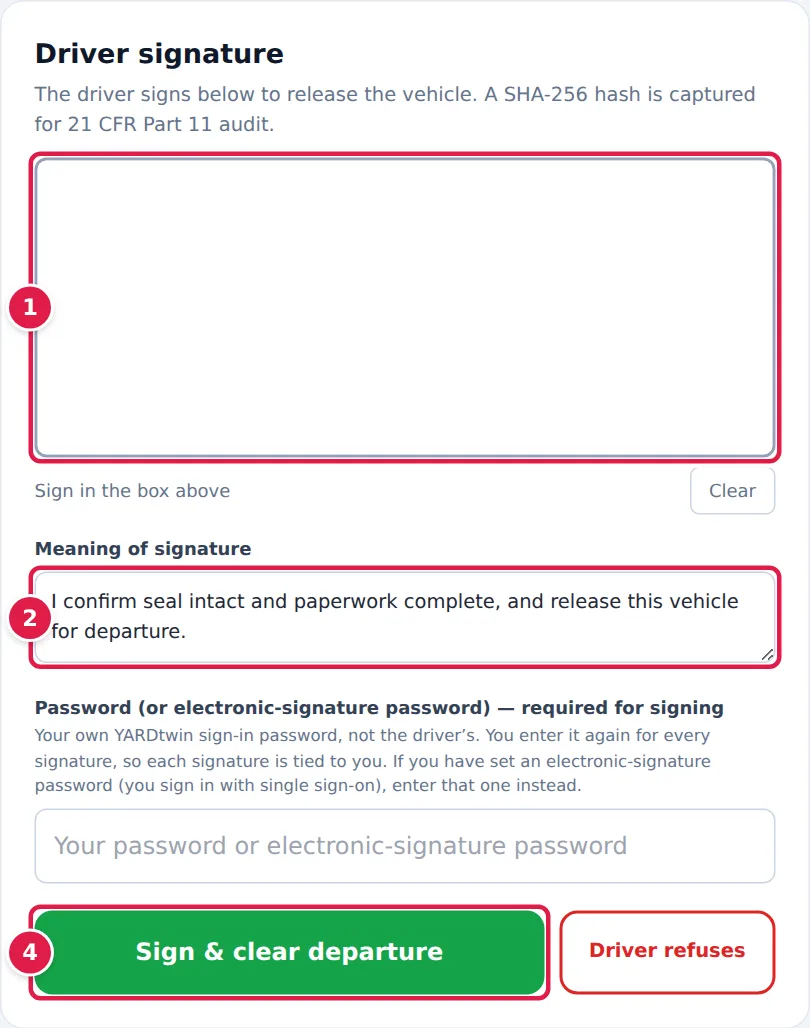
- The driver signs in the box with a finger or stylus. Tap Clear to start again.
- Meaning of signature is filled in with I confirm seal intact and paperwork complete, and release this vehicle for departure. You can change the wording; it needs at least 10 characters. It's kept on the record as your comment. The meaning of the signature itself is fixed by YARDtwin: I confirm this load has passed the site's departure checks and is cleared to leave the site. When the truck stays on site for its next delivery, it's I confirm this delivery has passed the site's departure checks; the vehicle stays on site for its next delivery.
- Under Operator login password — required for signing, enter your own YARDtwin password: the one you signed in with, not the driver's.
- Tap Sign & clear departure.
The screen confirms Departure cleared with the time it was Signed at and the signature's Hash.
If the driver won't sign, tap Driver refuses, pick the reason and tap Record refusal. The refusal is recorded against the booking, and the screen asks for a paper CMR instead.
What the signed record holds
The signature locks a record of:
- who signed, with their name and role at that moment;
- when they signed;
- the fixed meaning, and your comment;
- the departure checks as they stood when you signed;
- a SHA-256 fingerprint of the driver's signature image;
- the hash of the previous signature at the same site.
From all of this YARDtwin calculates the signature's own SHA-256 hash.
The signature chain. Each signed departure carries the hash of the one before it at the site. If anyone changed a signed record later, its hash would no longer match the next record's link. You can see both hashes in the audit log: filter Action to departure_signed and open an entry.
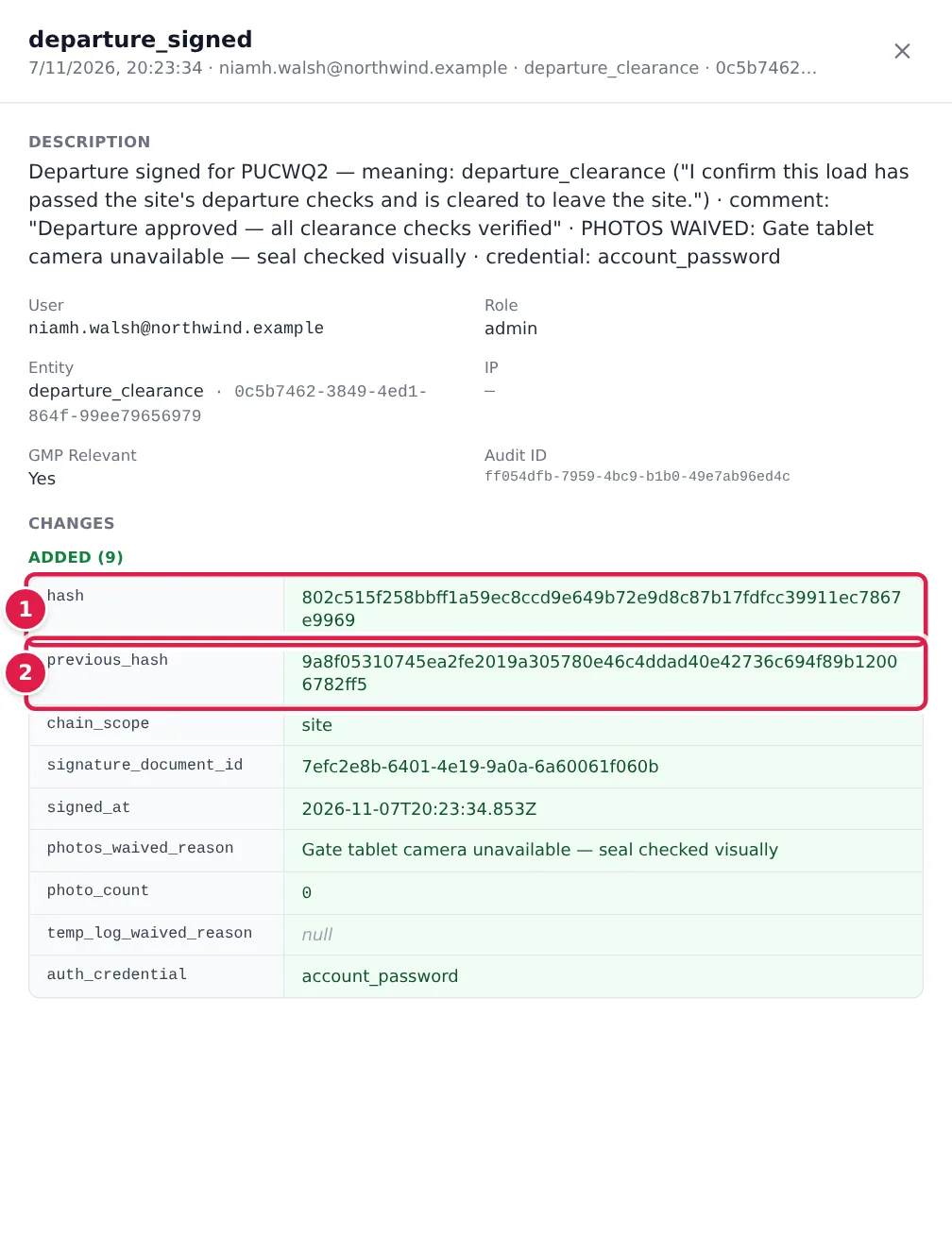
- hash: this signature's hash.
- previous_hash: the hash of the previous signature at the site.
Once it's signed, it stays as signed. A signed departure can't be edited. The driver's signature image is filed in Documents as Departure signature — and the booking code, already verified, and it can't be rejected, archived or removed.
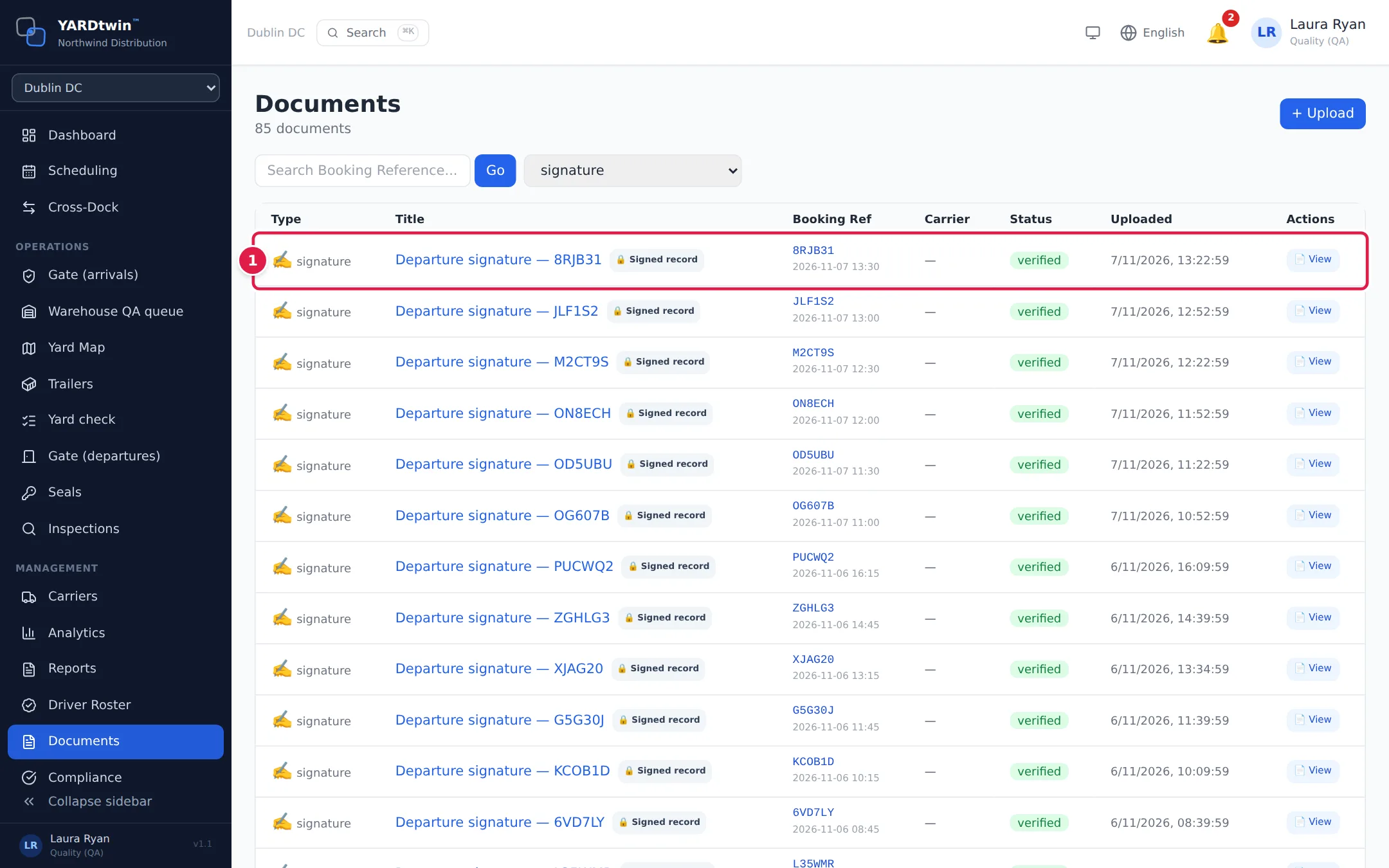
- Each signed departure has its signature image, already verified. Click the title to see it.
Rules that protect a signature
- One person, one signature. An account marked as shared can't sign.
- Only the right roles. Departures are signed by gate staff and the roles above them: gate guards, operations, yard and ops managers, QA and administrators.
- Too many wrong passwords. After 5 wrong passwords in 15 minutes, signing is locked for 15 minutes. Every failed attempt is recorded.
- One signature per departure. If two people sign the same departure at the same moment, only the first counts.
Signing the consignment note
For an outbound load, the departure screen can also show the consignment note (CMR). Tick Also sign the consignment note as consignor (box 22) before you sign; the same password applies the consignor's signature, with the meaning shown on screen. The driver's Record acknowledgement of taking over the goods is a credential-based acknowledgement, not a Part 11 electronic signature.
If something goes wrong
- "Signature required": the driver hasn't signed in the box.
- "Password re-auth failed": the password isn't your YARDtwin login password. Re-enter it.
- "Too many wrong passwords. Signing is locked for … minute(s)." Wait, or ask a colleague to sign.
- "This account is marked as shared. …": sign in with your personal account.
- "A … cannot sign a departure clearance": your role can't sign departures.
- "meaning-of-signature string required (min 10 chars)": the Meaning of signature box is too short.
- "Already signed": someone else signed this departure a moment ago.
- "This departure clearance is signed and can no longer be changed"
- "Departure is blocked — this cannot be overridden at the gate: …": a hold that only QA or the dock can clear is still open, for example an open warehouse hold. See Clear a hold in the QA queue.