A scheduled report e-mails a summary to the people you choose, on a regular basis. The recipients don't need a YARDtwin login, so it suits carriers, customers and managers who just want the numbers, for example an SLA scorecard for a quarterly review.
Steps
Open Site Admin, click Reports, then click + New subscription.
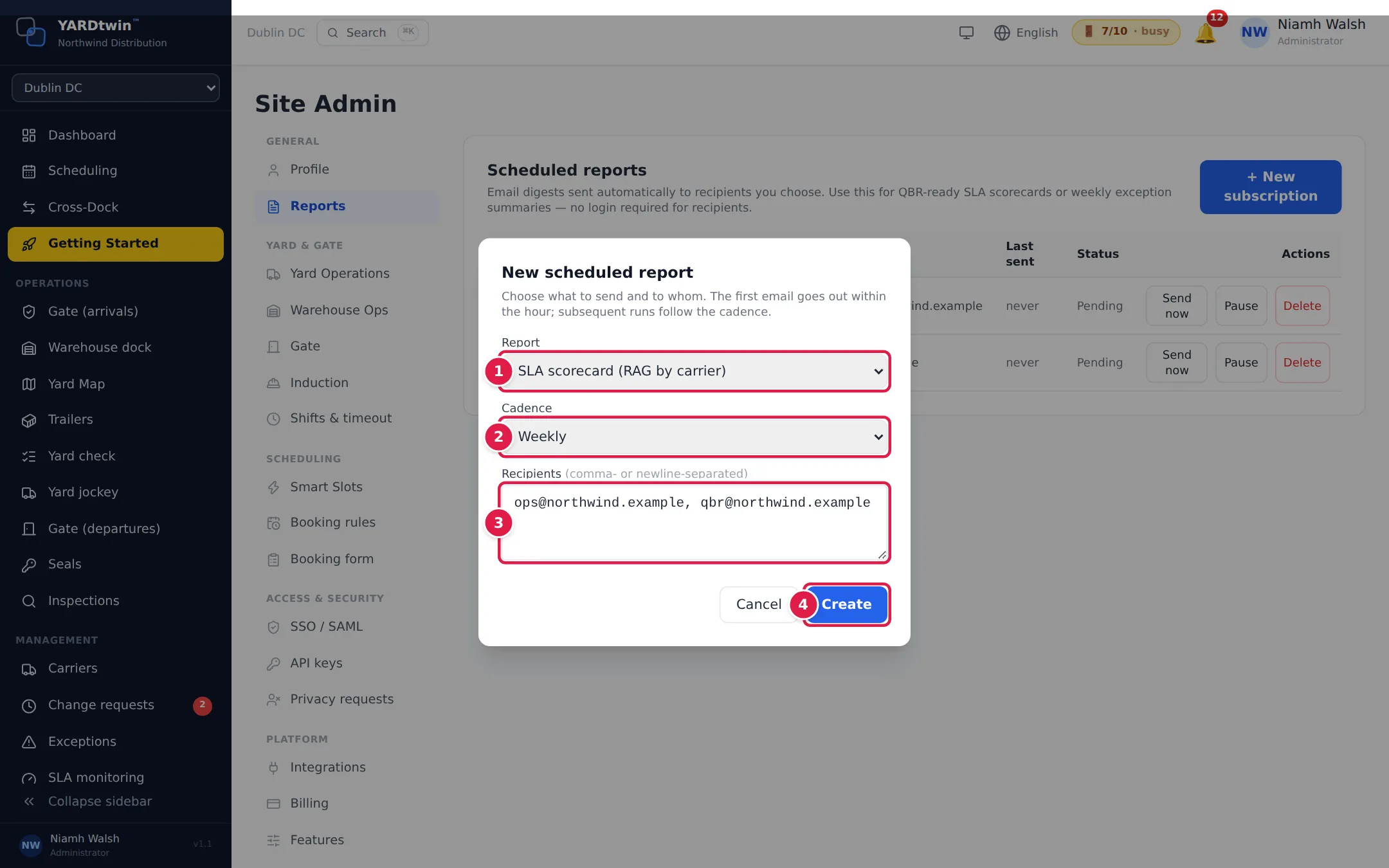
- Choose the Report:
- SLA scorecard (RAG by carrier): each carrier's performance, rated red, amber or green. Its on-time figure is the dashboard's On-Time Arrival %: completed visits whose truck arrived no more than 15 minutes after its slot started, in the site's time.
- Exceptions digest (holds, no-shows, late cancels).
- Custom report (report builder): one of your saved reports. Choose it under Saved report. Build and save it in Reports first; see Build a report.
- Choose the Cadence: Daily, Weekly or Monthly.
- Enter the Recipients' e-mail addresses, separated by commas or on separate lines.
- Click Create.
What you'll see
Subscription created. First email goes out within the hour. After that, it follows the cadence.
The list shows each subscription's Report, Cadence, Recipients, when it was Last sent and its Status: Pending until the first send, ok after a successful send, or the error if a send failed. Each row has:
- Send now: send it straight away, for example to check how it looks.
- Pause and Resume: stop and restart the e-mails without losing the set-up. A paused report shows paused.
- Delete: remove the subscription.
Tip
To see the same figures on screen, use SLA monitoring and Exceptions.