Warehouse Ops decides how the dock screens behave at this site: where pallets are scanned, what the dock team must record, and what must be checked before a truck may leave. Each setting is off until you switch it on, and every change is recorded in the audit trail.
Open Site Admin and click Warehouse Ops.
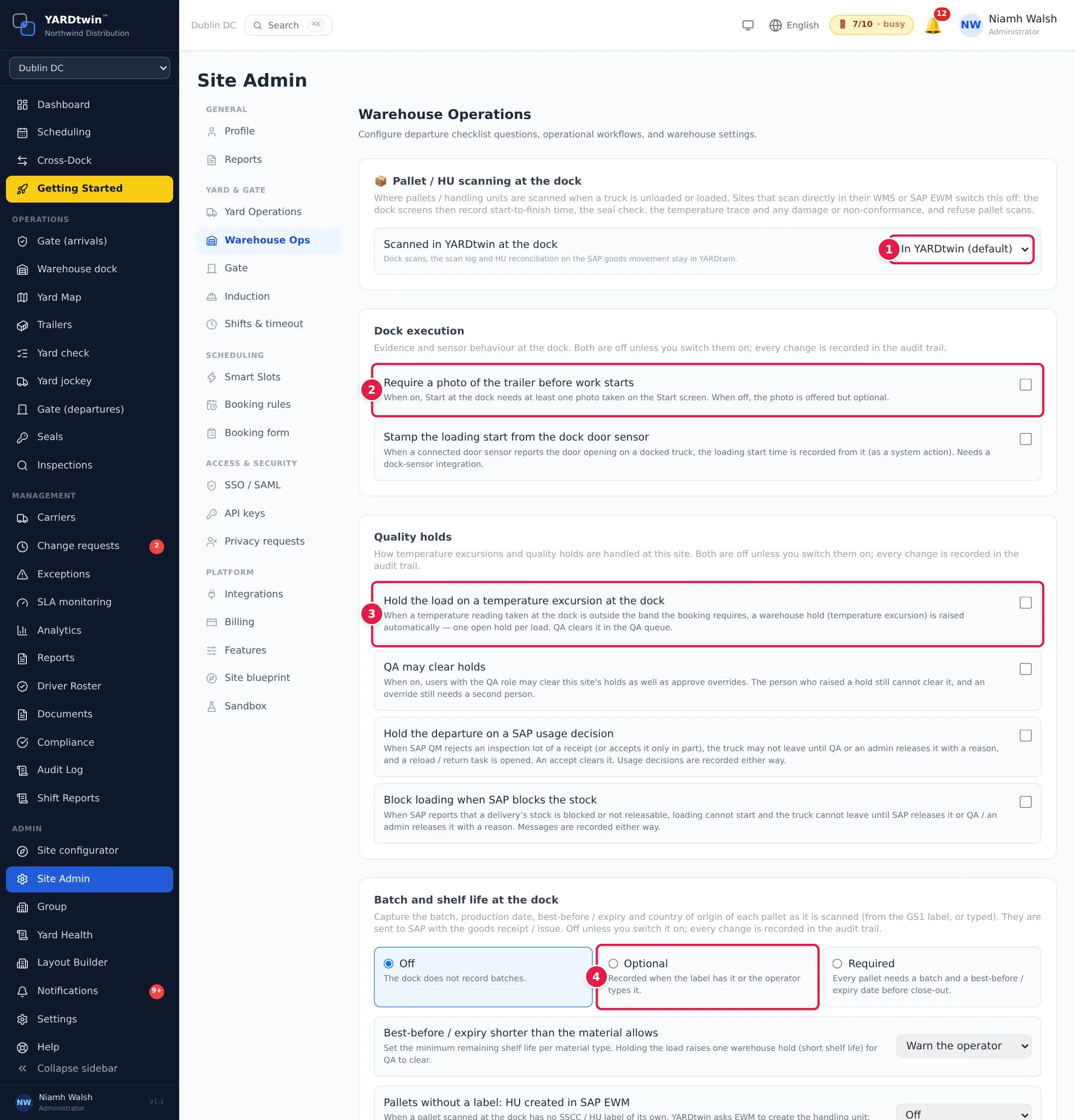
- Pallet / HU scanning at the dock. Leave it In YARDtwin (default) if your dock team scans pallets on the YARDtwin dock screen. If you scan them in your WMS or SAP EWM instead, choose In followed by that system's name: the dock screen then records the start and finish times, the seal check, the temperature trace and any damage, and stops taking pallet scans.
- Dock execution. Require a photo of the trailer before work starts makes a photo compulsory on the Start screen. Stamp the loading start from the dock door sensor takes the start time from a connected door sensor, if you have one.
- Quality holds. Hold the load on a temperature excursion at the dock raises a hold automatically when a reading is outside the booking's temperature band. QA may clear holds lets QA users clear holds; the person who raised a hold still can't clear it. Hold the departure on a SAP usage decision keeps a truck in the yard when SAP rejects the goods' inspection lot, until QA or an admin releases it. Block loading when SAP blocks the stock: when SAP reports that an outbound delivery's stock is blocked or not releasable, loading can't start (the dock's Start is greyed out, Blocked in SAP) and the truck can't leave until SAP releases it, or QA or an admin releases it with a reason on the booking (SAP loading block). A load already under way when the block arrives is flagged to QA and the operations manager to stop. SAP's messages are recorded whether or not this is on; it never affects inbound loads. Your SAP team sets up which SAP events send the block.
- Batch and shelf life at the dock. Off, Optional or Required: whether the dock records each pallet's batch, dates and country of origin, read from the GS1 label or typed. Under it, choose what happens when the best-before date leaves less shelf life than the material allows: Warn the operator or Hold the load for QA. Set the minimum per material type in Yard Operations.
These settings save as soon as you change them: Setting updated.
Held loads go to the QA queue. See Clear holds in the QA queue.
The departure checklist
The Departure Checklist Questions are the checks confirmed on the Gate (departures) page before a truck is released. Scroll down to them.
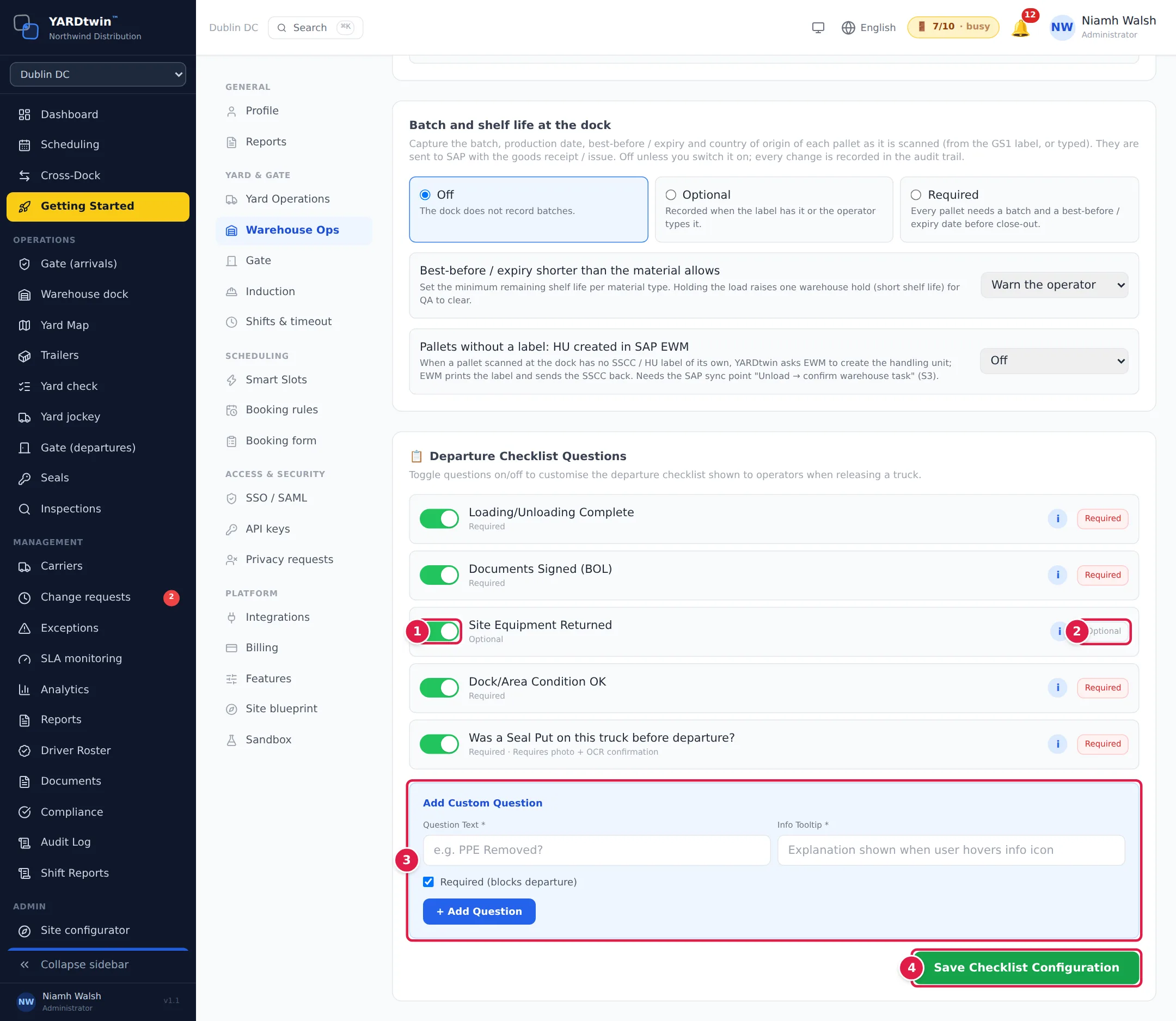
- Switch a question on or off. Five questions come as standard: Loading/Unloading Complete, Documents Signed (BOL), Site Equipment Returned, Dock/Area Condition OK and Was a Seal Put on this truck before departure? (which asks for a photo of the seal). Hover over i to see what each one means.
- Required or Optional. Click to change it. A required question must be answered before the truck can leave.
- Add Custom Question. Enter the Question Text and an Info Tooltip, tick Required (blocks departure) if it must be answered, and click + Add Question. Remove a custom question with ×.
- Click Save Checklist Configuration.
The checklist only changes when you click Save Checklist Configuration. Until then, Unsaved changes shows next to the button. If you click another Site Admin section first, YARDtwin asks: Discard changes throws them away, Keep editing takes you back. Your browser also asks before you reload or close the page. Going to another page from the menu, or with the browser's Back button, doesn't ask, so save first. If you switch site with unsaved changes, YARDtwin asks whether to discard them and load the new site's checklist. If you keep them, they can only be saved after you switch back to the site they're for.
See Release a truck at departure for how the gate uses it.