Use Inspections to record a structured check on a truck, a trailer or a piece of site equipment, such as a forklift. Each check is a list of items you pass or fail, with photos and notes. The result and your name are recorded for the audit trail.
The page
- + New Inspection starts a check.
- Overdue lists site assets whose regular inspection is due, with a count.
- Search by truck, driver or asset, and filter by status and type. Export downloads the list.
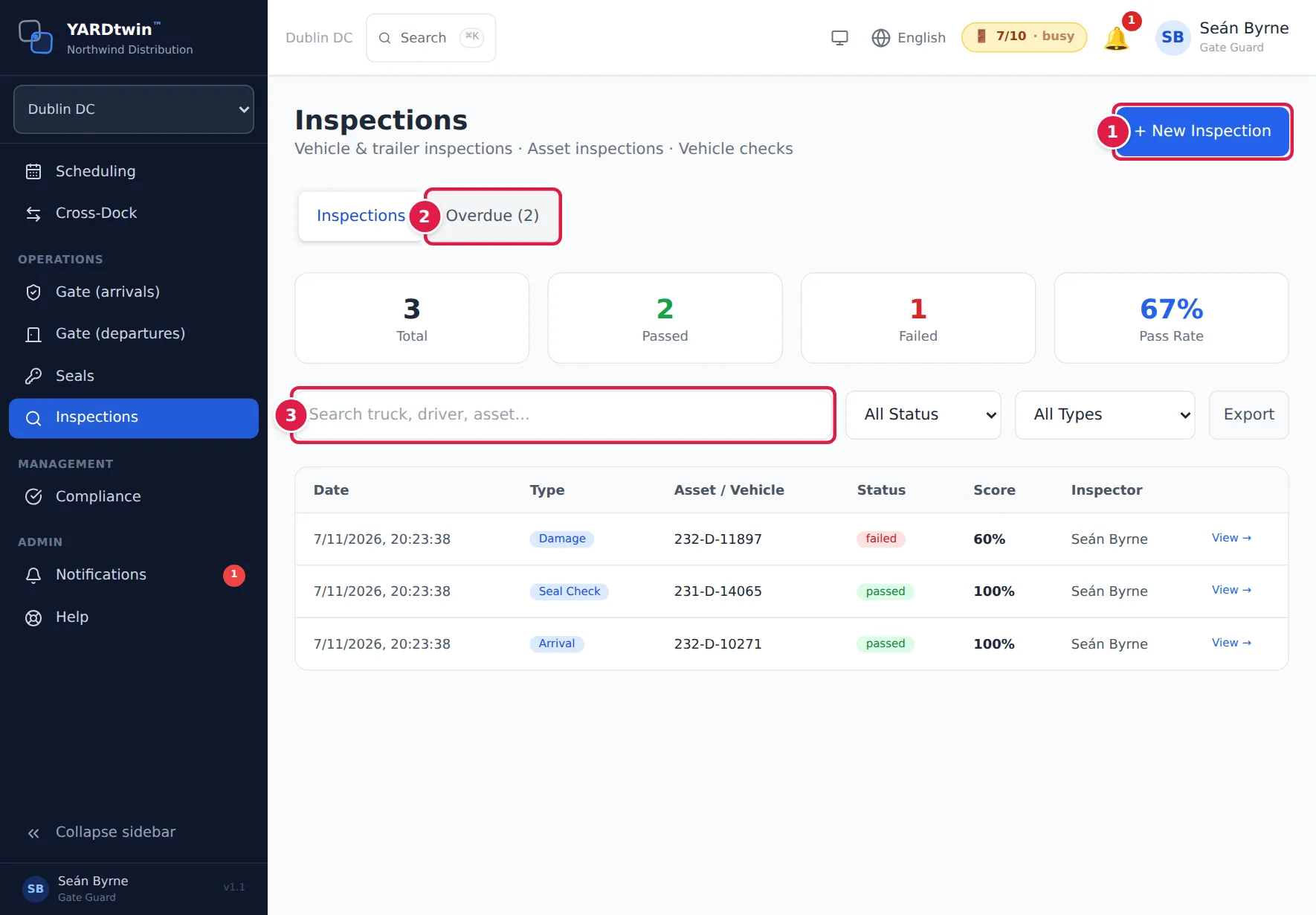
The cards show the Total, Passed and Failed inspections and the Pass Rate. Below them, each inspection shows its date, type, the asset or vehicle, status, score and inspector. Click one to see its item-by-item results, defects and corrective actions.
Inspect a vehicle
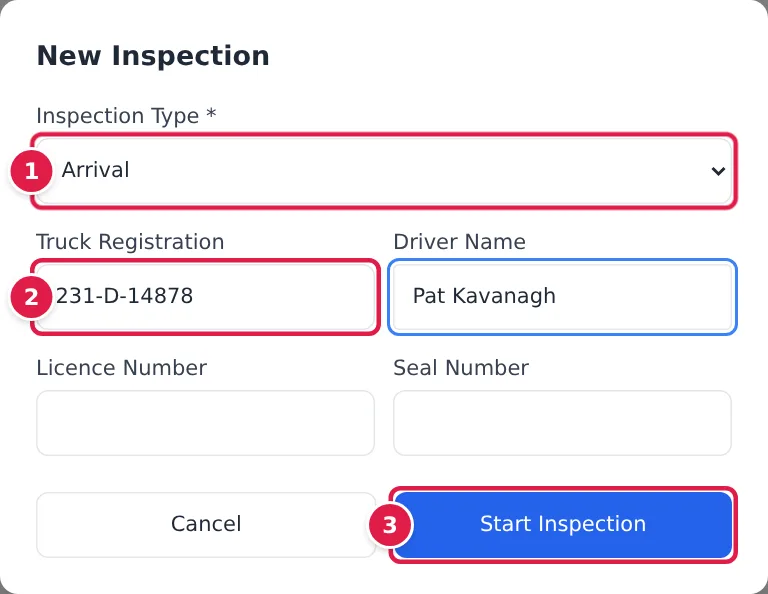
- Tap + New Inspection and pick the Inspection Type: Arrival, Departure, Safety, Seal Check, Temperature, Damage, Regulatory or Asset Inspection.
- Fill in the Truck Registration, Driver Name, Licence Number and Seal Number you're checking. For an Asset Inspection, pick the Asset instead, and the Inspection Template to use.
- Tap Start Inspection. The Inspection Checklist opens.
- For each item, tap ✓ Pass or ✗ Fail. Add a photo where it helps; an item marked Take photo (required) needs one.
- Note any defects and what was done about them in Notes / Corrective Actions.
- Tap Submit Results. It turns active once every item has a pass or a fail.
The inspection is passed only if every item passed; otherwise it's failed, and the failed items are listed as defects. The score is the share of items that passed.
Without a template, the checklist uses a standard set of vehicle checks: tyres, lights and reflectors, brakes, fluid leaks, body and chassis, safety equipment, controls, and horn.
Leave an inspection unfinished
The inspection is recorded the moment you tap Start Inspection. If you tap Cancel (or outside the checklist), YARDtwin asks Discard this inspection?
- Keep for later: the checklist closes and the inspection stays on the list as in progress. Tap ▶ Resume on its row to finish it.
- Discard: pick why (Started in error, Vehicle left before it was finished, Duplicate or Other, with detail), and tap Discard. The inspection stays on the list as cancelled, with the reason, and the discard is written to the GMP audit log. It isn't deleted, and it can't be completed afterwards: start a new one.
Only the inspector who started an inspection, or an administrator, ops manager or QA, can discard it.
Overdue equipment
Open the Overdue tab to see the site's assets that are past their inspection frequency, or have never been inspected. It shows the Total Assets, how many are Overdue and the Compliance Rate. Tap Inspect Now on an asset to start its inspection.
Assets and their inspection frequency are set up by an administrator in Settings.
If something goes wrong
- Start Inspection stays grey. For an Asset Inspection, pick an asset first.
- "No assets configured.": the site has no assets yet. Pick another inspection type, or ask an administrator to add assets.
- "Please complete all checklist items before submitting.": give every item a Pass or Fail.
- "Failed to start inspection" or "Failed to complete inspection": try again; if it keeps failing, check your connection.
- "Only the inspector who started it, or admin, ops_manager, qa, can abandon this inspection": ask the inspector who started it, or a supervisor, to discard it.
- "This inspection was abandoned and can no longer be completed": it was discarded. Start a new inspection.