The Integrations tab connects YARDtwin to your other systems. A connected WMS or ERP can create bookings in YARDtwin, and YARDtwin sends yard events back, such as arrival, docking and departure. The tab is also where you register gate hardware: cameras, barriers, kiosks and weighbridges.
Integrations are part of the Professional and Enterprise plans. See Choose a plan and pay.
The full technical reference for your IT team or integrator, with field mappings and sample messages, is at yardtwin.com/developers.
Connect a system by webhook
Open Site Admin and click Integrations.
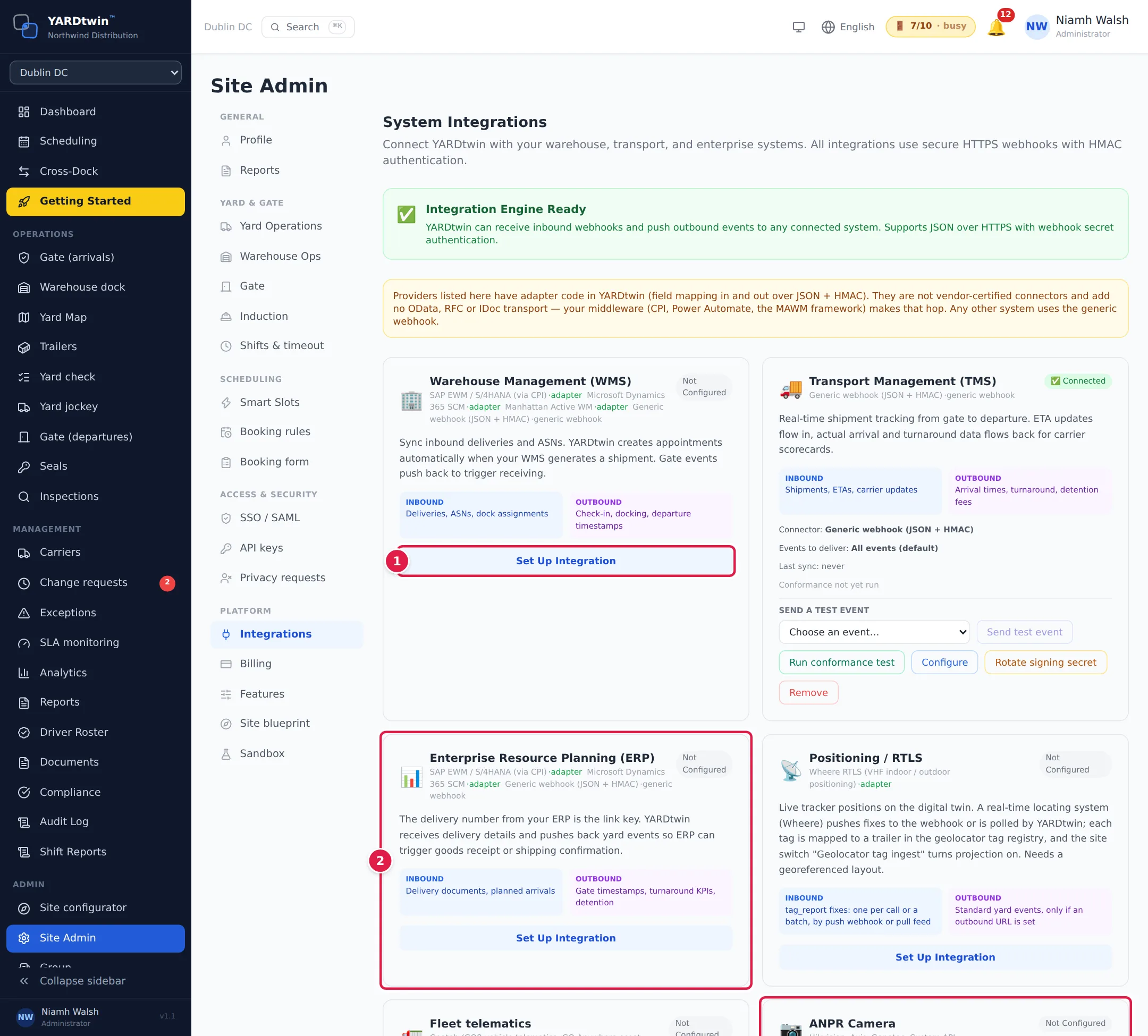
- On the card for the kind of system you want to connect, click Set Up Integration.
- Each card says what flows Inbound (into YARDtwin) and Outbound (back to your system). The WMS, TMS and ERP cards list the systems YARDtwin has ready-made field mappings for; any other system uses the generic webhook.
- The ANPR Camera and Temperature Sensors cards take readings from devices, one way only.
In the set-up window:
- Enter an Integration Name and choose the Provider.
- Optionally enter an Outbound Webhook URL, where YARDtwin will send yard events. Leave it blank if you only need to send data into YARDtwin.
- Under Events to deliver, keep All events (default) or untick it and choose the events you want.
- Click Create Integration.
YARDtwin shows the integration's webhook URL and its secret. The secret is shown only once: copy it into your system's secret store. Your system sends its messages to the URL with the secret in the X-Webhook-Secret header. The URL has the form shown under Your Inbound Webhook Endpoint at the bottom of the tab.
The ready-made providers are field mappings in YARDtwin, not vendor-certified connectors. Your middleware still carries the messages to and from your system.
Once connected, the card shows ✅ Connected, the Last sync and any Last error, with these buttons:
- Run conformance test: runs a set of checks on the integration and shows PASS or FAIL.
- Send a test event: sends one sample event to your system.
- Configure: change the name, provider, URL or events.
- Rotate signing secret: issues a new secret. Messages signed with the old one stop being accepted straight away, so update your system at once.
- Remove: deletes the integration and its secret.
Connect SAP EWM
Connect SAP — guided setup walks you through the SAP connection and checks it is ready. Click it to open. Each step gets a green tick when it is done.
If the connection doesn't exist yet, the first step shows Create SAP EWM connection: click it. YARDtwin then shows the inbound webhook URL and, this once, its signing secret. Copy the secret for your middleware straight away.
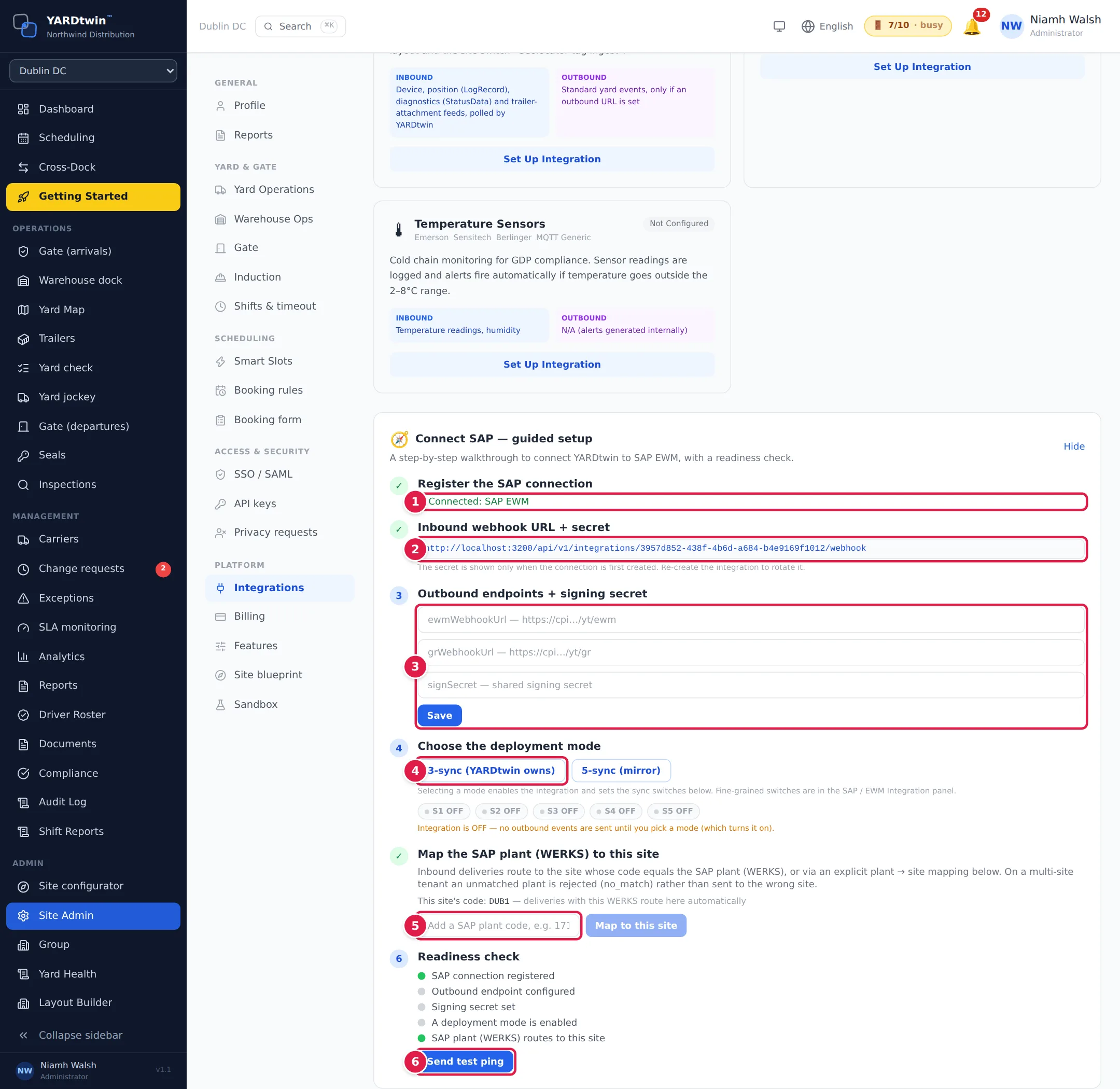
- Register the SAP connection: once registered, this shows Connected and the connection's name.
- Inbound webhook URL + secret: the address your middleware sends SAP messages to. The secret is shown only when the connection is first created.
- Outbound endpoints + signing secret: enter the addresses your middleware (for example SAP CPI) gives you for EWM messages and goods movements, and the shared signing secret. Click Save.
- Choose the deployment mode: 3-sync (YARDtwin owns) sends inbound deliveries and goods receipts only; 5-sync (mirror) mirrors every yard movement into EWM. Picking a mode switches the integration on. Until then the step says Integration is OFF.
- Map the SAP plant (WERKS) to this site: deliveries go to the site whose code matches the SAP plant, shown as This site's code. Add other plant codes if needed, and click Map to this site.
- Readiness check: each line turns green when its step is done. Send test ping checks YARDtwin can reach your SAP endpoint.
Below the guided setup:
- This site's SAP connection (optional): only if this site's plant posts to a different SAP system from the rest of your company.
- SAP / EWM Integration: the integration's ON/OFF switch, the Deployment mode, the five sync points (S1–S5) one by one, and what happens on a purchase-order tolerance breach at the gate-out weigh: Warn (default) or Hold the departure. Nothing goes to SAP until you switch it on. Shared TU / visit reference from SAP says what happens when SAP sends the same TU or visit reference on several inbound deliveries: One after another (multi-delivery visit) or Worked together (combined truck) (see Combine deliveries onto one truck).
- SAP messages: click Open to see the latest messages to and from SAP and their status. Messages SAP didn't accept are retried automatically about every 5 minutes; the Replay … dead-lettered button sends them now.
Gate hardware and other connections
Further down the tab, register the devices at your site:
- Cameras / vision: register a camera and link it to a dock or zone, so vehicles it sees appear on the yard map.
- Gate devices: barriers, traffic lights and displays at the gate. An authorised truck opens the in-barrier and sees its dock; a refused truck sees red.
- Kiosk mode: a self-service check-in screen at the gate. Switch on Enable the kiosk and open the Kiosk URL full screen on the terminal. See Check in at the kiosk.
- Weighbridges: register each instrument by the id on its plate, with its verification certificate.
- Dangerous goods and Customs-required rules: the checks for dangerous goods, and which bookings need customs clearance before they can leave. In Dangerous goods, Apply the SAP dangerous-goods flag (off by default) decides what YARDtwin does when SAP sends a dangerous-goods flag on a delivery without UN details. Switched on, together with Dangerous-goods checks, the booking is treated as dangerous goods for the placard check at the gate, the ADR equipment and DG documents, the departure placard and driver ADR checks, hazmat parking and dock permission (a dock that doesn't take dangerous goods refuses it; a dock with a list of classes takes it with a warning, because SAP sent no class). Checks that need UN numbers, such as segregation and the DG section of the transport document, still need UN lines. YARDtwin keeps the flag SAP sent on every booking either way, so switching it on applies to bookings already received.
- Live telemetry (GPS), Yard-map operations and Geolocator tag registry: GPS positions and tracking tags on the yard map.
Need more help? Under Integration Documentation, click Request Docs, or e-mail admin@yardtwin.com.
If something goes wrong
- The card shows a Last error. Read the message, fix the cause in your system, then click Run conformance test.
- I lost the webhook secret. It can't be shown again. Click Rotate signing secret to get a new one, and update your system.
- Nothing reaches SAP. Check the Readiness check in the guided setup: every line must be green, and the SAP / EWM Integration switch must be ON.