Before a truck leaves, the gate checks the outbound seal, takes any photos the site wants, and has the driver sign on the tablet. You confirm the signature with your own password. That signed record is the truck's departure clearance, and it closes the visit.
Pick the truck
Click Gate (departures) in the menu. The Departures board lists every trailer on site.
- Tap a tile to filter the list: On site (everything not yet cleared), Ready to depart (the warehouse has finished with it), Overstaying (on site longer than its free time) or Departed today. Tap What do these mean? for the exact rules.
- Tap Complete departure → on the truck's row.
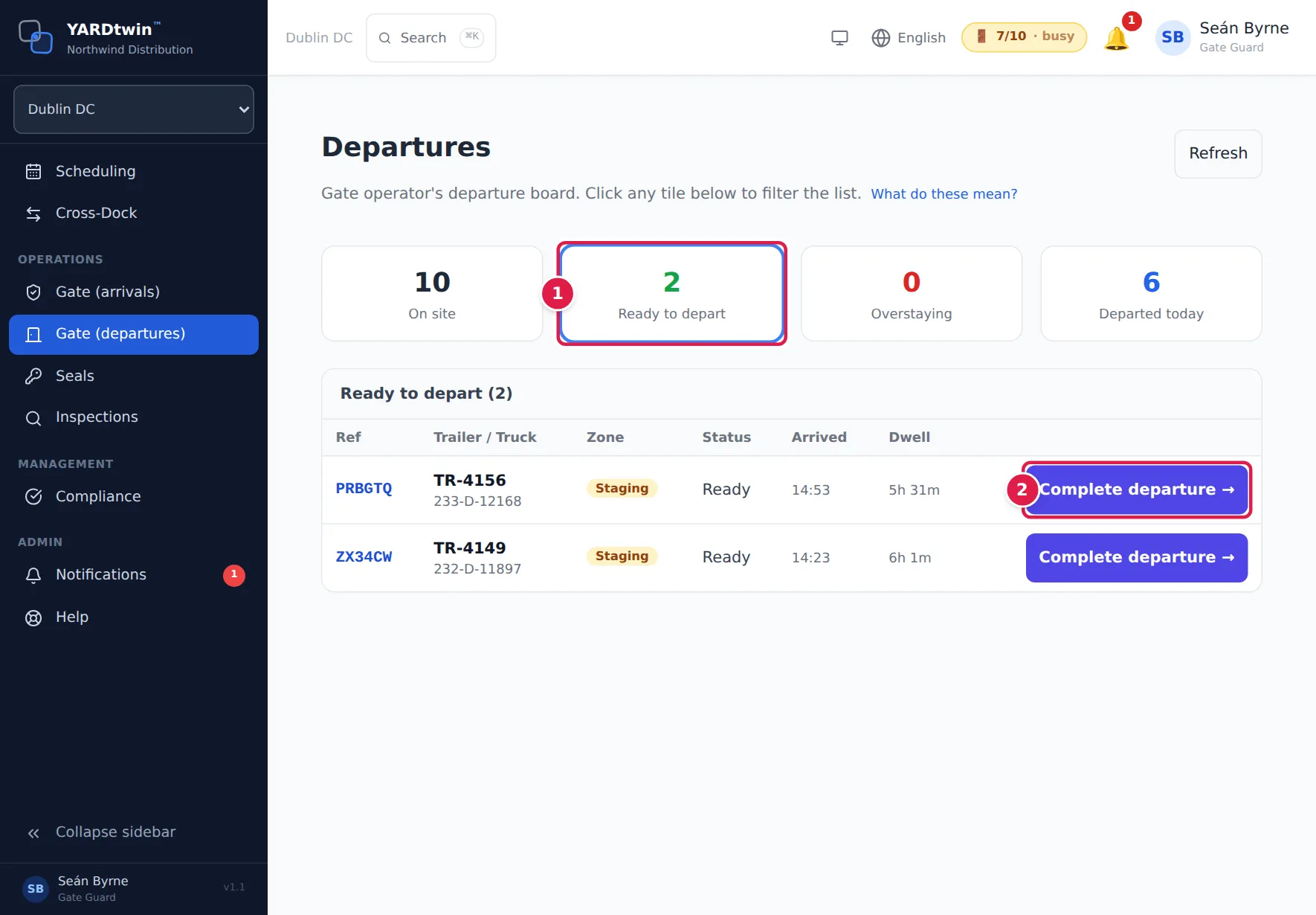
Each row shows the booking Ref, the Trailer / Truck, the Zone it's in, its Status, when it Arrived and how long it has been on site (Dwell). The board refreshes every 30 seconds.
When the warehouse finishes a load, the gate tablet shows a green Ready to depart message with the booking code. Tap it to open this board.
Clear the departure
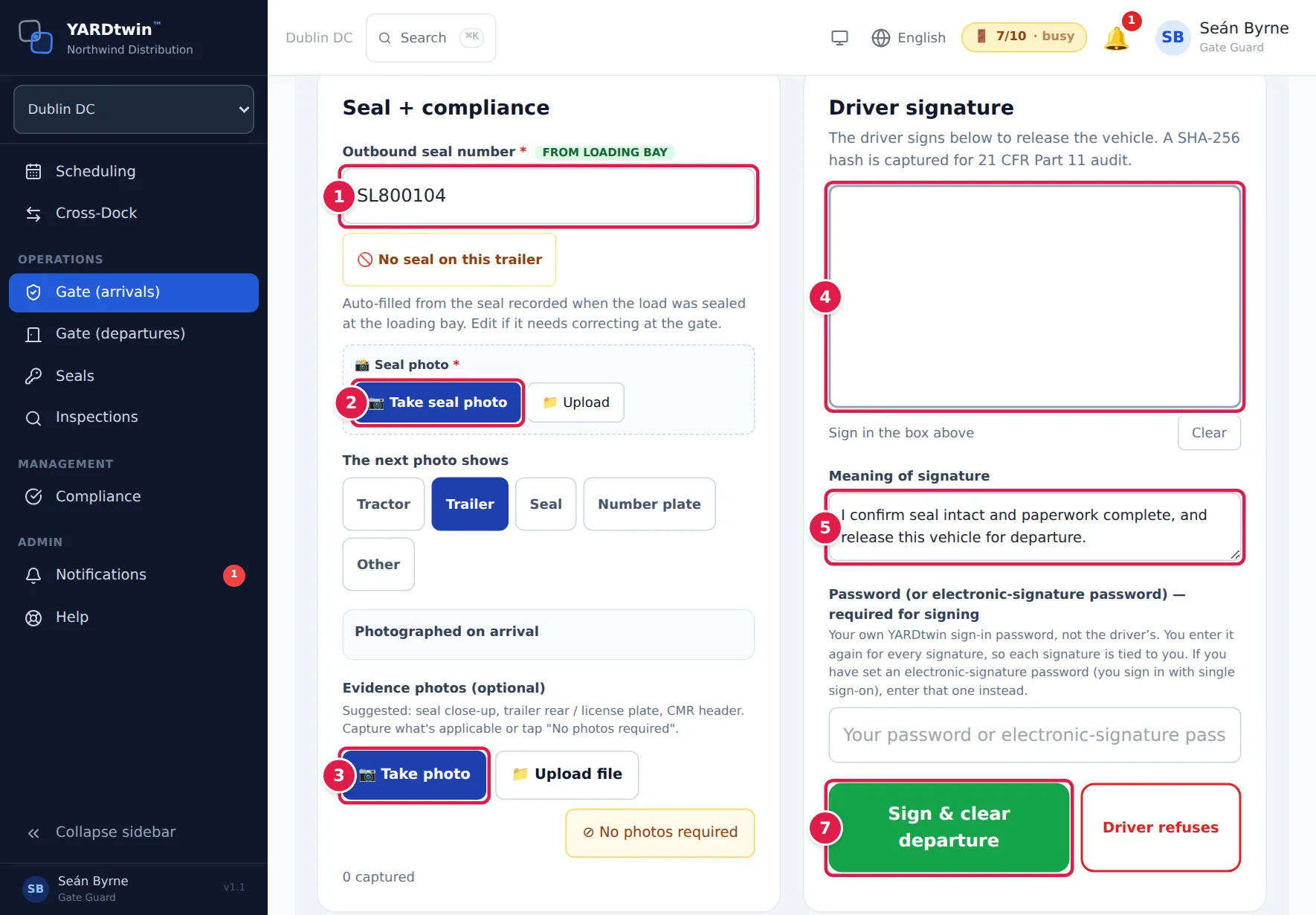
The departure screen shows the booking at the top, then Seal + compliance on the left and Driver signature on the right.
- Check the Outbound seal number. If the warehouse recorded the seal when they closed the trailer, it's filled in and tagged FROM LOADING BAY; correct it if the seal on the trailer is different. If the trailer has no seal, tap 🚫 No seal on this trailer instead.
- Tap 📷 Take seal photo (or 📁 Upload) and photograph the seal. YARDtwin reads the number from the photo if the box is still empty.
- Under Evidence photos (optional), choose what The next photo shows (Tractor, Trailer, Seal, Number plate or Other), then tap 📷 Take photo. Repeat for each photo. If no photos are needed, tap ⊘ No photos required.
- Hand the tablet to the driver to sign in the box. Clear wipes it so they can sign again.
- Check Meaning of signature. It says what the signature confirms, for example I confirm seal intact and paperwork complete, and release this vehicle for departure.
- Type your own YARDtwin sign-in password in Password (or electronic-signature password) — required for signing. If you have set an electronic-signature password, type that one instead. It's never the driver's password and never a PIN: you type it again for every signature, so each one is tied to you.
- Tap Sign & clear departure.
The screen shows ✓ Departure cleared, the time it was signed and the record's Hash, a fingerprint that proves the record hasn't been changed since. Tap Back to gate.
Depending on the load and your site's settings, you may also see:
- ❄ Trailer temperature at gate (°C) and Logger display photo, for a cold-chain load.
- Weighbridge — Gate Out, when the load's material must be weighed on the way out. Accept the weighbridge reading or type the gross weight. A difference of more than 5% is flagged for review but doesn't stop the departure.
- Photographed on arrival, the photos taken at check-in, so you can compare the truck in front of you with how it arrived.
- Consignment note (CMR), for an outbound load at a site that issues consignment notes, where you can record the carrier's acknowledgement and send the proof-of-delivery link.
Items marked * are required at your site; items tagged OPTIONAL aren't.
If a mandatory checklist isn't completed
A compliance checklist marked Mandatory should be completed for every truck it applies to before the truck leaves. If one wasn't, the screen lists it, with when it should have been done (check in or check out):
- a yellow box Your site asks for these checklists: the departure is not held for them;
- a red box Mandatory checklist not completed, at a site where an administrator has switched on Hold departure until mandatory checklists are done (Gate settings): the truck can't leave until they're done.
- Tap 📋 Complete now next to the checklist.
- Answer every item and tap the submit button. The box disappears once every listed checklist is done.
If a checklist in the red box can't be completed, an administrator, ops manager or QA can release the truck instead: they write what was checked instead (at least 10 characters; a reason code on its own isn't accepted) and tap Release with reason. The release is recorded in the audit log. It still counts if fewer mandatory checklists apply later; if another one starts to apply, it needs a new release.
When this delivery hands the truck over to the next delivery on it (the truck stays on site), the check-out checklists aren't asked here: they are asked of the delivery the truck leaves on.
If a seal discrepancy holds the load
A seal recorded as mismatched, tampered or damaged puts the booking on hold. On a load leaving with goods, a red box Seal discrepancy reviewed holds the departure. An administrator, ops manager or QA taps 🔓 Review & release, types what was checked and why the load can go (at least 10 characters), adds a note if useful, and taps Release the hold. The release is recorded in the audit log, and the seal records stay as they were. The same review is on the seals page and the dock board.
What happens when you sign
- The booking is marked departed, the gate-out is recorded, and the truck leaves the yard map. On the departures board it moves to Departed today.
- The gate-out is filed under your open gate shift, so it counts in Departures on your shift strip and in your end-of-shift summary. See Start your gate shift.
- The signature, your name, the meaning, the seal, the photos and the time are stored as one record. It's chained to the site's previous signed departure, so any later change would show.
- The outbound seal is added to the seal audit trail. No seal on this trailer is recorded as NO_SEAL, so a reviewer can see it was confirmed and not forgotten.
- On a consignment note (CMR) issued or re-issued from now on, each seal is listed once, even when the warehouse recorded it at close-out and you recorded it again here, and NO_SEAL is never listed as a seal. Notes issued earlier keep the content they were signed with.
Electronic signatures in YARDtwin are designed for EU GMP Annex 11 and 21 CFR Part 11 requirements: each signature needs your own password at the moment of signing. See Electronic signatures.
If the driver won't sign
- Tap Driver refuses.
- Pick the reason and add detail if needed.
- Tap Record refusal.
The screen shows Signature refused — flagged and asks for the paper CMR to be used instead. The refusal and its reason are written to the audit log against the booking. Your site's ops managers get a notification with the booking, the truck, the reason and who recorded it. If no ops manager can be reached for your site, your site's administrators get it instead. The truck isn't cleared: the departure is still waiting for a signature.
- Supervisor notified. Someone got the notification.
- Tell your supervisor: no one could be notified automatically. Nobody could be reached for your site. Phone or find your supervisor and tell them about the refusal yourself.
If something goes wrong
- A red box: Departure is blocked — this cannot be overridden at the gate. Something about the load stops it leaving, for example an open warehouse hold, a cold-chain quarantine or a QA release that hasn't been given. Sign & clear departure stays grey. Call your supervisor or QA.
- A box such as Driver not on carrier roster: the departure is held until an authorised role releases it. If your role can, type how you verified the driver (at least 10 characters) and tap Release with reason. Otherwise the box names the roles that can.
- "Mandatory checklist not completed: …": complete the checklist named (see If a mandatory checklist isn't completed), or ask an administrator, ops manager or QA to release the truck.
- "Releasing a mandatory checklist needs a written reason …": write what was checked instead, in at least 10 characters.
- "… can only be overridden by: …": a hold on this load needs a release from one of the roles named, with a reason. A seal recorded as mismatched, tampered or damaged on a load leaving with goods (Seal discrepancy reviewed) is reviewed and released by an administrator, ops manager or QA.
- A box SAP has blocked this load: at a site that blocks loading on SAP blocks, SAP reports the stock of this outbound delivery as blocked or not releasable, so the truck can't leave. It clears by itself when SAP releases the block. Otherwise only QA or an administrator can release it, with a reason of at least 10 characters, here or on the booking (Scheduling → the booking → SAP loading block → Release the block (QA)). A release covers the blocks it was given for: if SAP sends a new block afterwards, the truck is held again.
- "This booking is scheduled — the truck is not on site …" (or confirmed, pending approval, rejected, expired): there is no departure to record for a truck that hasn't arrived. Check the truck in first, or open the right booking.
- "Signature required": the driver hasn't signed in the box.
- "Capture at least one photo, or tap "No photos required".": take a photo or tap ⊘ No photos required. If your site requires exit photos, only an administrator or ops manager can waive them.
- "Outbound seal number is required at gate dispatch …" or "Outbound seal photo is required at gate dispatch …": your site requires the seal number and a photo. Enter both, or tap No seal on this trailer.
- "Seal photos must be image files (JPG, PNG, WebP or HEIC).": the file you chose isn't a photo, so nothing was saved. Take the photo again, or upload an image file.
- "Gate temperature reading is required at dispatch …": record the trailer temperature, and the logger photo if asked.
- "Weighbridge reading required — record the truck weight before signing.": weigh the truck and record the weight.
- "Password re-auth failed": the password was wrong. Use your YARDtwin sign-in password, not the driver's.
- "Too many wrong passwords. Signing is locked for … minute(s).": after five wrong passwords in 15 minutes, signing is locked for 15 minutes. Wait, or ask a colleague on shift to sign.
- "Already signed": this departure was cleared already, perhaps on another tablet.