When you book with Pick a free slot, YARDtwin doesn't just list the gaps on the board. Smart Slots scores every free slot and dock for the truck you're booking and puts the best ones first, so the docks fill without idle gaps and the trucks arrive when people are there to unload them.
Smart Slots is part of every plan. Carriers see the same recommendations when they book in the carrier portal.
Steps
Open + New Appointment and fill in the carrier, load type and material first: the recommendations are worked out for that truck.
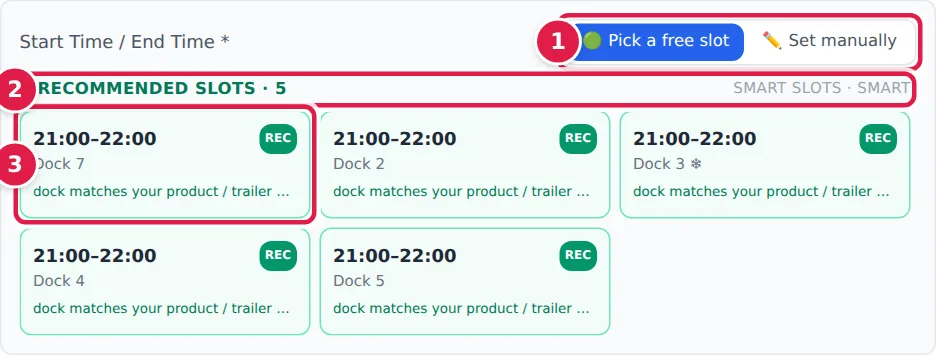
- Pick a free slot is selected by default. The list refreshes when you change the date, carrier, load type or material. Set manually lets you choose a start and end time yourself instead, when none of the slots suits.
- Recommended Slots shows how many slots Smart Slots recommends. On the right is the mode in use at your site, for example Smart Slots · smart. If your site has Smart Slots Off, the list is headed Available slots instead: nothing is scored, so no slot is marked REC and you are not asked for a reason when you pick one.
- Click a slot to use it. The start time, end time and dock are filled in for you. Slots marked REC are recommended; the line under the dock says why, such as fills a gap between existing bookings. Hover over a slot to read the full reason. A ❄ after the dock name means a temperature-controlled dock. If you then change the time, the dock or the date yourself, the slot is no longer picked, and any reason you chose for it is cleared.
Other times and why you're asked
Slots that are free but score lower are folded away under Other available times. You can still pick one.
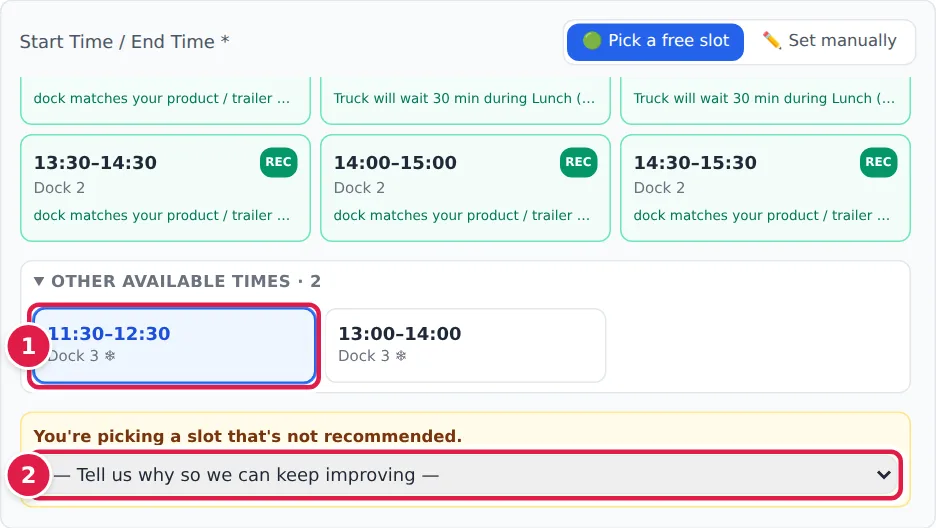
- Open Other available times and click a slot.
- YARDtwin shows You're picking a slot that's not recommended. Choose a reason from the list, such as Carrier route constraint or Driver availability. It's optional, and it is saved with the booking so your site can see why recommendations were passed over.
Slots that score badly, such as one that would leave a dock idle or land in the busiest hour, are not listed at all. To book one anyway, use Set manually.
How slots are scored
A slot scores higher when it:
- sits next to an existing booking on the same dock, filling a gap instead of leaving one;
- is on a dock that suits the product and trailer;
- starts inside the site's staffed hours;
- suits the carrier, based on how punctual its trucks have been;
- groups the same product or material together.
It scores lower when it leaves an idle gap of more than half an hour on the dock, or falls in an hour when the whole site is already very busy.
The bookings made on a recommended slot get a small green dot on the scheduling board.
Smart, Strict and Off
Your site chooses how strongly Smart Slots steers bookings. An administrator sets the mode, the break windows and any carrier that should get a different mode under Site Admin → Smart Slots. See Smart Slots and labour.
| Mode | What the slot picker shows |
|---|---|
| Smart (the default) | Recommended slots first, then Other available times, then any slots that run into a break. |
| Strict | Only the recommended slots. Nothing else can be picked from the list. |
| Off | The free slots under Available slots, without scores, REC badges or reason questions. |
Breaks
Your site can set break windows, such as a lunch break, when no dock work is done. A slot that runs into a break says so on its card, for example Truck will wait 30 min during Lunch. If the site lists such slots separately, they are under Slots requiring waiting through a break. When you pick one:
- YARDtwin explains how long the truck will wait and during which break.
- Tick I understand this truck will wait until … ends before work can begin. The booking is refused until you do.
- You can choose a reason under — Reason for booking through a break —.
Labour capacity
If your site has set up labour planning (see Smart Slots labour), each slot is also checked against the staff and equipment on shift:
- LABOR ⚠: capacity is tight. The card shows the work needed against the time available, in person-minutes.
- LABOR ✕: the slot needs more than is available, or a piece of equipment is fully booked (Equipment short).
- LABOR ?: there's no labour profile for this material at this dock. The dock needs to be linked to a dock type.
While labour checks are in warning mode, these slots can still be booked. Once your site enforces them, slots over capacity are left out of the main list and a booking over capacity is refused. This applies with Smart Slots Off too: nothing is recommended, but every slot is still checked for labour.
Admins and ops managers can still book over capacity, with a reason:
- Open Over labour capacity (override needed) under the slot list and click a slot.
- Choose a reason under — Reason for booking over capacity —. For Other, type the reason in words, at least 10 characters. Or pick one of the Suggested alternatives instead.
- Click Create Appointment. If you didn't choose a reason, the Booking Not Permitted box asks for one: type it under Book anyway — reason and click Book anyway.
The reason is kept in the audit trail. The same box appears when you set the time manually and the slot is over capacity.
If something goes wrong
- "No free slots on … for …. Switch to manual or pick another date." Nothing is free that day for this load type. Try another date, or click Set manually. A manual time is still checked against the site's rules.
- "No slots scored as Recommended for these inputs — try a different time-frame, dock-type, or material." There are free slots, but none scored well enough to be recommended. Look under Other available times.
- "This slot would require waiting through a break window. Tick the acknowledgement before confirming." Tick the acknowledgement under the slot list, then create the booking again.
- "…pick a green/amber alternative." The slot is over labour capacity and your site enforces it. Pick a slot without LABOR ✕, or, as an admin or ops manager, give a reason under Book anyway — reason and click Book anyway.