The scheduling board shows every booking at your site as a bar on a timeline, with one row per dock from 06:00 to 22:00. The red line marks the time now. The board updates itself when a truck checks in, changes status or moves, so you can leave it open all day.
Everyone with access to Scheduling can read the board. Only Administrators and Operations managers can book, move or edit bookings; for everyone else the board is read-only. Drivers see a shorter page: see If you're a driver.
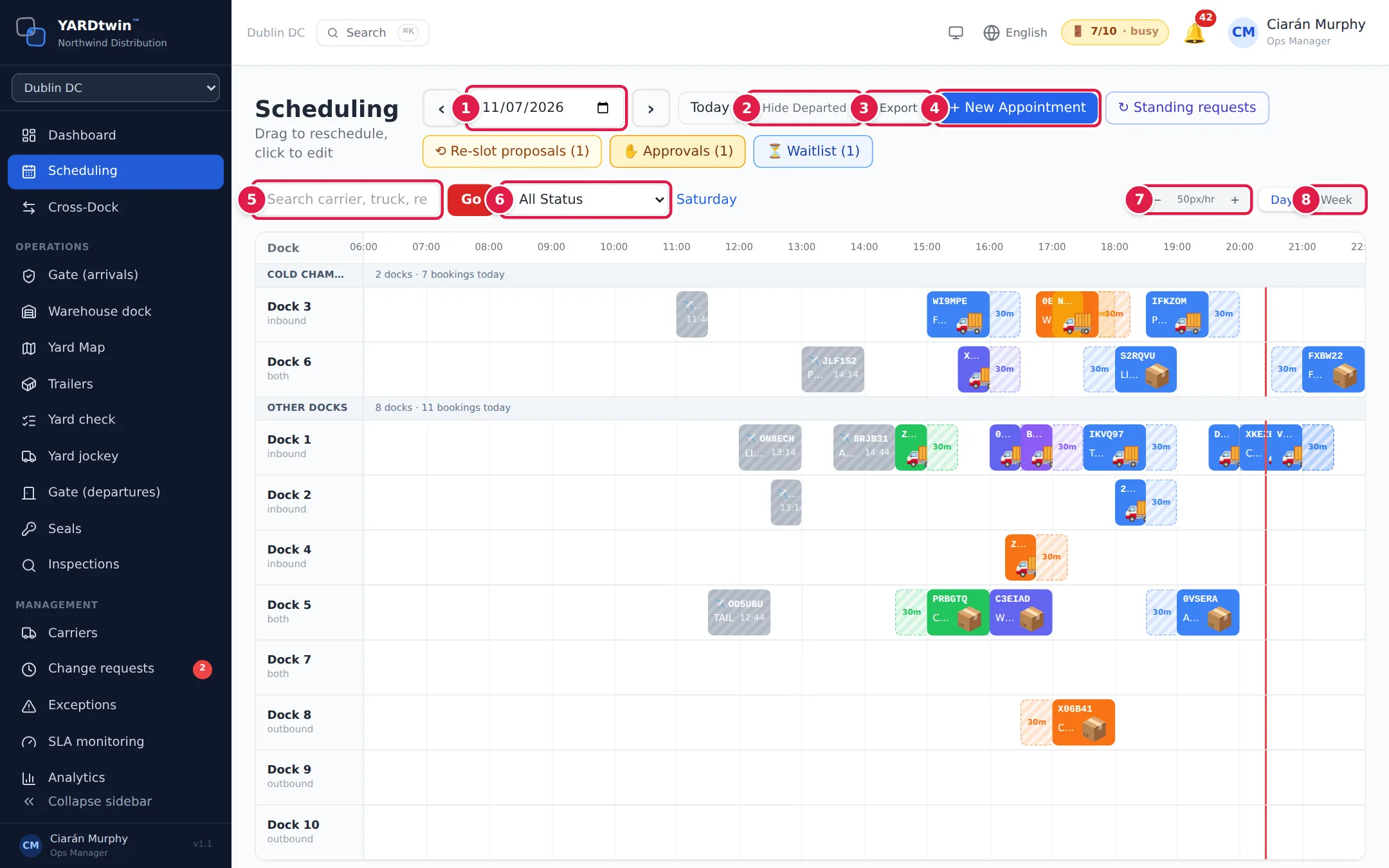
- Date. Pick a day, or step a day at a time with ‹ and ›. Today brings you back to today. The weekday is shown in blue next to the status filter.
- Hide Departed. Hides trucks that have left, were cancelled or did not show. Click Show Departed to bring them back.
- Export. Downloads the day's bookings as a CSV file with the date, times, booking code, carrier, dock, type, status, truck, driver and net weight.
- + New Appointment. Opens the booking form. See Book an appointment.
- Search. Type a booking code, carrier, truck registration, driver name or reference, then press Enter or click Go. Matching bars get a red outline. While a search is active, ◀ Prev Date and Next Date ▶ jump to the nearest earlier or later day with a match, looking up to 30 days each way.
- Status filter. Show only the bookings in one status, such as Scheduled or Unloading. All Status shows everything.
- Zoom. − and + make each hour narrower or wider. YARDtwin remembers your zoom on this device.
- Day / Week. Switch between the dock timeline and a seven-day overview.
Reading the bars
Each bar is one booking, drawn on its dock's row from its start time to its end time. The label is the carrier's code (or the start of its name). 🚚 marks an inbound delivery and 📦 an outbound load. A truck that has left shows ✈️ and the time it departed.
The colour shows the booking's status:
| Colour | Status |
|---|---|
| Blue | Scheduled |
| Indigo | Confirmed, Loading, Unloading |
| Yellow | Arrived |
| Orange | Checked In |
| Violet | Docked |
| Amber | Awaiting approval, Waiting |
| Green | Complete |
| Grey, faded | Departed, Checked Out |
| Red, faded | Cancelled, No Show, Delayed |
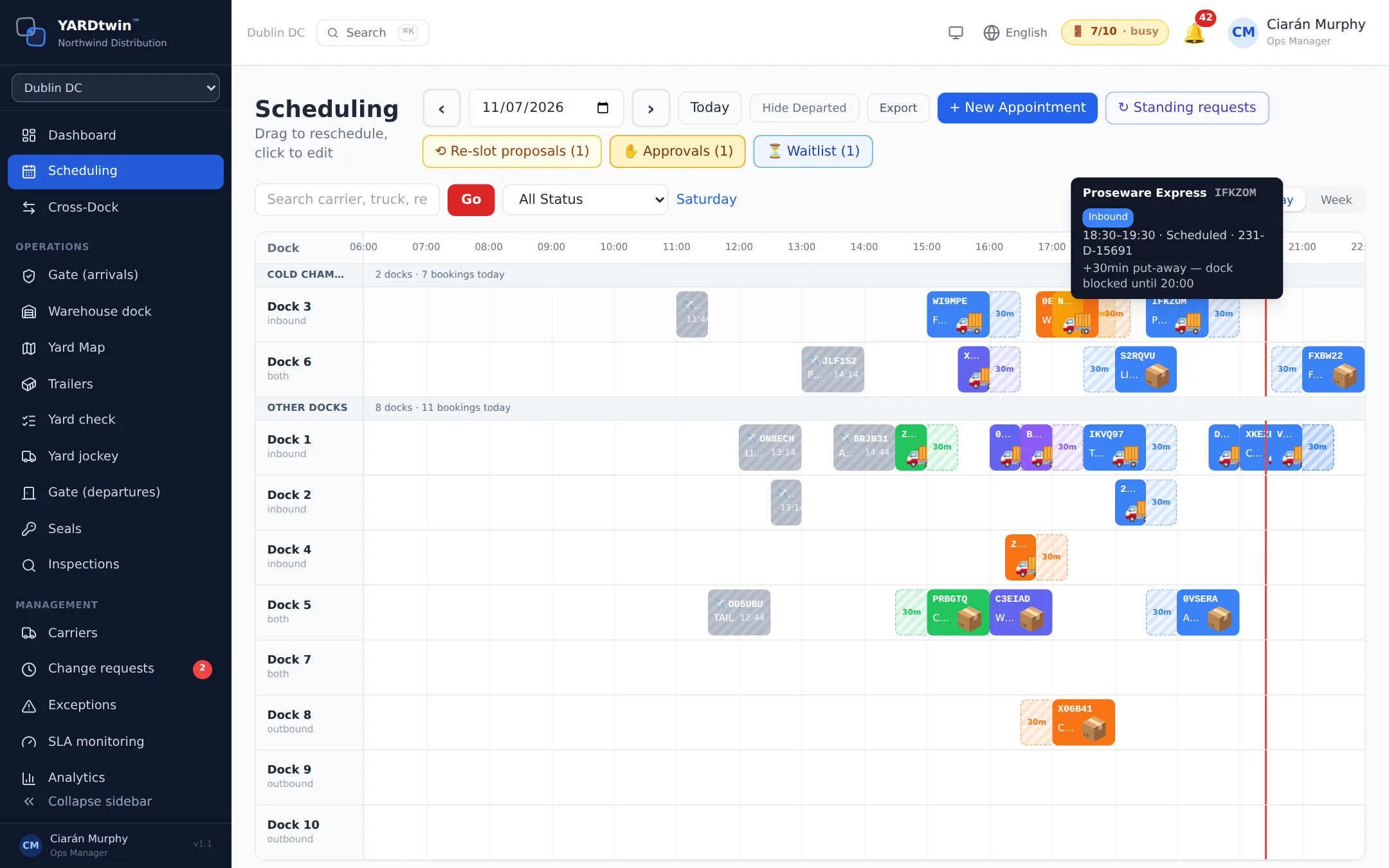
Hover over a bar to see the carrier, booking code, direction, times, status and truck.
Other things you may see on a row:
- A hatched block marked with minutes, such as 30m, next to a bar. This is the material's buffer. After an inbound delivery the dock stays blocked for put-away; before an outbound load it is reserved for pre-staging. Hover over the bar to see until when.
- A hatched amber band marked Maintenance. The dock is out of service for that window.
- Symbols after the label. ↻ is part of a standing booking (Set up a standing booking). ⟲ has an open re-slot proposal. ⚠ has an order number the site's system did not recognise. 🚶 is an unplanned truck registered at the gate (Register a walk-in). 🔗 is paired with another booking, and the bar gets a purple outline. 🧩 is one of several deliveries on the same truck.
- A small green dot. The booking was made on a slot that Smart Slots recommended. See Smart Slots.
- A dashed blue pill with ⛟. One stop of a truck that visits several docks, reserved on another dock's row.
If your site has dock groups, the docks are listed under a header per group with a count of docks and of today's bookings.
The appointments list
Below the board, Appointments lists the same bookings as a table with Time, Code, Carrier, Supplier, Material Category, Dock, Type, Truck and Status. The list filters as you type in the search box. Cancelled and no-show rows are greyed out. If you can edit bookings, an Actions column holds the next status step and the ✏️ edit button. See Change, move or cancel a booking.
The week view
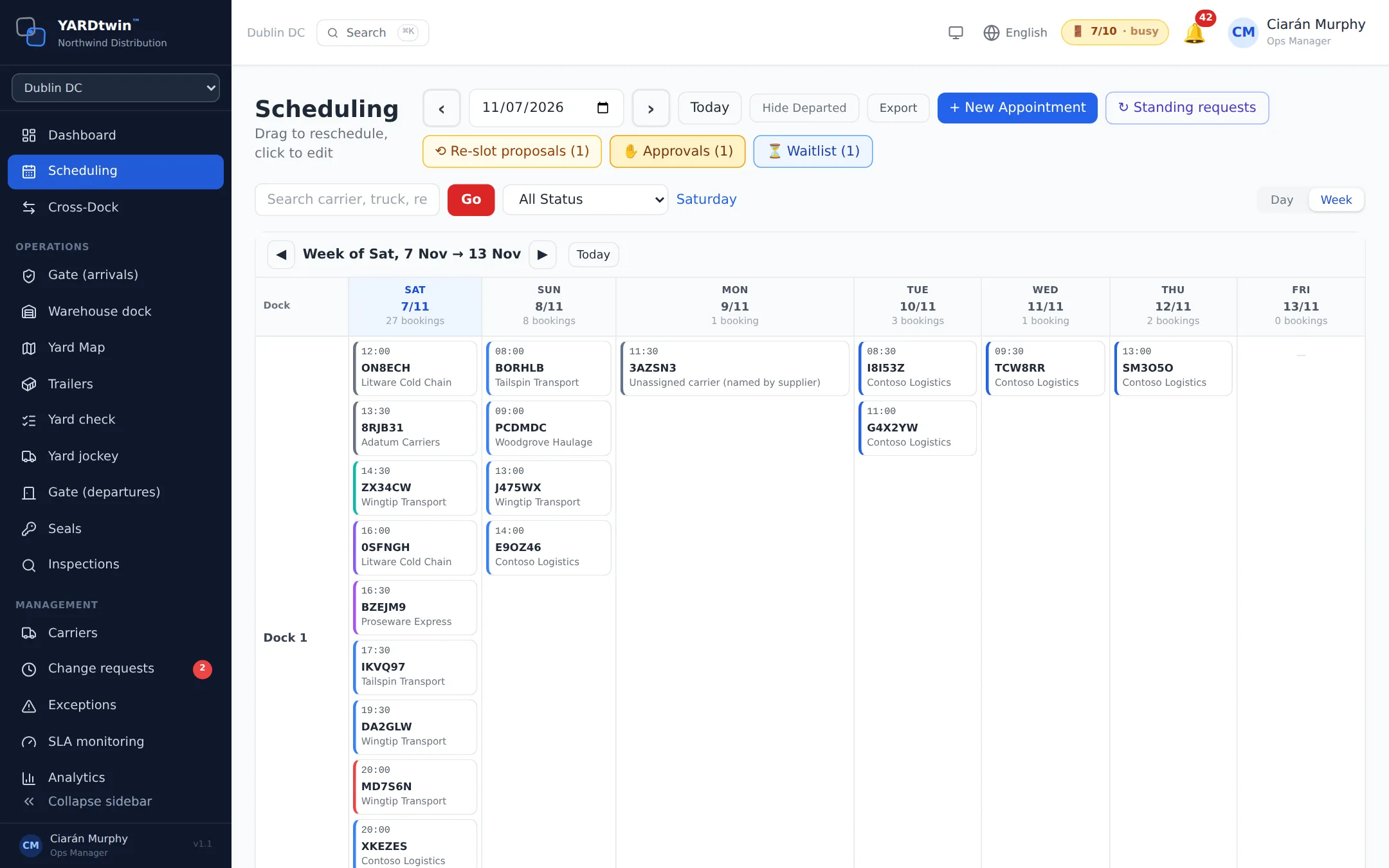
Week shows seven days starting from the selected date, one row per dock. Each card shows the start time, booking code and carrier, and its coloured edge shows the status. Each day's header shows how many bookings it has.
- Click a day's header to open that day on the timeline.
- Click a card to open the booking for editing. Administrators and Operations managers only: for other roles the week view is read-only, like the timeline.
- ◀ and ▶ move a week back or forward; Today starts the week from today.
- Bookings without a dock yet appear in an Unassigned row.
You can link straight to a day and a search: add ?date=2026-10-12&search=ABC123 to the Scheduling address. Integrations such as SAP use this link to open a booking on the board.
Other buttons along the top
Some buttons only appear when your site uses the feature or when there is something to decide:
- ↻ Standing requests: repeat bookings and carriers' requests for them. See Set up a standing booking.
- ⟲ Re-slot proposals, ✋ Approvals and ⏳ Waitlist: decisions waiting for a planner. See Change, move or cancel a booking.
- 🚶 Unplanned: trucks the gate registered without a booking. See Register a walk-in.
If you're a driver
If you sign in with a Driver account, Scheduling is the page you start on. It shows only your own bookings: the ones you're assigned to as the driver, and any you booked yourself. There is no dock timeline or week view, just the Appointments list for the day you pick, with the date, Hide Departed, Export, search and the status filter. You can't book, move or change a booking from here; contact the site or your carrier for that.
If something goes wrong
- "No docks configured. Set up docks in Settings first." Your site has no docks yet. An administrator adds them; see Site settings.
- "No matches found within 30 days". ◀ Prev Date or Next Date ▶ found no booking matching your search in the 30 days in that direction. Check the spelling, or search on a shorter part of the code or registration.
- You can't drag bars or see + New Appointment. Your role can read the schedule but not change it. Ask an Operations manager or Administrator.