The Trailers page is the register of every trailer your company has seen: at the gate, registered by a carrier in its portal, or dropped on the yard map. You don't need to set anything up. Trailers are added and updated automatically as they arrive, dock, are loaded, sealed and leave.
Find a trailer
- Narrow the list: This site or All sites; On site, Off site or All; any status; any carrier. Or type a Trailer number or carrier… in the search box.
- Click a trailer's row to open its details on the right.
- To add a trailer that YARDtwin hasn't seen yet, tap + Register trailer.
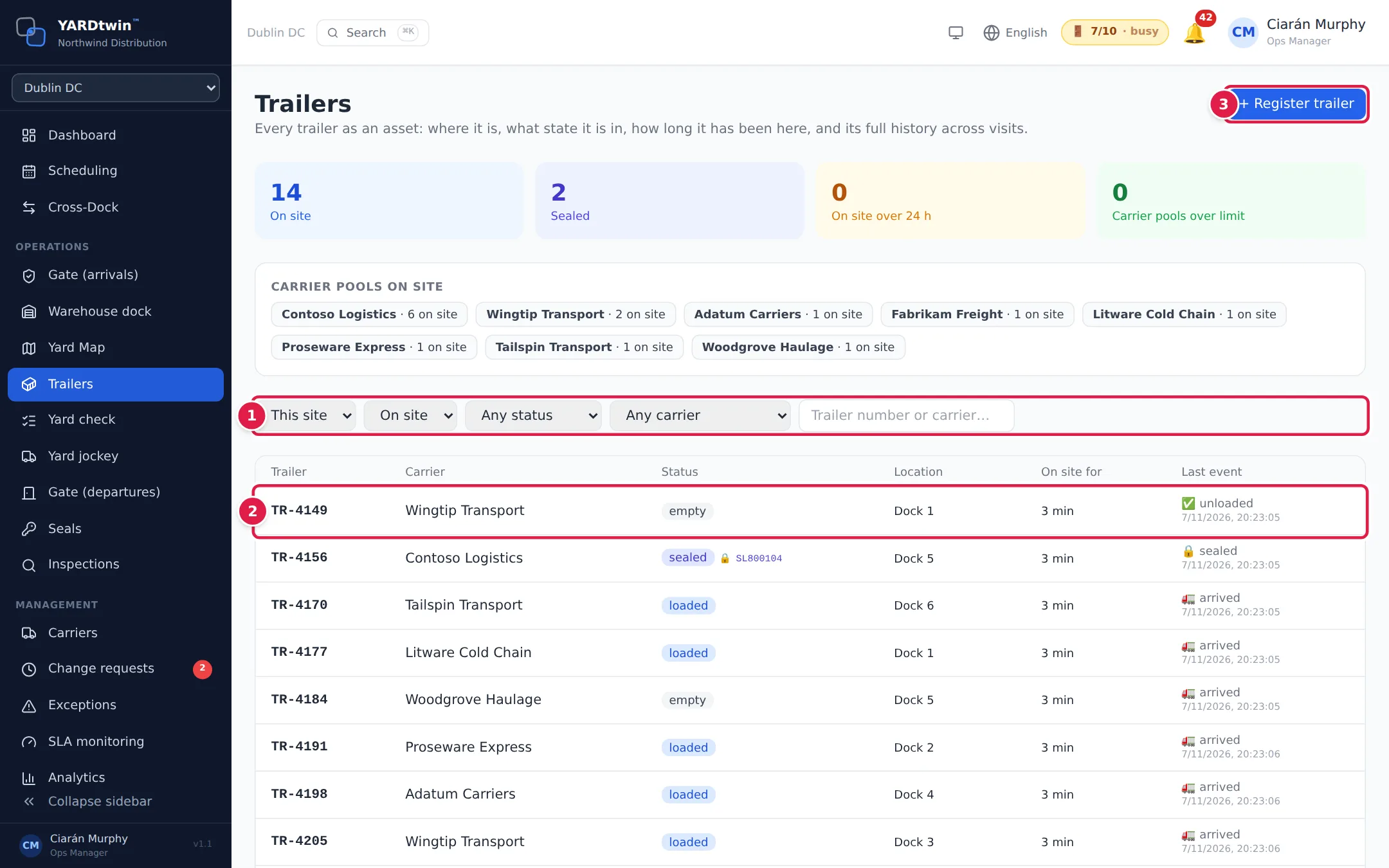
Each row shows the Trailer number (❄ for a refrigerated one), Carrier, Status (with the seal number when it's sealed), Location, how long it has been On site for, and its Last event. A trailer on site for 24 hours or more is highlighted.
The cards at the top count trailers On site, Sealed, On site over 24 h and Carrier pools over limit. Carrier pools on site shows how many of each carrier's trailers are here; a carrier with a pool limit shows it, for example 2 / 3 on site, and turns red when it's over.
Update a trailer
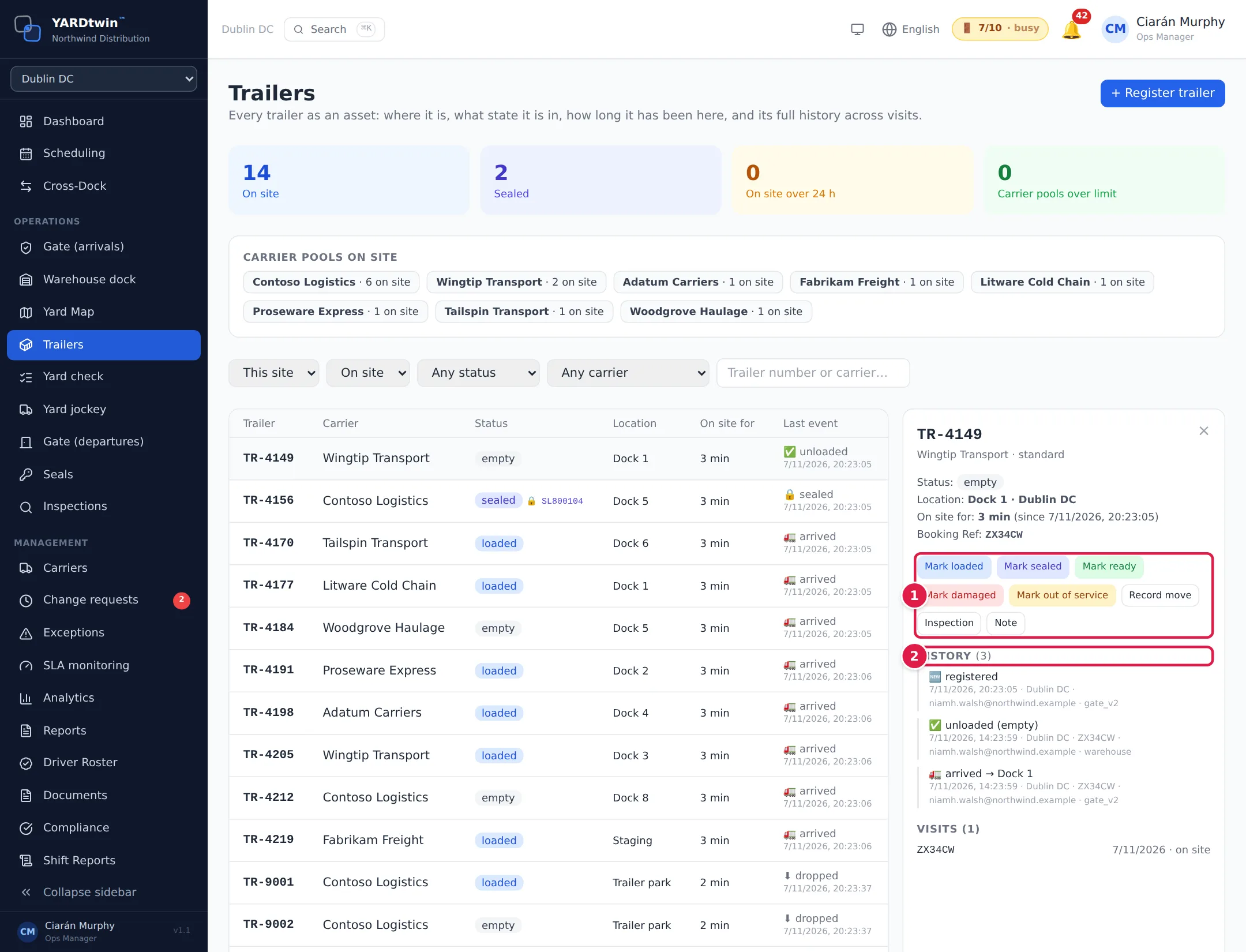
In the trailer's details you'll see its status, location, time on site, current booking, seal, contents and the carrier's pool limit.
- Use the buttons to record what's happened:
- Mark empty, Mark loaded, Mark sealed, Mark ready, Mark damaged or Mark out of service sets its status. Damaged and out of service ask for a reason.
- Record move asks where the trailer is now (a location name).
- Inspection and Note add an entry with an optional note.
- Read its History: every event, newest first, with the time, site, booking, who recorded it and from which screen. Visits lists each booking the trailer came in on.
Administrators, ops managers, yard managers, operations staff and operators can update trailers and register new ones. Other roles see the register read-only.
Register a trailer
Tap + Register trailer, type the Trailer number, and pick the Carrier and Type (standard, reefer, curtain side, box, flatbed, tanker or container chassis). Tick Refrigerated if it is. Leave It is on this site now ticked and enter its Location (for example Lot B, bay 12) if it's here now. Then tap + Register trailer.
If something goes wrong
- "No trailers match": nothing fits your filters. Set them back to This site, On site and any status, and clear the search.
- A trailer isn't listed. Trailers appear when a booking with a trailer number checks in at the gate, when a carrier registers one, or when a drop-trailer is placed on the yard map. You can also register it yourself.
- Mark damaged does nothing. It needs a reason of at least three characters.