Three tabs in the Yard & gate section decide how the gate works:
- Gate: what the gate asks for when a truck arrives and leaves.
- Induction: the site safety induction drivers and visitors take.
- Shifts & timeout: when idle users are signed out, and the shifts that produce shift reports.
Set up the gate
Open Site Admin and click Gate. Each switch on this tab saves as soon as you click it.
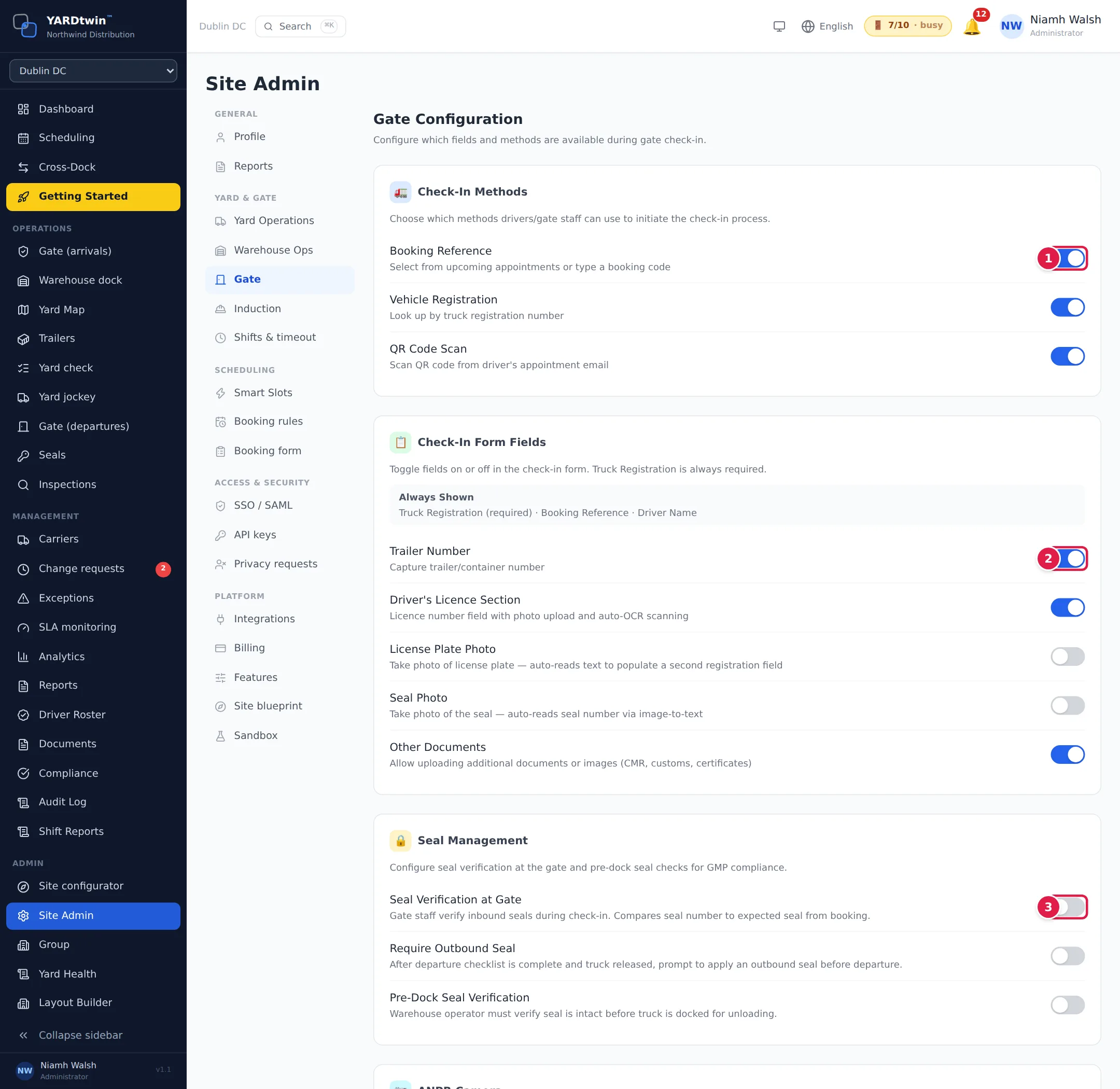
- Check-In Methods. How the gate finds a truck's booking: Booking Reference, Vehicle Registration or QR Code Scan (the code in the driver's booking e-mail). Leave on the ones your gate uses.
- Check-In Form Fields. Extra fields on the check-in form: Trailer Number, Driver's Licence Section, License Plate Photo, Seal Photo and Other Documents. The truck registration, booking reference and driver name are always shown.
- Seal Management. Seal Verification at Gate compares the seal with the number expected from the booking. You can also require a seal photo, an outbound seal before departure, and a seal check before the truck docks.
Seal and weighbridge checks for each kind of goods are set on the material type, under Yard Operations. Use those for per-material rules.
Further down the tab:
- ANPR Camera: match trucks to bookings by number-plate camera. With Check in automatically on a clean read, a booked plate that passes every check is checked in without a click at the gatehouse. The camera itself is connected under Integrations.
- Unmanned gate: lets a driver self check-in or a camera read check a truck in and open the barrier when everything matches. Anything else waits for staff. Every automatic admission is recorded in the audit trail.
- Driver Self-Check-In: adds a link to the booking e-mail. The driver fills in their details on their phone and the gate approves them from the queue. See Check in from your phone.
- Driver identity and the driver log: keep a per-site log of who came through, in which vehicle and when they left. You can capture the type and last four characters of an identity document, verify the driver's phone by SMS, and ask the vehicle type.
- Photographic evidence: photos of the tractor, trailer and seal at entry and at exit, Optional or Required.
- Unbooked arrivals: Allow walk-up registration registers a truck without a booking in one step. See Register a truck without a booking.
- Visitors and on-site presence: Keep a visitor register adds the On site tab at the gate, with sign-in, sign-out and a roll-call export. You can require a host, an induction, and let visitors sign in at the kiosk.
- Watchlist: plates, drivers, visitors and companies the gate should flag. Choose whether A match at the gate Warns the gatehouse or Refuses entry (manager override).
- Check-in Form Requirements: the checks the gate must complete before a load is authorised, such as the driver's licence and photo ID, the CMR or bill of lading, and the cold-chain check. Each is off, optional or required. AI face-compare (off by default) decides how the photo ID is checked: on, the driver's photo is compared with the licence photo by AI, and any override needs a reason of at least 30 characters; off, the driver's face photo is not compared by AI and gate staff compare the driver with the licence photo themselves. Licence reading (if AI reading is on) still sends the licence image.
- PII Photo Retention Policy: driver face photos and licence images, including the photos taken for the gate's driver photo check, are deleted automatically after 2 to 14 days (a photo-check image that can't be tied to a site is kept for the default 14 days). Seal photos and the text details (name, licence number, expiry date) are kept.
See Check a truck in for how the gate team works with these settings.
Mandatory checklists
At the bottom of the Gate tab, Hold departure until mandatory checklists are done decides whether a compliance checklist marked Mandatory holds a truck at this site. It is off for every site until an administrator switches it on.
- Off: the gate is asked to complete the mandatory checklists that apply to a truck, at check-in and before it leaves, but nothing waits for them.
- On: a truck can't leave until every mandatory checklist that applies to it has been completed, unless an administrator, ops manager or QA releases it with a written reason.
When you untick the switch while trucks on site are waiting for mandatory checklists, YARDtwin lists them and asks why they may leave without them. Write the reason (at least 10 characters) and click Switch off and release them. Each truck released gets its own entry in its audit trail, so switching off is never a way round the audit.
When you tick the switch, YARDtwin first lists the active templates marked Mandatory that would hold departures here, with who they apply to and when. Many templates were marked Mandatory by default in the past, so check the list. Untick Mandatory on any template that should only be asked for (Compliance → Templates), then click Switch on. A template with no items never holds a truck. Only administrators can change the switch, and every change is recorded in the audit log with who changed it and when.
Set up the site induction
Click Induction. Drivers take the induction on their phone from the booking link; visitors can take it at the kiosk.
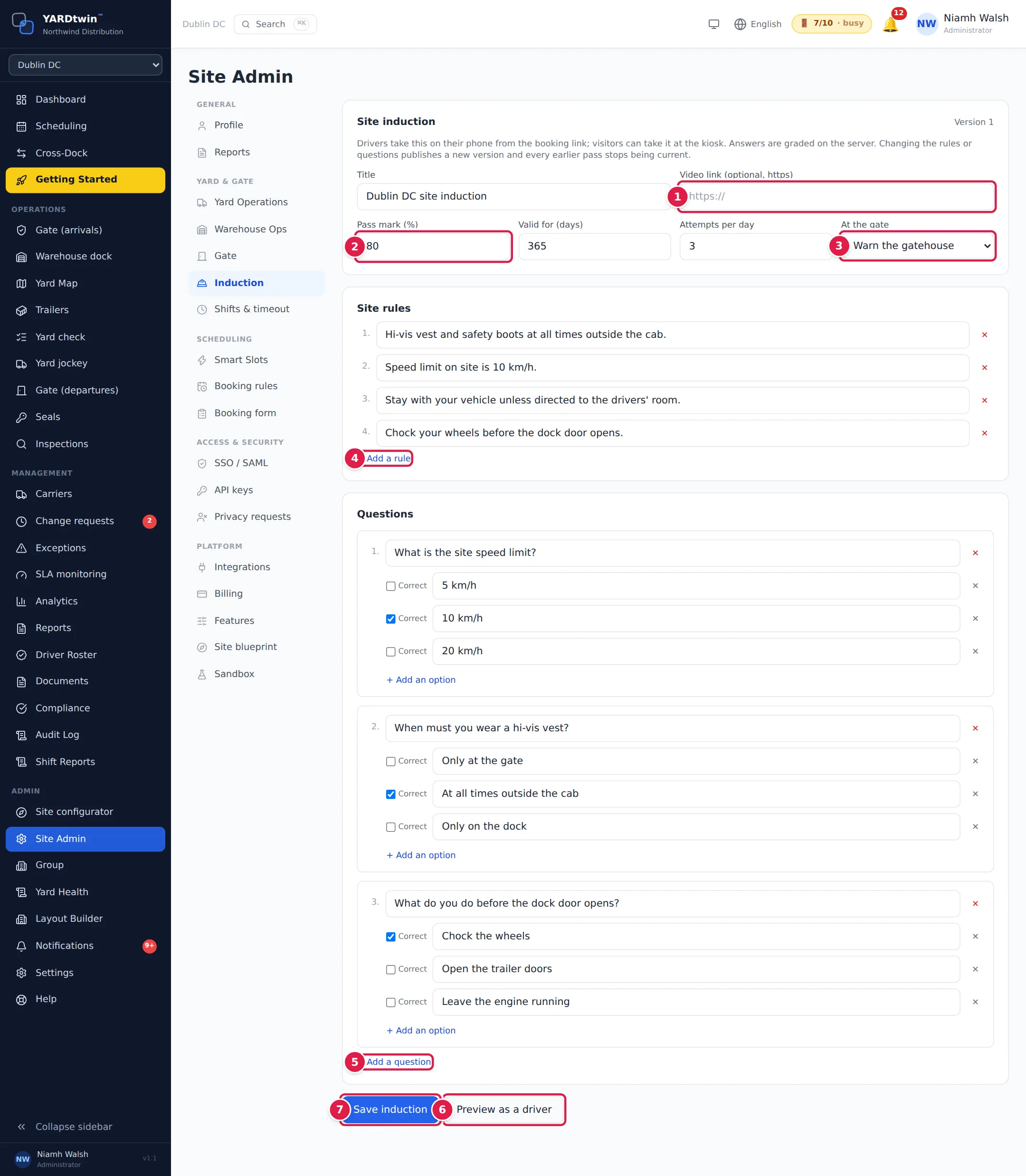
- Give it a Title and, if you have one, a Video link (optional, https).
- Set the Pass mark (%), how many days a pass is Valid for (days), and the Attempts per day.
- Choose what happens At the gate when a driver hasn't passed: Not checked, Warn the gatehouse or Refuse entry (manager override).
- Click Add a rule for each site rule the driver must acknowledge.
- Click Add a question to add a quiz question, with its options. Tick Correct on the right answer; if more than one is ticked, all of them must be chosen. With no questions, the induction is passed by acknowledging the rules.
- Preview as a driver shows the induction as a driver sees it. Nothing is recorded.
- Click Save induction.
Changing the rules or questions publishes a new version. Earlier passes stop being current, so drivers must take the new version.
See The site induction.
Sign-out time and shift schedules
Click Shifts & timeout.
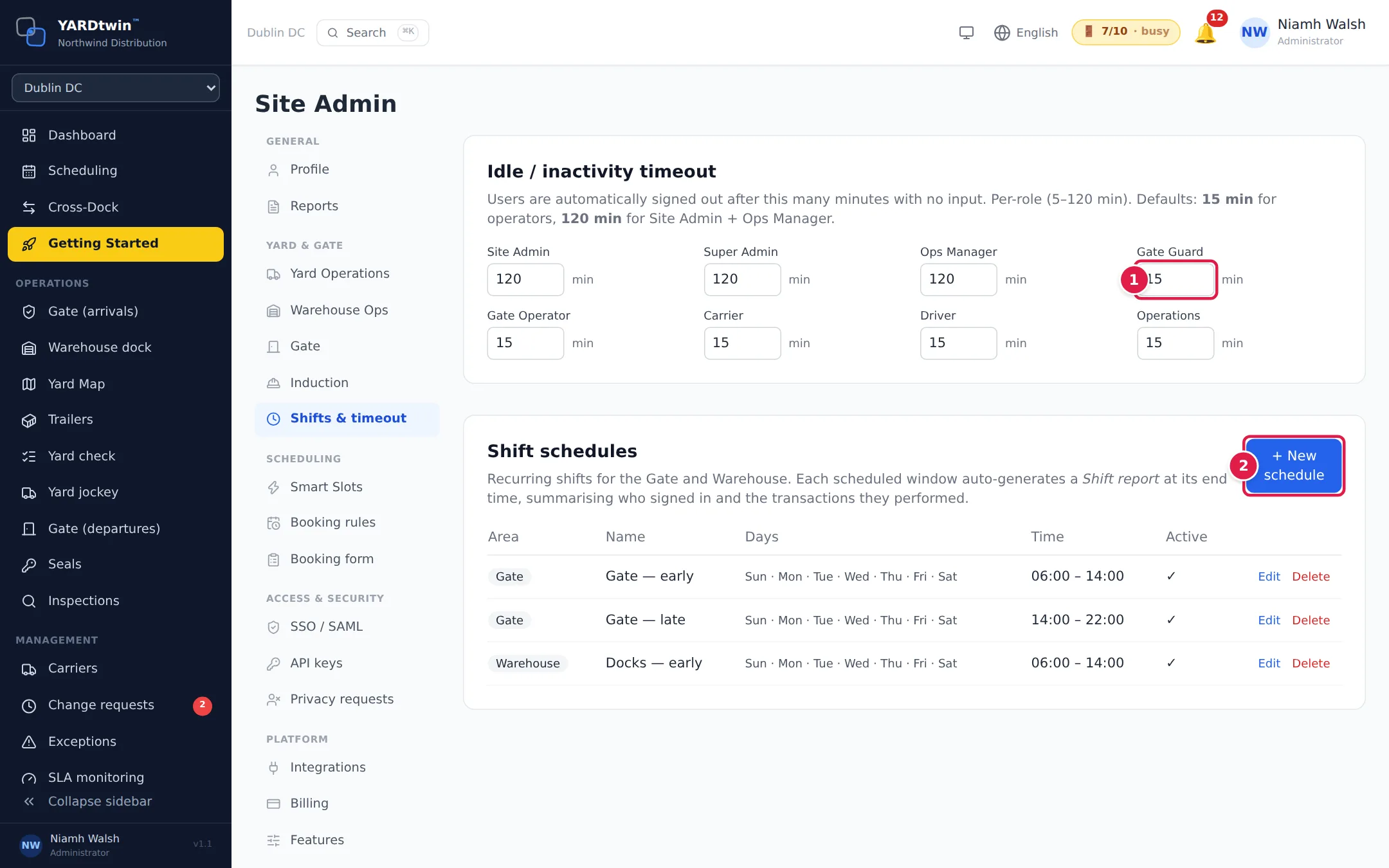
- Idle / inactivity timeout. How many minutes without any input before a user of each role is signed out, between 5 and 120. By default it is 15 minutes for operators and 120 for Site Admins and Ops Managers. A Save button appears when you change a value.
- + New schedule adds a recurring shift for the Gate or the Warehouse: a name, start and end time, and the days it runs. At the end of each shift YARDtwin writes a shift report of who signed in and what they did. See Shift reports.