Everything you record at the gate is filed against your shift: who was on duty, at which gate, and on which tablet. You don't start the shift by hand. Sign in and open the gate screens, and YARDtwin opens a shift for you.
Steps
- Sign in to YARDtwin on the gatehouse tablet with your own account, and click Gate (arrivals) in the menu. See Sign in.
- Check the dark bar at the top of the gate screen. It shows the gate you're working and the time your shift started, for example Main Gate · started 07:02.
- Read the handover note, if the previous shift left one (see below), and tap Got it.
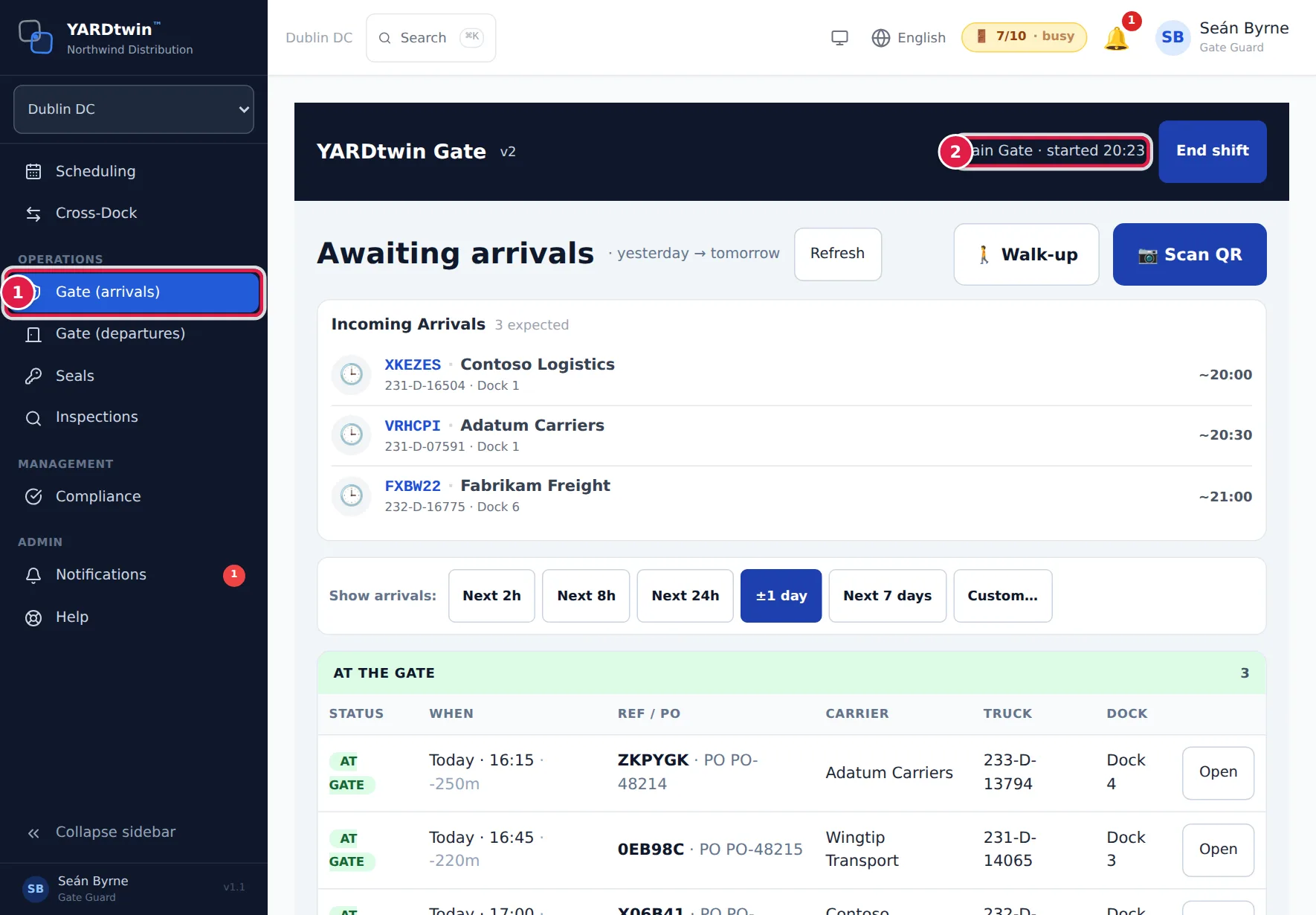
That's it. You're on the arrivals list, ready for the first truck.
How YARDtwin picks your gate
When you open any gate screen and you have no shift open, YARDtwin opens one at your site's default gate. If the site has no default, it uses the first active gate. If you already have a shift open, it carries on with that one, so moving between screens or reloading the page never starts a second shift.
Only gate guards, ops managers and administrators get a shift. Other roles that can see the gate screens, such as yard managers and QA, can use them without one.
Older instructions mention a shift PIN and a Start your shift screen with a number pad. That screen has been removed. Your YARDtwin sign-in is enough: a gate guard lands straight on the arrivals list, and an old bookmark to the PIN screen takes you to your usual start page.
The note from the previous shift
When the gate operator before you left a handover note, a yellow box at the top of the gate screen shows it when your shift starts: who wrote it, when they ended their shift, and the note. Handed over to you means they picked you as the next operator (you also get it in your notifications bell).
Tap Got it to hide the note. It's shown once: it doesn't come back on this shift, and not at your next shift either.
The note shown is the one from the last gate shift someone else ended at your site in the past 24 hours. If that shift ended without a note, no note is shown, even if an earlier shift left one. A note older than 24 hours isn't shown.
Which gate screen you get
Gate (arrivals) opens the gate screen your site uses:
- Sites on the current gate (Gate v2, the tablet screens described in this section) go to the arrivals list.
- Other sites open the older single-screen gate. See The classic gate screen.
Your administrator chooses which one a site uses.
What you'll see on every gate screen
- The header shows YARDtwin Gate v2, your gate, the time your shift started, and End shift. Use End shift when you finish. See Hand over and end your shift.
- The shift strip at the bottom counts what this shift has done: Arrivals, Departures, Denials, and movements in the Last hour. Departures counts the trucks you cleared to leave, by signed departure or on the classic gate screen, while your shift was open. It refreshes every 20 seconds.
- The device bar below it shows the tablet's serial number, the app version, your gate, and whether the tablet is Online or Offline, with the time of the last sync. Read these out if you call for support.
When the warehouse finishes a load, a green Ready to depart message with the booking code pops up on the gate tablet for ten seconds. Tap it to open the departures board. See Clear a truck to leave.
If something goes wrong
- The header shows no gate or start time. Your shift didn't open. This happens when no site is selected, when the site has no active gate, or when your role doesn't get a gate shift. Pick your site in the site switcher at the top of the menu and reload the page. If it still doesn't open, ask your administrator to check the site's gates.
- "Your role cannot start a gate shift": shifts are for gate guards, ops managers and administrators. You can still use the gate screens your role allows. See Who can see what.
- No handover note appears. The last shift ended at your site left none, it ended more than 24 hours ago, or you've already had a shift at this site since it ended. A note is also in the bell of whoever it was handed over to, or of the site's ops managers.
- The device bar says Offline. The tablet has lost its connection. Arrivals you authorise while offline are queued on the tablet and sent when it reconnects. See Check a truck in.