With single sign-on, your team signs in to YARDtwin with their company account through your identity provider (IdP), such as Okta, Azure AD, OneLogin or Google Workspace. Any SAML 2.0 identity provider works. Single sign-on is part of the Professional and Enterprise plans.
You'll need your IdP administrator for this. Set it up in this order: give them YARDtwin's details, add theirs to YARDtwin, then switch SSO on.
Give your IdP administrator YARDtwin's details
Open Site Admin and click SSO / SAML.
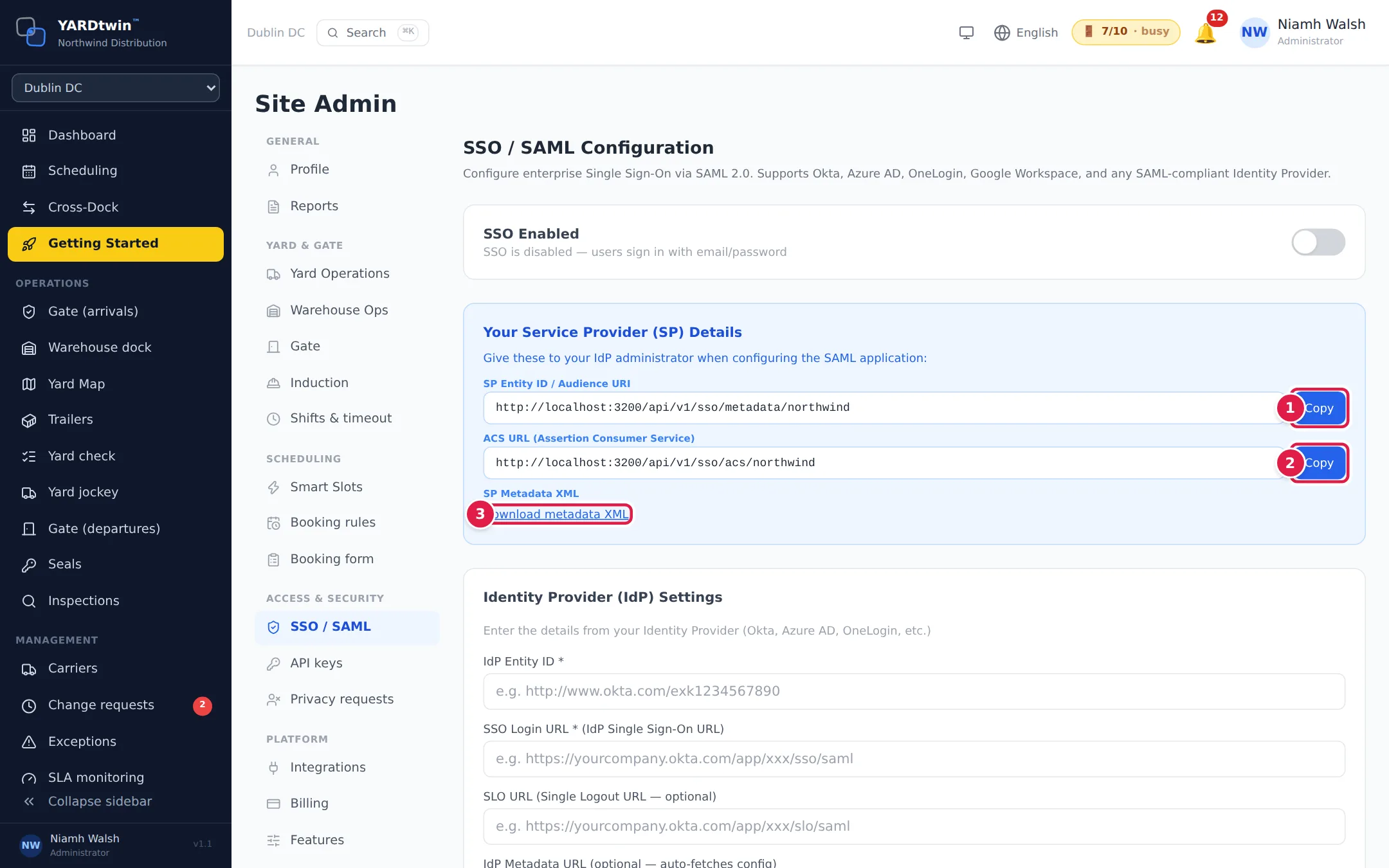
- Click Copy next to SP Entity ID / Audience URI.
- Click Copy next to ACS URL (Assertion Consumer Service).
- Or click Download metadata XML, if your IdP can read a metadata file.
Your IdP administrator creates a SAML application with these details and gives you its settings.
Enter your IdP's settings and switch SSO on
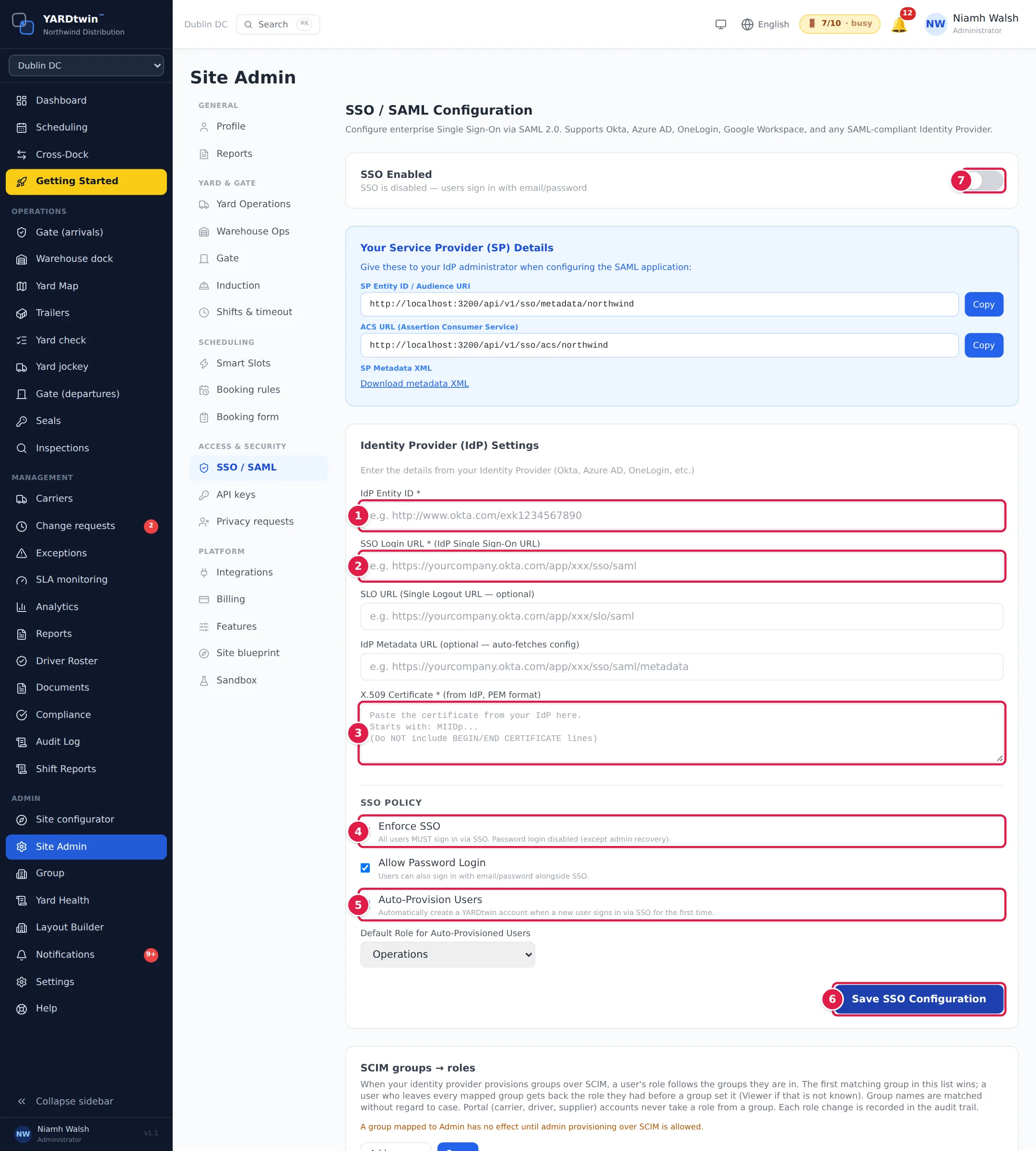
- Enter the IdP Entity ID.
- Enter the SSO Login URL (the IdP's single sign-on URL). The SLO URL for single logout and the IdP Metadata URL are optional.
- Paste the X.509 Certificate from your IdP, without the BEGIN and END CERTIFICATE lines.
- Enforce SSO: everyone must sign in through your IdP; password sign-in is switched off, except for admin recovery. Leave Allow Password Login ticked if people may use either.
- Auto-Provision Users: creates a YARDtwin account automatically the first time someone signs in through your IdP, with the Default Role for Auto-Provisioned Users you choose (for example Operations or Viewer). The list has every staff role except Administrator; carrier, supplier and driver accounts are never created this way. You can change their role later in Invite and manage users.
- If your configuration was saved with an older role that's no longer in the list, the list still shows it and you can save other changes, such as a new certificate. New users then get the role it became (Gate Operator became Gate Guard), or Viewer if it isn't a role YARDtwin gives. Pick a role from the list to be sure.
- Click Save SSO Configuration.
- Switch on SSO Enabled.
What you'll see
With SSO on, an SSO Login URL box appears. Click Copy and share the address with your team: it takes them to your IdP to sign in.
The certificate isn't shown again after you save; Certificate already configured confirms it is there. Leave the box blank to keep it, or paste a new one to replace it.
Before you tick Enforce SSO, test that you can sign in through your IdP. Keep Allow Password Login on until everyone has signed in successfully once.
Signing in with a Microsoft or Google account from the sign-in page is a separate option. See Sign in.
SSO and compulsory two-step sign-in
If your organisation requires two-step sign-in (Site Admin → Profile → Sign-in policy), an SSO sign-in counts as two-step only when your IdP says it used multi-factor authentication. YARDtwin reads that from the signed sign-in response: an authentication context such as https://refeds.org/profile/mfa or http://schemas.microsoft.com/claims/multipleauthn, or Microsoft Entra's authentication-methods claim. Ask your IdP administrator to send one. Without it, YARDtwin asks for its own authenticator code after the IdP sign-in (or for the set-up, the first time). Switching the requirement on signs your SSO users out once; they simply sign in again through your IdP.
Give roles through your IdP's groups (SCIM)
If your IdP provisions users and groups to YARDtwin over SCIM, the groups can decide each user's role. At the bottom of the SSO / SAML tab, under SCIM groups → roles:
- Click Add a group, type the group's name exactly as your IdP shows it (capital letters don't matter) and pick the role. You can pick any staff role; carrier, supplier and driver roles can't be given by a group.
- Add more groups as needed. Use the arrows to order them: a user in several mapped groups gets the role of the first one in the list.
- Click Save. Users already in those groups get their role straight away.
When the IdP adds someone to a mapped group, their role changes; when it removes them from every mapped group, they get back the role they had before a group set it (Viewer if that is not known). If you change their role by hand in the meantime, your change is kept when they leave the group. Carrier, driver and supplier portal accounts never take a role from a group. A role your IdP sends on the user itself never overrides the mapping. Every role change is recorded in the audit trail.
A group mapped to Admin has no effect until admin provisioning over SCIM is allowed for your organisation. YARDtwin never removes your organisation's last active administrator this way, and no group can ever make someone a platform administrator.