Book a slot when a carrier, supplier or colleague asks you to plan a truck in. You choose the carrier, the time and the load; YARDtwin checks the site's rules, picks a suitable dock if you leave it open, and gives the booking a confirmation code.
Carriers can also book their own slots in the carrier portal (see Book a slot as a carrier), and suppliers in the supplier portal (see The supplier portal).
Steps
Click + New Appointment at the top of the scheduling board. The Add Appointment form opens for the day the board is showing.
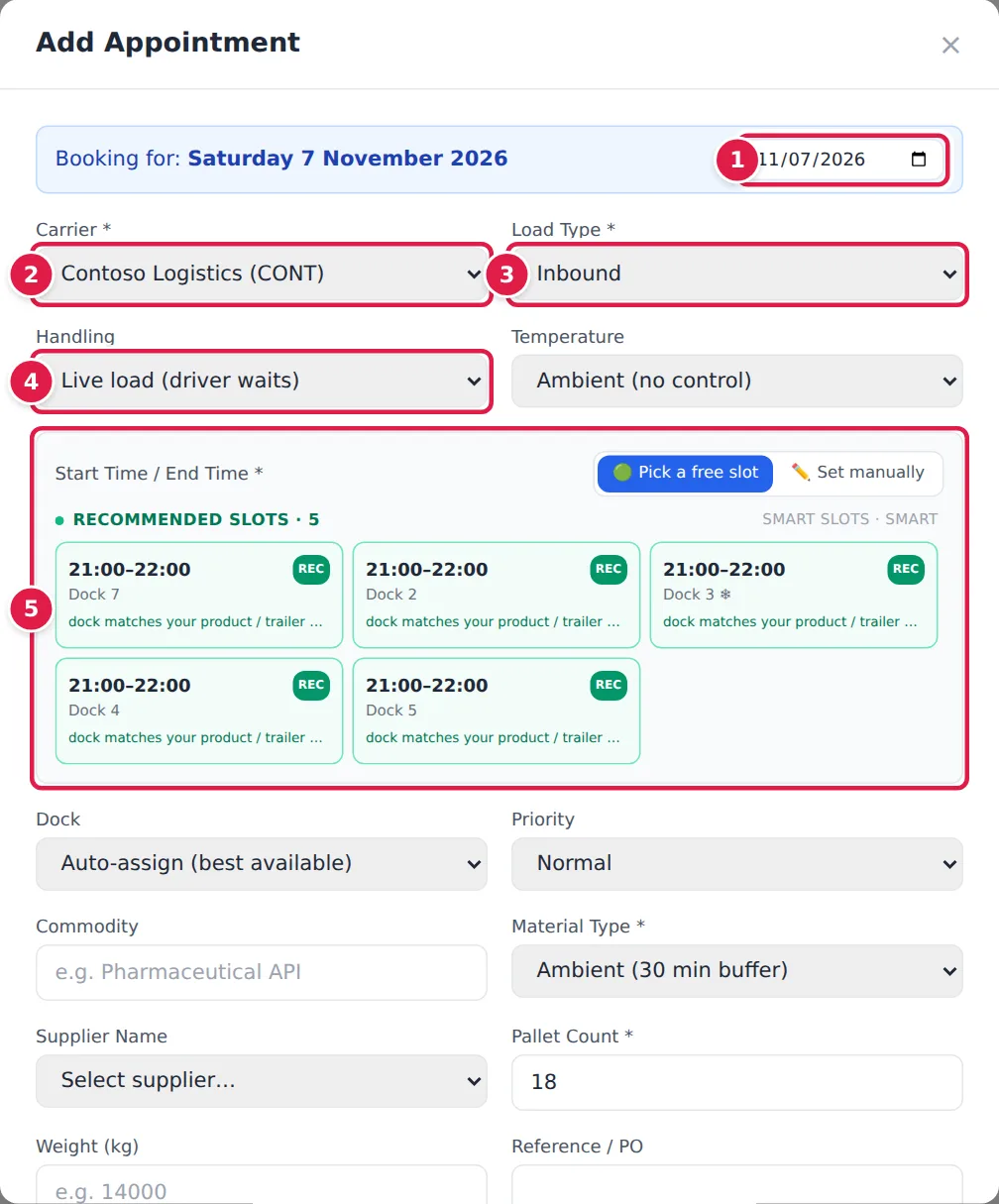
- Check the date next to Booking for:. Change it here if the truck is due on another day.
- Choose the Carrier.
- Choose the Load Type: Inbound, Outbound or Both / cross-dock. For outbound and both, a Consignment note (CMR) details box appears. Filling it in is optional; the details go onto the consignment note printed for the load.
- Choose the Handling. Live load (driver waits) is the default. Drop trailer, Hook trailer (arrive bobtail) and Drop and hook reserve the dock for the site's drop time and send the driver to the parking zone instead of a dock. For a hook, you can enter the Trailer to collect.
- Choose the Temperature: Ambient (no control), Chilled or Frozen. For chilled and frozen loads, only temperature-controlled docks are offered and a Reefer setpoint (°C) field appears. Changing the temperature clears the dock, and a slot you already picked (its time and dock), so pick again.
- Pick a time. With Pick a free slot selected, YARDtwin lists the free slots for that day; click one to fill in the start time, end time and dock. The best slots are marked REC. See Pick a slot with Smart Slots. To type a time yourself, click Set manually and choose the hours and minutes.
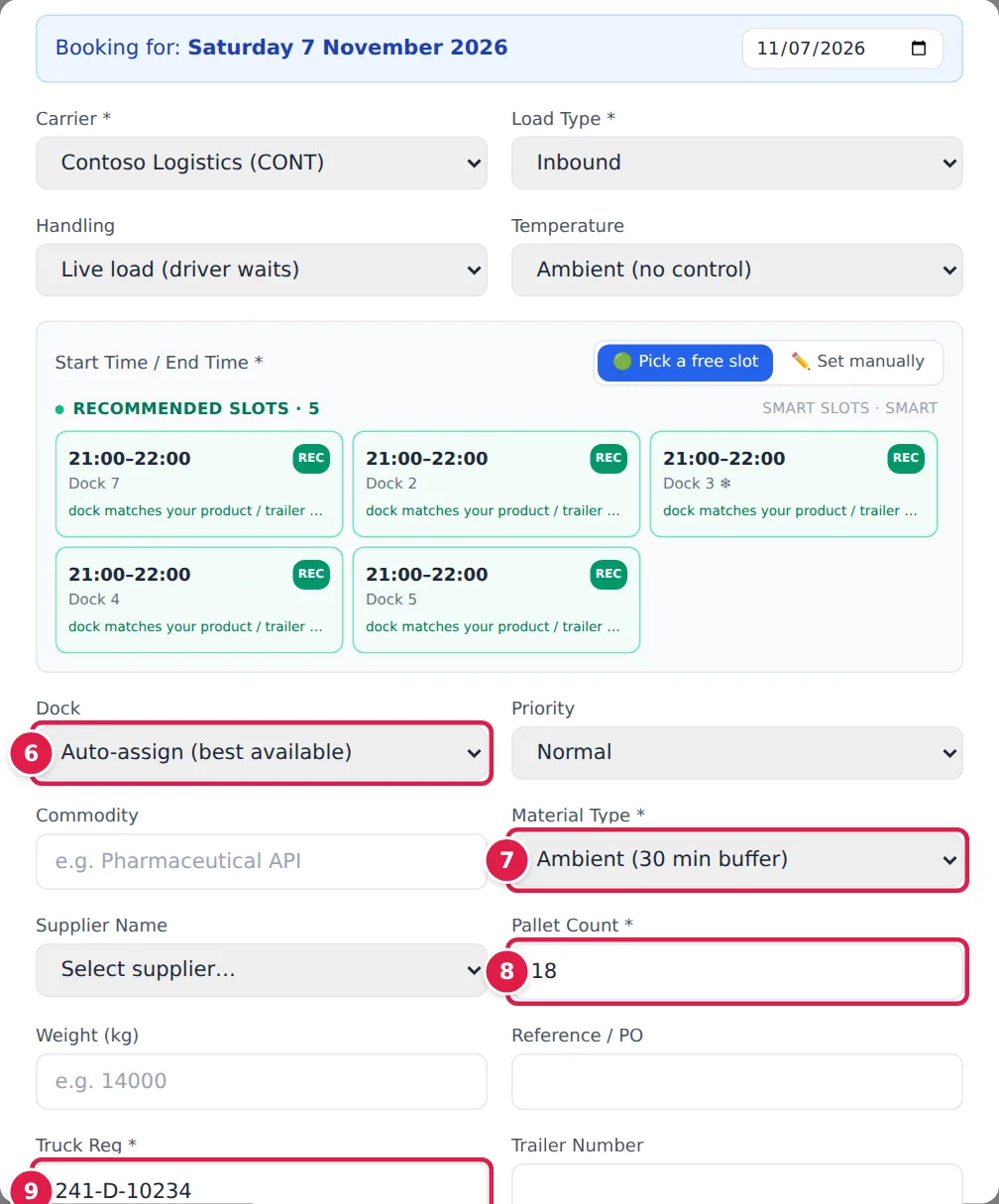
- Leave Dock on Auto-assign (best available) to let YARDtwin choose a compatible free dock, or pick one. Picking a slot in step 6 fills this in for you.
- Choose the Material Type. Each type shows its buffer, for example Ambient (30 min buffer): the extra time the dock stays reserved around the slot.
- Enter the Pallet Count.
- Enter the Truck Reg.
Fill in any other details you have. Fields marked with a red * are required at your site; the rest are optional:
- Priority: Low, Normal, High or Urgent.
- Commodity, Supplier Name, Weight (kg), Reference / PO.
- Trailer Number, Trailer type and Expected Seal Number. The gate compares the seal on arrival with the expected number.
- Hazmat / ADR references and Dangerous goods: search by UN number or shipping name.
- Driver Name and Driver Email. The driver's e-mail receives a QR code for express check-in at the gate.
- Driver's Licence (AI auto-extract): upload a photo of the licence and YARDtwin reads the name, number and expiry date into DL Name, DL Number and DL Expiry. Check them before you continue. The photo must be a JPG, PNG or WebP image. A PDF or a file that is too large is refused as soon as you choose it, with the reason under the field; choose another file.
- Attestations: tick that the driver has completed the site's GDP training within the last 12 months, and that the trailer has been inspected and is clean.
- CMR / Bill of Lading (optional): attach the document now so nobody has to hand over paper at the dock.
- Order references: click + Add order line for each PO, ASN or delivery number, with the expected quantity and unit. Receiving later shows what arrived against each line.
- Repeat this booking: makes a standing booking. See Set up a standing booking.
- This is a cross-border / customs shipment: tick for a customs load. Until you also tick Customs documentation attached + signed, the truck will be blocked at gate departure.
- Special Instructions, and any Site questions your site has added.
A supplier you choose from the Supplier Name list is linked to the booking: the booking appears in that supplier's portal (see The supplier portal), and the supplier's contact is told if it is cancelled, and by any notification rule your site sends to suppliers. The booking confirmation e-mail goes to the supplier only if you also tick Book on behalf of this supplier (shown when the supplier has a contact e-mail); the booking then shows "booked by planner".
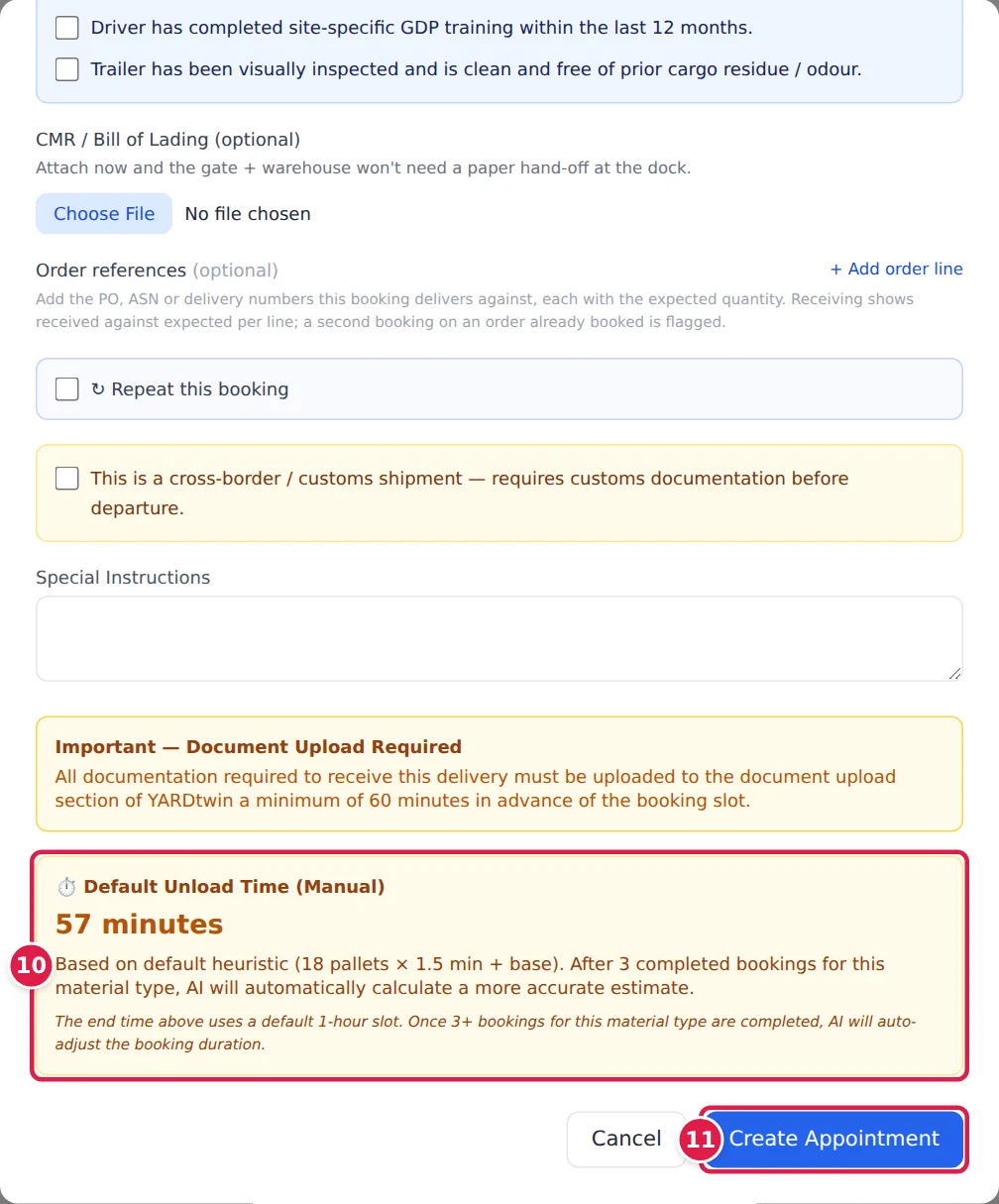
- Check the duration box. It shows how long the visit should take and sets the end time from it:
- Site slot length: a fixed length from your site's booking rules.
- AI-Estimated Unload Time: based on completed bookings of the same material at your site.
- Default Unload Time (Manual): a starting estimate from the pallet count, used until there are at least 3 completed bookings for this material.
- Click Create Appointment.
What you'll see
A green box shows Appointment Created Successfully and the booking's confirmation code, with a summary of the date, time, carrier, dock and load. Give the code to the carrier: the driver quotes it at the gate. Click Close Confirmation, and the new bar appears on the board.
The carrier's contact e-mail also receives the confirmation with the code, if the carrier has one on file.
Every booking you make is checked against the same rules as a carrier's: opening hours, closures, dock suitability, conflicts and buffers, labour capacity and any booking window. Choosing Set manually does not skip these checks.
If the site asks for documents before arrival, the form reminds you: everything needed to receive the delivery must be uploaded at least 60 minutes before the slot. See Documents.
If something goes wrong
When a rule stops the booking, a red Booking Not Permitted box explains why. If YARDtwin found a free alternative, it shows it under Suggested Alternative: click Use This Slot to copy it into the form. Otherwise click Try Next Day or Back to Form.
Some rules can be overridden by an admin or ops manager: the booking window, a carrier's lapsed insurance or failed vetting, and labour capacity. The message then ends You can book anyway by giving a reason (or Book anyway by giving a reason), and the box shows Book anyway — reason:
- Type why the booking should go ahead, at least 10 characters.
- Click Book anyway.
The booking is made with the reason kept in the audit trail. If a second rule then stops it, the box asks again for that rule. Other roles don't see the reason box.
- "This dock is already booked for the selected time (including … post-receiving buffer)." Another booking, or its buffer, overlaps. Use the suggested time, choose another dock, or pick a free slot.
- "No dock available on … All … docks are fully booked." Every suitable dock is taken for that window. Try another time or day.
- "This dock is not suitable for inbound / outbound." The dock you chose only takes the other direction. Pick another dock or leave it on Auto-assign (best available).
- "Dock '…' is in maintenance from … to …" Pick another dock or another time.
- "Appointment cannot be scheduled in the past" The date and start time have already gone by at the site.
- "Appointment must be within operating hours (… - …)", "Site is closed on …" or "Site is not operating on this day" The slot is outside the site's opening hours or falls on a closed day.
- "Bookings need at least … notice", "Same-day bookings are not accepted", "The booking cut-off for … has passed" or "Bookings open … days ahead" Your site's booking window applies. The message gives the earliest or latest date you can book. If your role may override it, give a reason under Book anyway — reason. See Booking rules.
- "… is already booked under …" An order number in Order references is already on another booking. Cancel that booking first. If this really is a split delivery, tick This is a genuine split delivery — allow an order that is already booked (audited).
- "Book anyway by giving a reason (at least 10 characters), or pick a green/amber alternative." or "Pick a green or amber alternative, or ask an ops manager to override." Your site checks labour capacity, and this slot needs more staff or equipment than are free. Pick another slot, or give a reason under Book anyway — reason; see Pick a slot with Smart Slots.
- "This slot would require waiting through a break window. Tick the acknowledgement before confirming." You picked a slot that crosses a break. Tick the acknowledgement under the slot list, or choose another slot.
- "…: insurance expired on …" The carrier's insurance on record has lapsed. Update the carrier record first; see Manage carriers. An admin or ops manager who has seen proof of cover can give a reason under Book anyway — reason instead.
- "You have used all … truck movements included in your plan this month." New bookings are paused until next month or until your plan is upgraded. Trucks already scheduled are not affected and the gate stays open. See Plans and billing.
- "No free slots on … for …. Switch to manual or pick another date." The slot picker found nothing free that day. Try another date, or click Set manually.
- "No carriers found — Add a carrier first →" Your site has no carriers yet. See Manage carriers.