The Seal Audit Trail is the record of every seal at your site: seals checked when trucks arrive, seals checked when they leave, and new seals applied to outbound trailers. Seals checked during check-in and departure land here automatically. Use this page to look a seal up, or to record a seal check on its own.
The page
- 📷 Verify Inbound Seal: record the seal on an arriving trailer.
- 📷 Departure Seal Check: record the seal on a trailer about to leave, before you release it.
- 📷 Apply Outbound Seal: record a new seal fitted to a trailer, for example at the loading bay.
- Search by seal number, truck, carrier or booking, and filter by direction (Arrival or Departure) and condition.
- Each row is one seal record: date, direction, Seal Number, Expected number, Condition, Match, Booking, Truck and who Verified By. Click a row to see the full Seal Record Detail, including the photo.
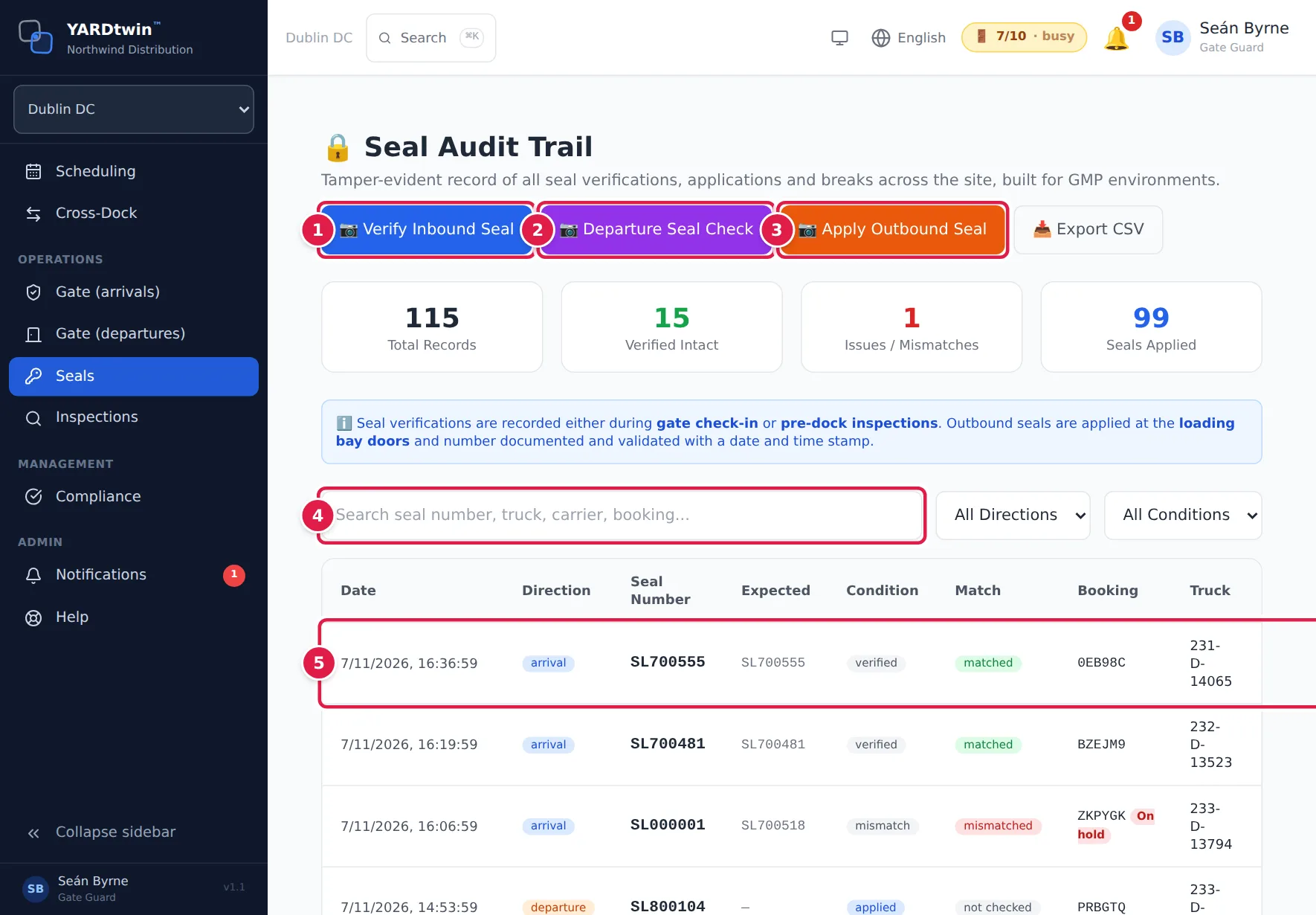
The cards at the top count Total Records, Verified Intact, Issues / Mismatches and Seals Applied. 📥 Export CSV downloads the list as it's filtered.
The three buttons are for the roles that may record a seal: gate guards, warehouse operations staff, operations staff, QA, yard managers, ops managers and administrators (and older Operator and Gate Operator accounts). A role your administrator has given access to this page on top of those sees the trail without them.
Record a seal check
- Pick the Booking Reference if the seal belongs to a booking. Truck Reg and Trailer Number fill in from it, and the booking's expected seal is used for the match.
- Choose a Seal Photo.
- Tap 🔍 Scan Seal Number. YARDtwin reads the number from the photo and shows it as AI Scanned Number, with how confident it is. Edit it if it's wrong.
- If the scan can't read the photo, type the number in Seal Number (manual entry).
- Pick the Seal Condition: Intact, Damaged, Tampered or Missing. Add Notes if needed.
- Tap Save Verification (or Save Departure Check for a departure check).
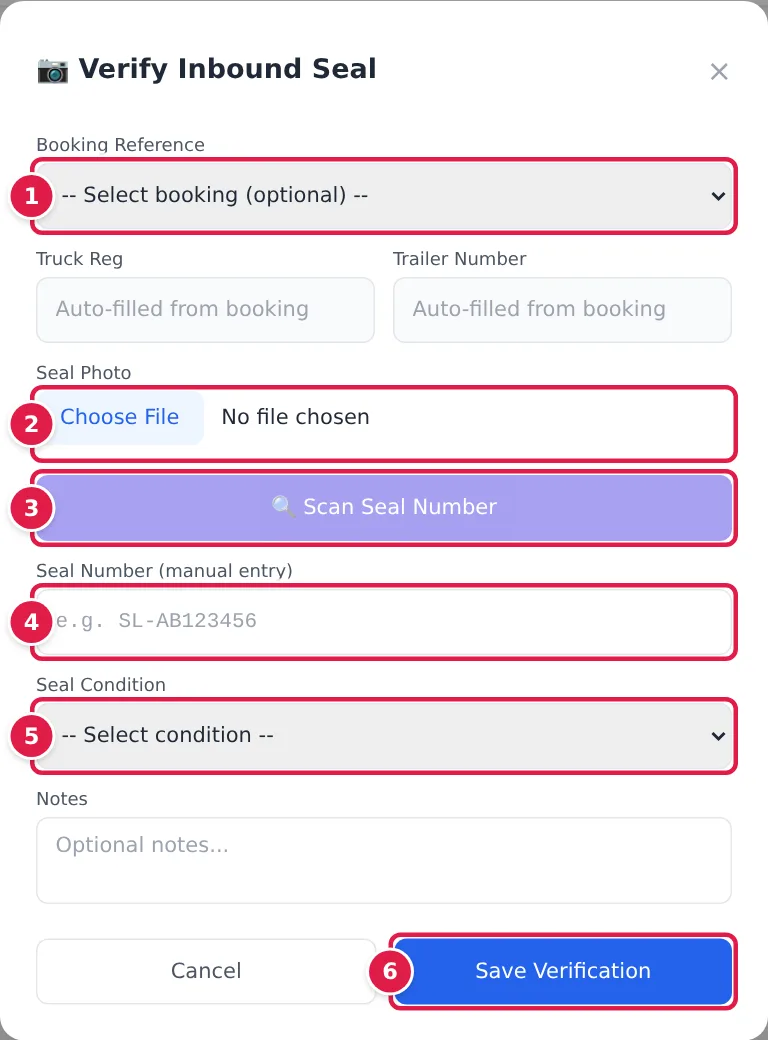
Apply Outbound Seal works the same way, without the condition, and saves with Save Seal Application.
What happens to a problem seal
When you save a check where the number doesn't match the booking, or the condition is Damaged or Tampered, YARDtwin:
- marks the record as mismatched (or shows the condition) in the trail,
- sends the site's ops managers a Seal Discrepancy alert,
- puts the linked booking on compliance hold.
A booking on hold is tagged On hold in the Booking column. While it's on hold, a load that carries goods out of the site can't be cleared at the gate. Recording a compliance checklist afterwards doesn't lift the hold.
Review and release a seal hold
Administrators, ops managers and QA review the hold, for inbound and outbound loads alike.
- Click a seal row of the booking. The detail shows a red box Booking on hold — seal discrepancy.
- Click 🔓 Review & release.
- In Reason for releasing, write what was checked and why the load can be released (at least 10 characters). Add a Note if useful, for example the reference of a carrier statement.
- Click Release the hold.
The booking's hold is lifted and the detail shows Hold released after review. The release, your name, the reason, the note and the seal records concerned are written to the GMP audit log. The seal records themselves don't change and stay with the booking as quality evidence. A new seal discrepancy on the booking puts it on hold again. The same Review & release is on the departure screen and the dock board.
Every seal record is written to the GMP audit log with who recorded it and when.
If something goes wrong
- "Please scan or enter a seal number": scan the photo or type the number before saving.
- "Please select seal condition": pick a condition.
- "Could not read seal number from photo. Please enter it manually below.": retake the photo closer and in focus, or type the number.
- The buttons are missing and a note says Your role can view the seal records here but not record seal checks: it depends on your role, not on a site setting. Ask an administrator if you need to record seals.
- "No seal records found": nothing matches your search and filters. Clear them, or check the site switcher.
- There's no Review & release button: only administrators, ops managers and QA can release a seal hold.
- "A review reason of at least 10 characters is required": say what was checked, in a few words more.
- "This booking is not on a seal-discrepancy hold": the hold was already released, perhaps by someone else. Refresh the page.