Plans change: a truck is running late, a dock goes down, or a carrier rings with a new registration. Administrators and Operations managers can change any booking on the scheduling board. Other roles see the board read-only.
Move a booking on the board
- Drag a bar to another time or another dock row. A blue outline shows where it will land, with its new times. Let go to save. Times snap to 15 minutes.
- Drag either end of a bar to make the booking start earlier or later, or finish earlier or later. A booking can't be shorter than 15 minutes.
- Undo (or Ctrl + Z, ⌘ + Z on a Mac) reverses your last move. The board remembers your last 10 changes until you leave the page. Only a move that was saved can be undone.
You can't drop a booking onto a dock that is already booked at that time: the board shows "Slot occupied — cannot drop here" and leaves it where it was. Trucks that have completed, left, been cancelled or not shown can't be dragged; clicking them opens the booking instead.
If the site's rules refuse the move, the board shows the reason and the booking stays where it was. If your role may override that rule (the booking window, or labour capacity), the Edit Appointment window opens instead, set to the new time and dock, with Save anyway — reason under the message:
- Type why the move should go ahead (at least 10 characters). The reason is kept in the audit trail.
- Click Save anyway. Click Cancel to leave the booking where it was.
To change a booking on another day, open that day with the date picker first, or use the Date field in the edit window below.
Edit a booking
Click a bar on the board, or ✏️ in the booking's row in the Appointments list. The Edit Appointment window opens.
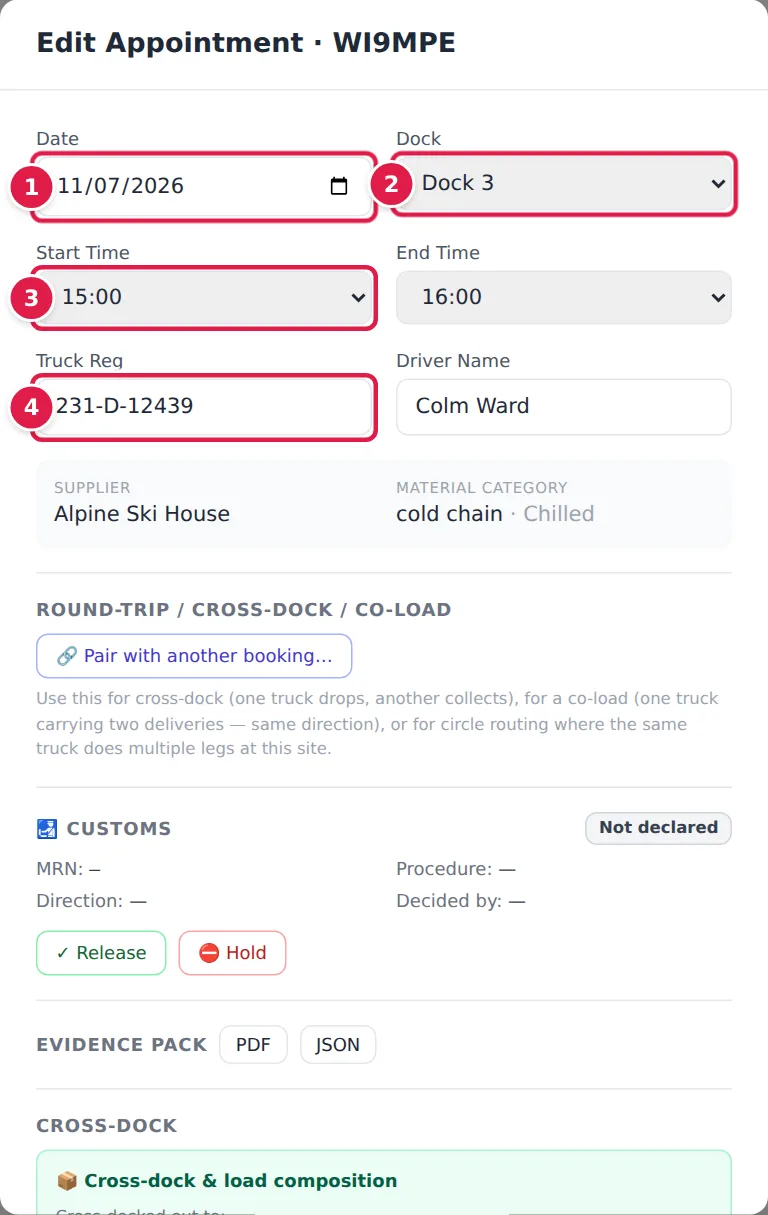
- Date. Move the booking to another day.
- Dock. Choose another dock, or Auto to let YARDtwin pick one.
- Start Time and End Time, in 5-minute steps.
- Truck Reg and Driver Name. The supplier and material are shown for reference.
Further down the window:
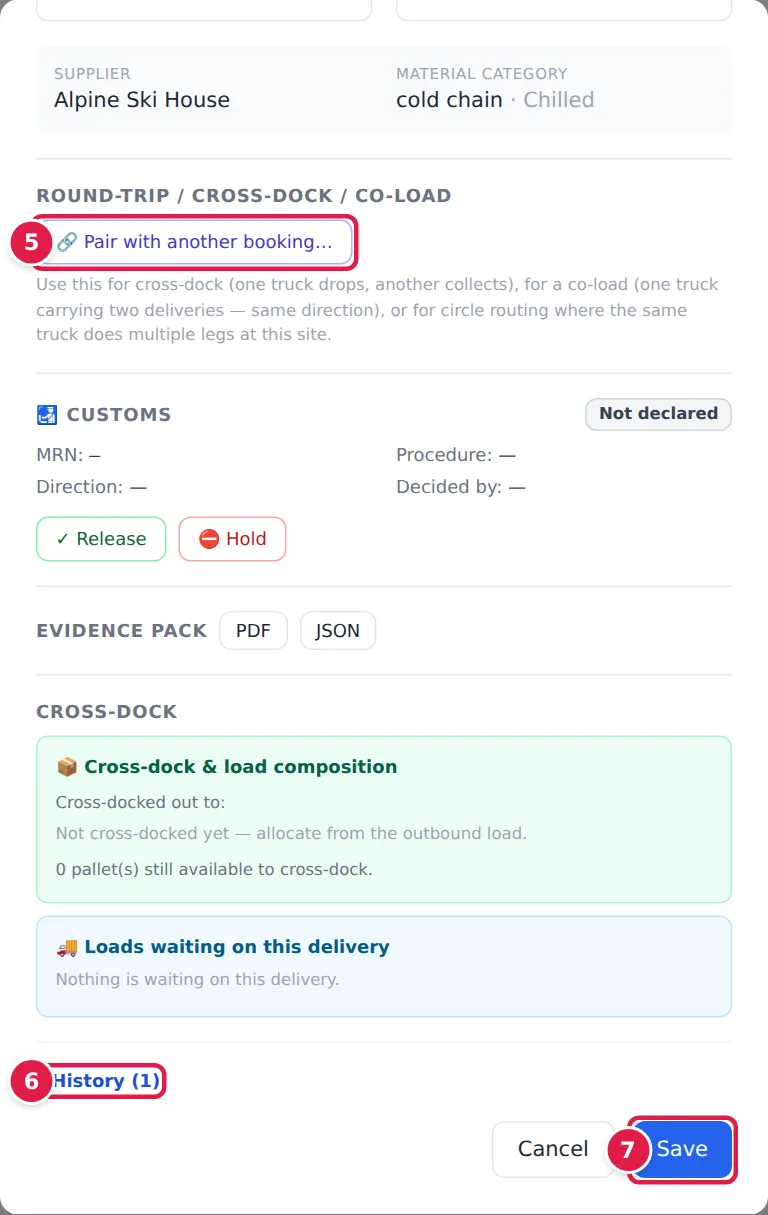
- Pair with another booking… links two bookings as one truck visit, for a cross-dock, a co-load or a truck doing several legs at your site. See Plan a cross-dock.
- History lists every change made to the booking: who changed what, and when.
- Save applies your changes. YARDtwin checks the new time and dock against the site's rules first, just as for a new booking.
If the change is refused by a rule your role may override (the booking window, or labour capacity), the window shows Save anyway — reason under the message. Type why the change should go ahead (at least 10 characters) and click Save anyway. The reason is kept in the audit trail. Changing any field first withdraws the offer, and Save checks the new values again.
Depending on your site's setup, the window can also show the booking's Customs status with Release and Hold, its Evidence pack (PDF or JSON), cross-dock details, and the stops of a truck visiting several docks. When SAP has sent a loading block for an outbound delivery, a SAP loading block section lists the blocks SAP still has standing and what they do now (Loading blocked, Released by QA, Released by SAP, or Not enforced at this site). QA and administrators can release a standing block with Release the block (QA) and a written reason of at least 10 characters; loading may then start and the truck may leave. A new block from SAP stops it again.
Combined truck. A booking whose delivery comes on one truck with others shows Combined truck. Changing its time or dock changes every delivery on the truck; a delivery under the truck's main booking is changed through the main booking. See Combine deliveries onto one truck.
Multi-dock stops. For a truck that visits several docks, click Edit stops (or Add stops), choose a dock and, if you like, a time window for each stop, then click Save stops. If your site checks labour capacity and a stop needs more staff or equipment than are free, the stops are refused. If your role may override that, Save anyway — reason appears under the stops: type why (at least 10 characters) and click Save anyway. The reason is kept in the audit trail. Changing a stop first withdraws the offer.
Move a booking through its statuses
Most status changes happen at the gate and on the docks as the truck moves. When you need to record a step by hand, use the button in the booking's Actions column:
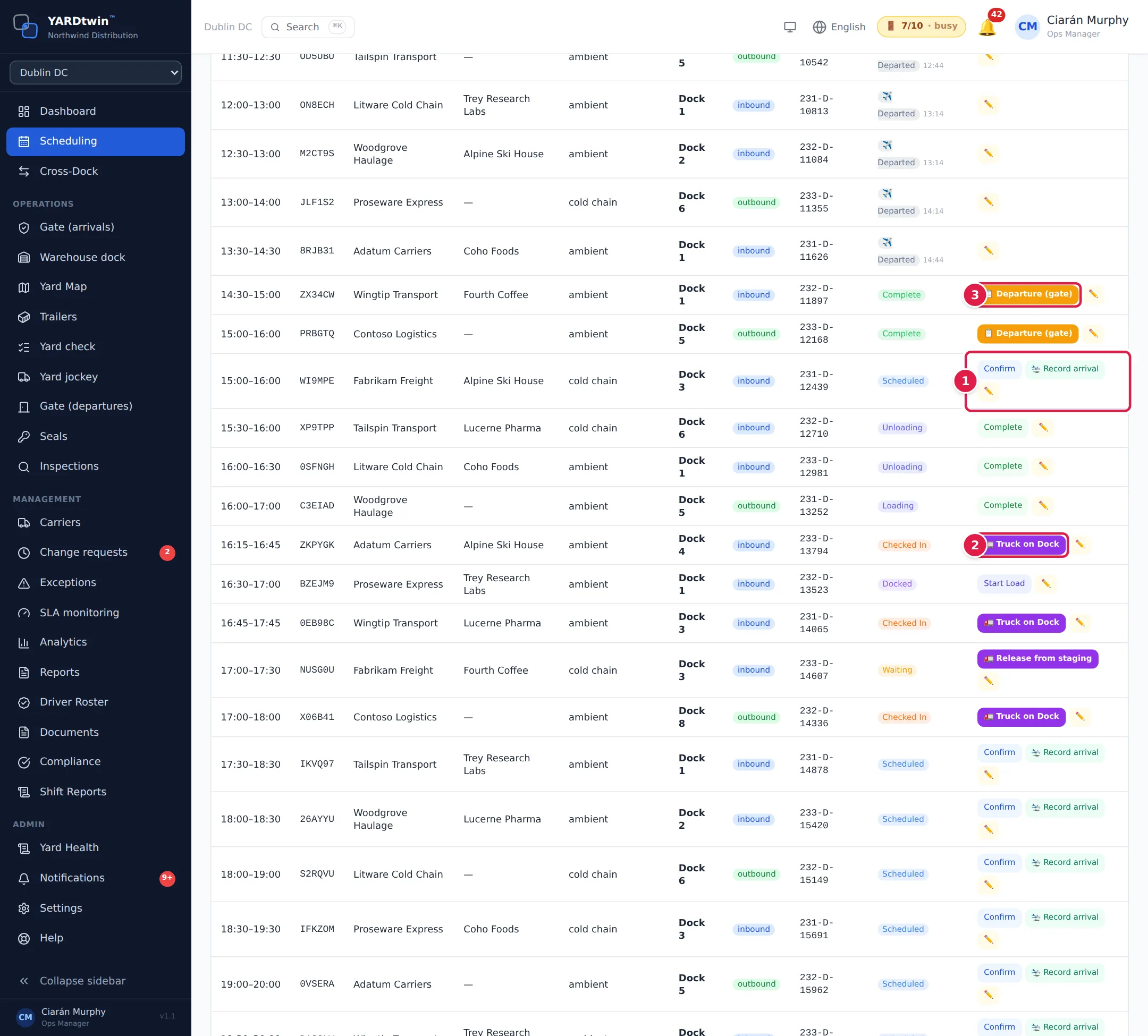
- A Scheduled booking has Confirm, which marks it Confirmed, and 🛬 Record arrival, for a driver who is already in the yard without going through the gate.
- A Checked In truck has 🚛 Truck on Dock. Confirm it with Confirm Docked. If your site checks seals before docking, a Pre-Dock Seal Verification window opens first. A truck waiting in a staging lane shows Release from staging instead.
- A Complete truck has 📋 Departure (gate), which opens the Departure Checklist. When the required items are ticked, Release Truck lets it leave. See Clear a truck to leave.
In between, an Arrived booking has Check In, a Docked truck has Start Load, and a Loading or Unloading truck has Complete. A booking marked No Show has ↩ Reverse no-show: it goes back to Confirmed, and you must choose a reason, which is audited.
Cancel a booking
Bookings are cancelled from the gate's arrivals list, where the gate and the office see the same trucks. Open Gate (arrivals), find the booking and click ✕ Cancel next to it.
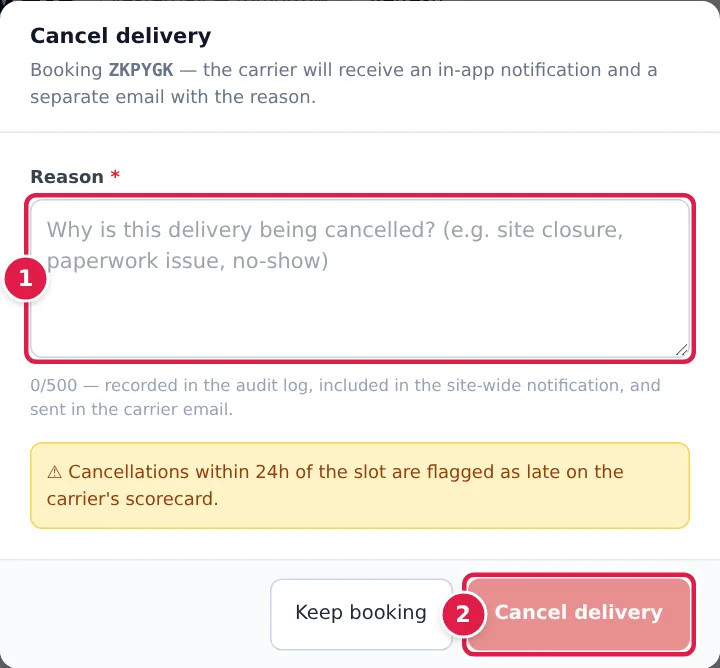
- Type the Reason. It is required.
- Click Cancel delivery. Click Keep booking to back out.
The reason is written to the audit log, shared with everyone at the site, and e-mailed to the carrier. The dock is freed straight away.
A cancellation can't be undone. Cancellations within 24 hours of the slot are flagged as late on the carrier's scorecard.
To cancel a single booking from a standing series, cancel it the same way. To stop the whole series, see Set up a standing booking.
Decisions that wait for you
Some buttons at the top of the board only appear when your site uses the feature. A highlighted button means something is waiting.
✋ Approvals. If your site holds some carrier bookings for approval, they wait here. A held booking keeps its slot but doesn't appear at the gate until you decide. Each row shows the carrier's booking tier, past bookings, no-shows and vetting status. Approve re-checks the dock, rules and capacity and confirms the booking. To reject, choose a reason in Reject — reason… (for Other, also type at least 5 characters under Tell the carrier why), then click Reject. The carrier is told either way. Your site decides which bookings are held; see Booking rules.
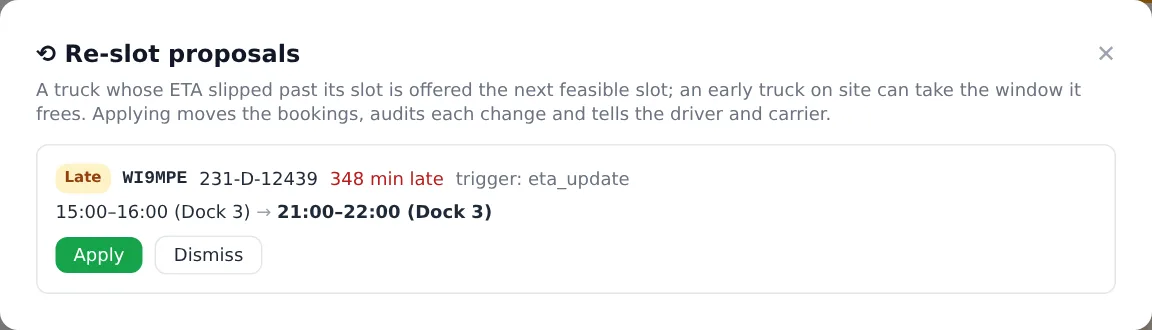
⟲ Re-slot proposals. If your site uses ETA re-slotting, YARDtwin watches the ETAs of booked trucks. When a truck is running late past its slot, it proposes the next workable slot the same day (Late). It can also offer the freed window to an early truck that is already on site (Swap). Each proposal shows the booking, how late it is, and the old and new times and docks. Apply moves the bookings, records each change and tells the driver and carrier. Dismiss leaves the booking as it is. Bookings with an open proposal show ⟲ on the board.
⏳ Waitlist. If your site runs a waitlist for full days, requests for a slot on a full day are listed here as Waiting or Offered. A freed slot can be offered to the earliest matching request automatically. You can also offer one by hand: pick the date, time and, if you like, the dock, then click Offer. For an open offer, Book for them accepts it on the requester's behalf. Remove takes a request off the list.
If something goes wrong
- "Slot occupied — cannot drop here" Another booking is on that dock at that time. Drop it somewhere free, or move the other booking first.
- A message when you let go of a bar. The site's rules refused the new time or dock, for example outside opening hours or on a dock in maintenance; the message says which. The booking stays where it was.
- "Moved — refresh to see the latest" The move was saved, but the board could not reload. Refresh the page to see it. Undo still reverses it.
- "Failed to move booking" The move could not be saved and no reason came back, for example because the connection dropped. Try again, or open the booking and make the change there.
- "No compatible dock available on … All … compatible docks are fully booked." No suitable dock is free for the new time. Choose another time.
- "Site is closed on …. Please choose a different date." or "Appointment must be within operating hours (… – …). Please adjust the time." The new date or time is outside the site's opening hours.
- "This booking has a multi-dock stop itinerary — change docks by editing its stops, not the booking dock." The truck visits several docks. Change the docks in its stops list in the same window.
- "…pick a green/amber alternative." Your site checks labour capacity, and the new slot needs more staff or equipment than are free. Pick another time, or give a reason under Save anyway — reason; see Pick a slot with Smart Slots.
- "Bookings need at least … notice" or another booking-window message. The new time is outside your site's booking window. If your role may override it, give a reason under Save anyway — reason. See Booking rules.
- "Could not undo:" The booking changed again since your move, or its new status can't be reversed. Edit it by hand instead.
- You don't see ✕ Cancel at the gate. Only Administrators and Operations managers can cancel bookings.