A compliance checklist is a list of checks gate staff complete for a truck, such as Seal Integrity Verified or Trailer Cleanliness. You set up the checklists here as templates; the gate fills them in; and every completed check is kept here as a record.
The four tiles at the top show the number of Templates, Checks Completed, the Pass Rate and the number Failed, counted over the latest 100 checks at the site.
Review completed checks
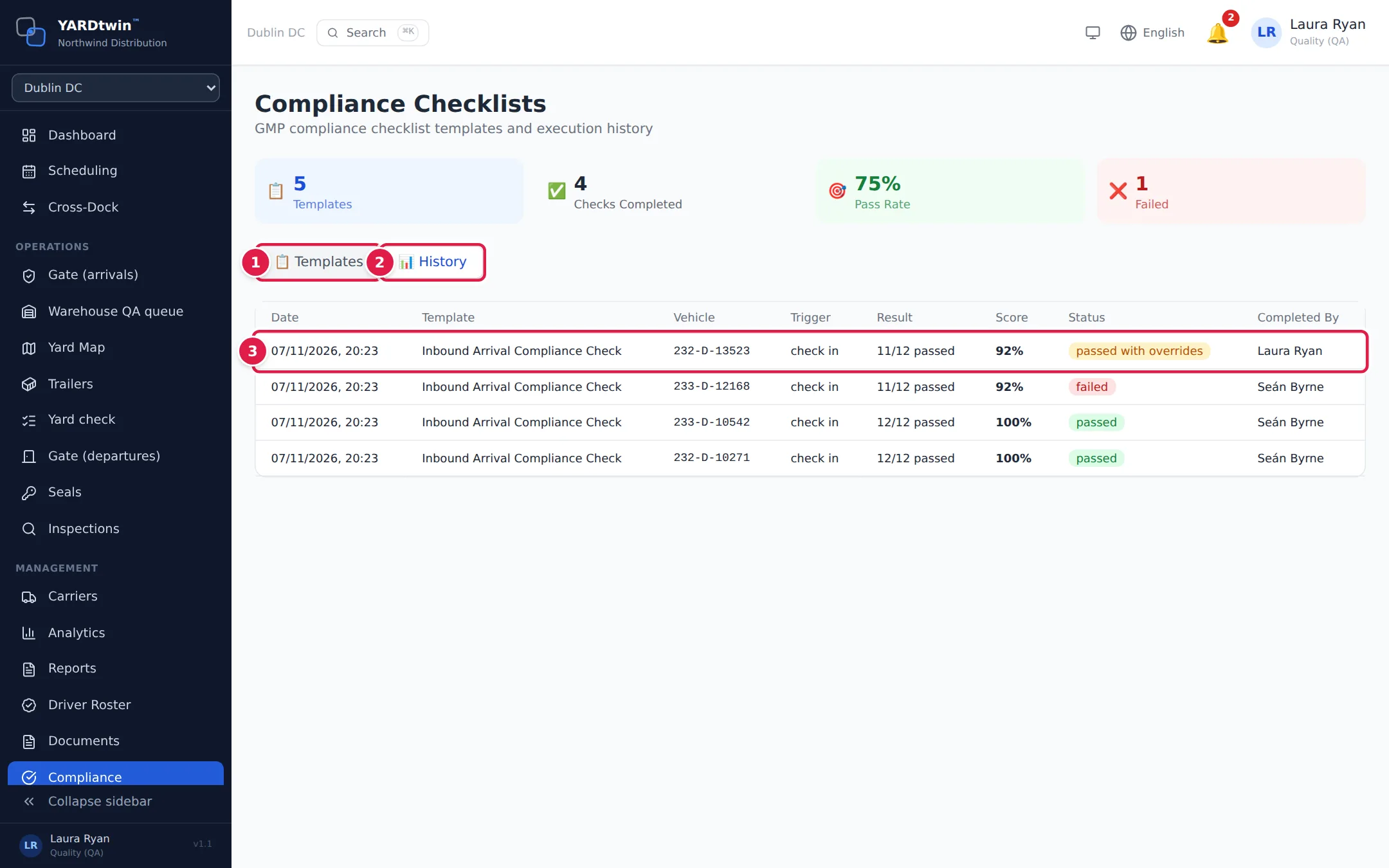
- Templates lists the checklists set up for your site.
- History lists the checks completed, newest first.
- Each row shows the Date, Template, Vehicle, Trigger (check in or check out), Result (for example 8/9 passed), Score, Status and who completed it (Completed By). Click a row to open the Compliance Record: every item with ✓ Pass or ✗ Fail, the items that were overridden, and any notes.
A check's status is:
- passed: every item passed;
- failed: at least one item failed and wasn't overridden;
- passed with overrides: items failed, but each one was overridden with a reason.
When a check fails, ops managers get a Compliance Check Failed notification, and the result counts towards the carrier's scorecard.
Create a checklist template
Administrators and ops managers create templates. Click + New Template. Other roles, QA and yard managers included, see the templates but not this button.
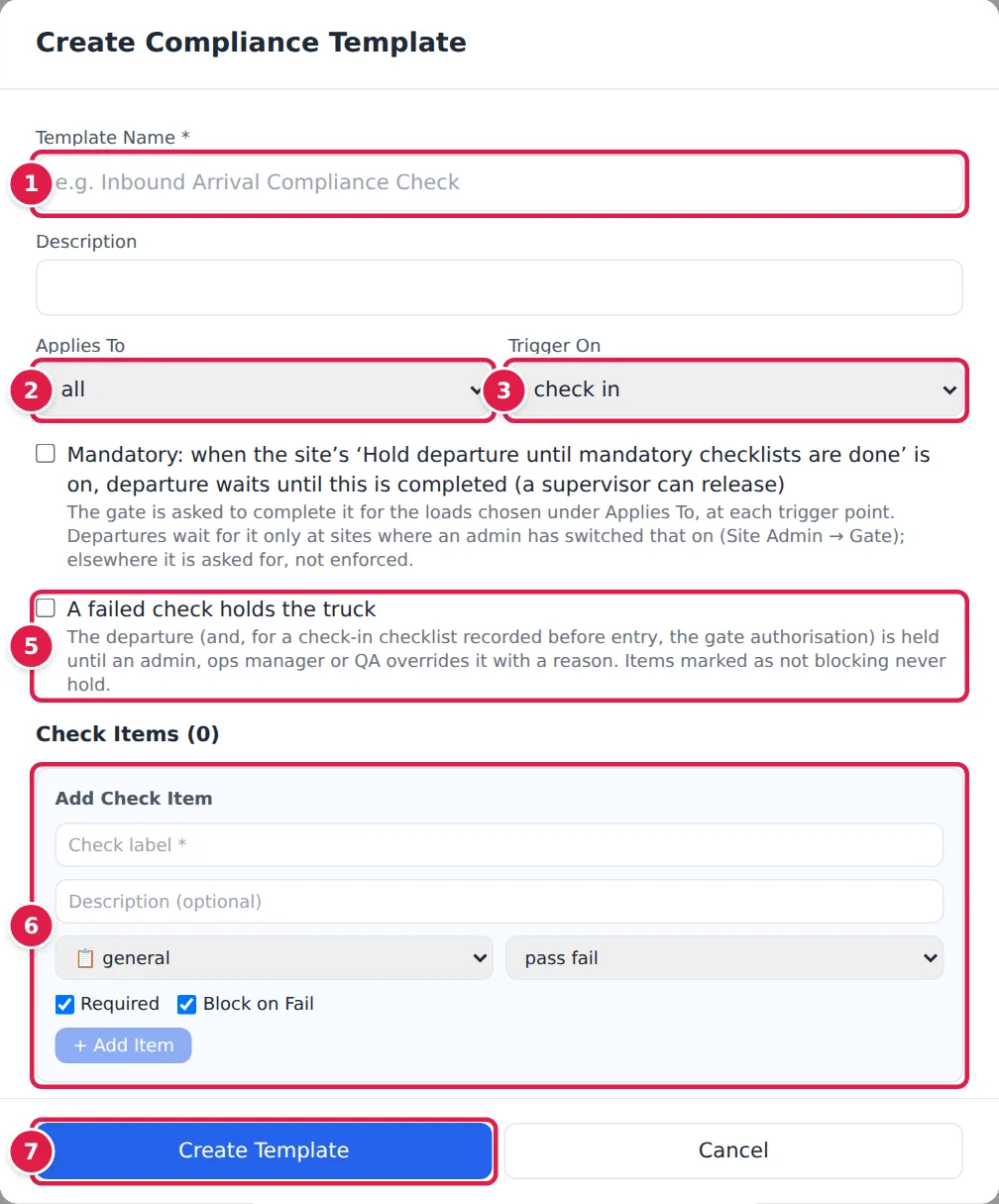
- Template Name, for example Inbound Arrival Compliance Check. Add a Description if it helps.
- Applies To: which loads it's for: all, inbound, outbound, hazmat, cold chain, pharma api or packaging.
- Trigger On: when the gate fills it in: check in, check out or both.
- Mandatory: when the site’s ‘Hold departure until mandatory checklists are done’ is on, departure waits until this is completed (a supervisor can release). Tick it for a checklist every truck it applies to must have. The gate is asked to complete it at each trigger point. At a site where an administrator has switched on Hold departure until mandatory checklists are done (Site Admin → Gate), the truck can't leave until it has been completed, or until an administrator, ops manager or QA releases it with a written reason. Elsewhere it is asked for, and nothing waits for it. A new template is not mandatory unless you tick this. Templates that aren't mandatory are labelled Advisory.
- A failed check holds the truck. With this ticked, a failed check holds the truck's departure until an administrator, ops manager or QA overrides it with a reason. For a check-in checklist completed before the truck enters, it also holds the gate authorisation. Items marked as not blocking never hold.
- Add each item under Add Check Item: the Check label, an optional description, the category (general, safety, gmp, documentation, vehicle, seal or temperature) and the type (pass fail, yes no, text, number or photo). Untick Required for an optional item, and Block on Fail for an item whose failure shouldn't hold the truck. Click + Add Item. Remove an item with ✕.
- Click Create Template.
An administrator can click 💊 Seed Pharma Templates to add a set of ready-made pharmaceutical checklists, such as Inbound Arrival Compliance Check. Inbound Arrival Compliance Check, Departure Compliance Check and Cold Chain Verification are added as mandatory; Clinical Trial Shipment (IMP) and Biological Sample (UN3373) are added as advisory, because they are for particular consignments only. Edit them to suit your site.
Which trucks a mandatory checklist applies to
A mandatory, active template with at least one item applies to a truck when all of these are true:
- Site: the template is for the truck's site, or for no particular site (every site).
- Applies To: all loads; inbound for inbound loads and loads that go both ways; outbound for outbound loads and loads that go both ways; cold chain for a temperature-controlled booking or a cold-chain material; hazmat for a booking with dangerous goods declared or a hazmat material; pharma api, packaging or another value for a booking whose material has that category.
- Trigger On: it must be completed at check in, at check out, or at both (once at each).
A completed checklist counts whatever its result. Whether a failed result also holds the truck is set by A failed check holds the truck. When one truck carries several bookings (the legs of a visit, or a paired round trip), a check-in checklist completed on one of them counts for all of them, and signing a leg that hands the truck over to its next delivery doesn't ask for check-out checklists: those are asked of the leg the truck leaves on.
many existing templates were marked Mandatory by default. Before an administrator switches on Hold departure until mandatory checklists are done for a site, review which templates are ticked Mandatory, and untick the ones that should only be asked for. The switch shows the list before it is turned on.
On the Templates tab, each card shows the template's items and tags: Mandatory or Advisory, who it applies to, its trigger, the number of items and Failure holds departure. Click Edit to change a template, and click Save Changes when you're done. Delete deactivates it: new checks won't use it, and existing records keep their reference to it. Edit is shown to administrators and ops managers; Delete and 💊 Seed Pharma Templates to administrators only. Every change to a template is recorded in the audit log.
When a change lets held trucks leave
Some changes let trucks that this checklist is holding leave without it:
- At a site that holds departures for mandatory checklists: unticking Mandatory, narrowing Applies To or Trigger On, moving a template that covers every site to one site, or deleting it.
- At any site: unticking A failed check holds the truck, or making the item that failed non-blocking, while a failed check of this template holds a truck.
When trucks on site are held this way, YARDtwin doesn't save the change straight away:
- A box opens: This change lets held trucks leave. It lists each truck, with its booking, registration, site and the trigger points it no longer needs (failed check for a truck held by a failed check). still held by another checklist means another checklist still holds that truck.
- Write why these trucks may leave without this checklist, in at least 10 characters. A reason code on its own isn't enough.
- Click Save and release these trucks, or Cancel to keep the template as it was.
The template change and the reason are recorded in the audit log, and each truck released gets its own GMP-relevant entry in its audit trail. Trucks a supervisor has already released, trucks that have left and trucks not yet on site aren't listed. At a site that doesn't hold departures for mandatory checklists, a change to Mandatory, Applies To or Trigger On is saved without a reason.
If you can only reach some sites, you can't make a change that would release trucks at a site you don't manage. YARDtwin says how many trucks that would be, and an administrator of those sites has to make the change.
A site configuration import that changes a checklist template is not stopped, but each truck it releases gets its own audit entry naming the import and who ran it.
How the gate completes a checklist
The gate sees the templates that apply to the truck, each tagged Required (mandatory, not done yet, at a site that holds departures for it), Asked for (mandatory, at a site that doesn't), Done or Optional. A mandatory one opens first. After one is submitted, the list comes back if another mandatory one is still to do.
- Gate screen: the check-in checklists open on the Entry authorised screen. Where the site holds departures for them, the screen waits while a mandatory one is open; 📋 Complete checklist reopens it.
- Classic gate screen: the check-in checklists open after the truck is checked in (after the seal check). At check-out, the check-out checklists open before the truck is checked out. See The classic gate screen.
- Departure screen: a mandatory checklist still to do is listed with 📋 Complete now, under Your site asks for these checklists where the site doesn't hold departures for it. See Clear a truck to leave.
Where the site holds departures for them, closing the checklist while a mandatory one is open says Not now — departure stays blocked: the truck can't leave until it's completed, or until an administrator, ops manager or QA releases the departure with a written reason of at least 10 characters (on the departure screen, or in the classic gate's outstanding-items box; a reason code on its own isn't enough). That release is recorded in the audit log. A release still counts if fewer mandatory checklists apply later; if another one starts to apply, it needs a new release.
Every required item must be answered. An administrator, ops manager or QA can override a failed item with a reason of at least 5 characters; other roles record the failure as it is.
Each completed check is recorded in the audit log as a GMP-relevant event.
If something goes wrong
- "Name and at least one check item required": give the template a name and add at least one item.
- No + New Template, Edit or Delete button: only administrators and ops managers create or edit templates, and only administrators delete them or add the pharma set.
- "Every required item must be answered: …": at the gate, answer every required item before submitting.
- "An override needs a reason (at least 5 characters)"
- "Only admin, qa, ops_manager may override a failed checklist item"
- "Mandatory checklist not completed: …" when a truck tries to leave: complete the checklist named, or ask an administrator, ops manager or QA to release the departure with a written reason.
- "Releasing a mandatory checklist needs a written reason …": write what was checked instead, in at least 10 characters; a reason code on its own isn't enough.
- "A checklist needs at least one item": a template must keep at least one item.
- "This change lets … truck(s) held by … leave without it": the change would release trucks waiting for this checklist. Give a written reason (see When a change lets held trucks leave), or cancel the change.
- "This change would release … held truck(s) at sites you do not manage": the template covers sites you can't reach. Ask an administrator of those sites to make the change.
- A truck is held by a checklist that shouldn't apply to it: check the template's Applies To, Trigger On and site, and untick Mandatory if it should only be asked for. To stop all mandatory checklists holding trucks at a site, an administrator switches off Hold departure until mandatory checklists are done.