At the end of your shift, check what the shift achieved, leave a note for whoever takes over, and close it. Tap End shift in the shift bar. It's on every warehouse screen except the dock board, so open the monitor or the QA queue first if you're on the board.
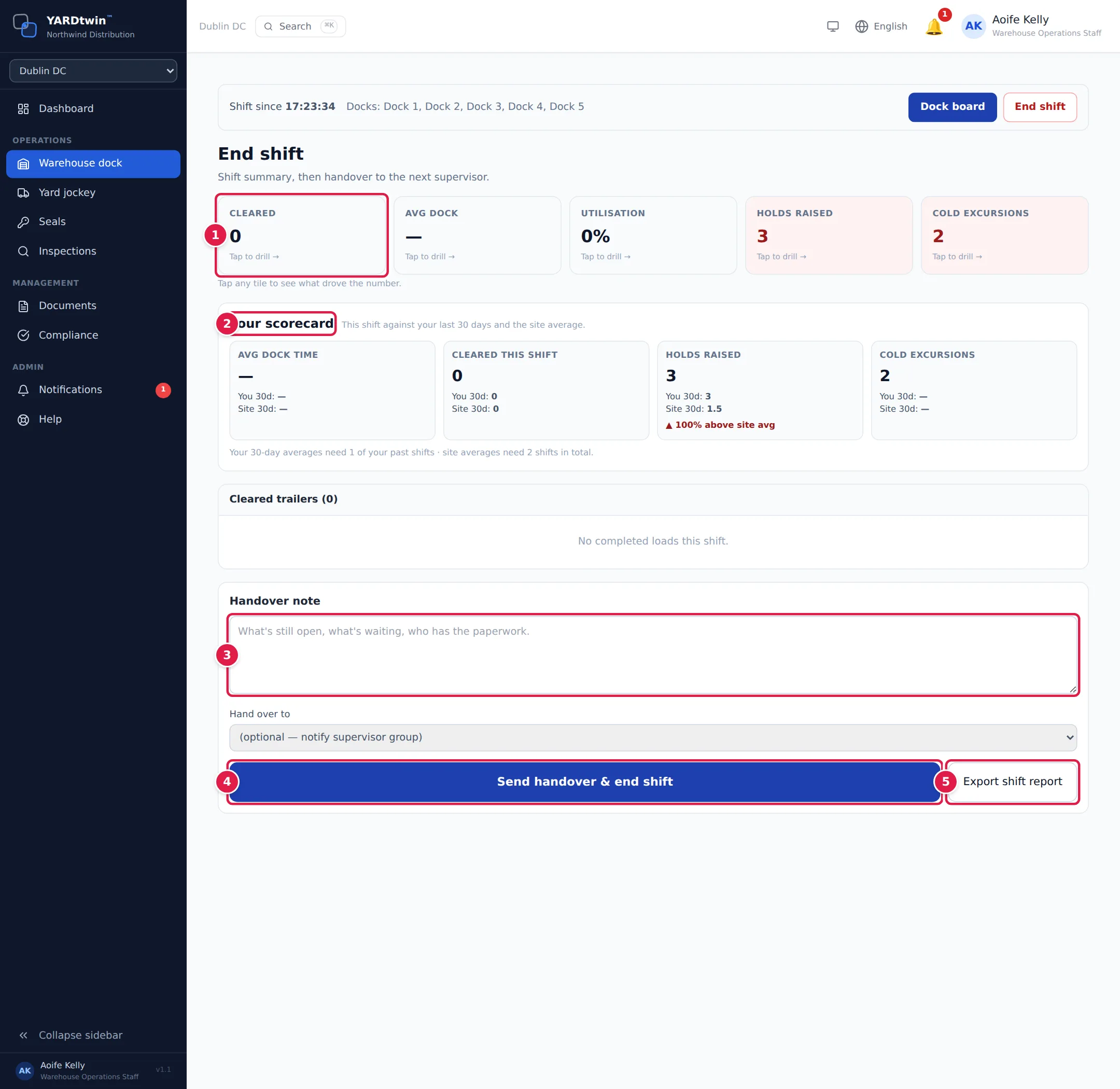
The five tiles sum up the shift on your docks:
- Cleared: loads completed at your docks during the shift.
- Avg dock: the average time from start to completion, without paused time.
- Utilisation: working time at your docks as a share of the shift's length multiplied by the number of docks.
- Holds raised: holds raised during your shift. The tile is red when there were any.
- Cold excursions: cold-chain excursions logged during your shift on loads at your docks, from the dock monitor, a WMS feed or a cold-chain logger. The tile, your scorecard and the list behind the tile always show the same number.
Tap any tile to see what's behind the number: the cleared trailers, the dock time of each booking (longest first), the holds with when QA cleared them, or the excursions.
Your scorecard compares this shift with your own last 30 days (You 30d:) and the site's average (Site 30d:) for average dock time, loads cleared, holds and excursions. A green or red line shows how far above or below the site average you are. The footnote says how many shifts the averages are based on, so you can tell when there's too little history to compare.
Under Cleared trailers, check the list of loads you completed: time, dock, booking code and PO, inbound or outbound, dock time and pallets. Then write your Handover note: what's still open, what's waiting, who has the paperwork.
In Hand over to, pick the colleague taking over. The list shows the active warehouse operators, operations staff, yard managers, ops managers and administrators who can work your site's docks, by name and role. Leave it on (optional — notify supervisor group) if nobody in particular is taking over.
Tap Send handover & end shift. The shift closes, the note is saved with it and the close is recorded in the audit log, and you're back on Start dock shift.
Export shift report opens your browser's print dialog. Print the summary, or save it as a PDF, before you end the shift.
Export the report before you tap Send handover & end shift. Once the shift is closed, this screen is no longer available for it.
Where the handover note goes
- A notification with your note (or No handover note) goes to the colleague you picked in Hand over to, or, with nobody picked, to your site's ops managers. It appears in their notifications bell. See Notifications.
- The next dock shift at your site sees the note at the top of the warehouse screens when it starts. See Start your dock shift.
If something goes wrong
- "Shift already ended": the shift was closed on another screen. Start a new one when you're next on the docks.
- "Shift not found": the shift belongs to another user, or it was closed when a new shift was started.
- "That colleague cannot take over a dock shift at this site": their account has been deactivated, belongs to another organisation, has a role that doesn't work the docks, or is limited to other sites. Pick someone from the list, or leave it on the supervisor group.
- There's no Hand over to list. Nobody else at your site has a dock role. End the shift anyway: your site's ops managers are notified.
- The scorecard shows "—". There isn't enough history yet: you or the site need closed shifts in the last 30 days.