Yard Health is a check-up for the live yard map. It lists trucks the map may be showing wrongly, for example a truck frozen halfway between two points, or one from a visit that was never closed. An empty page is good news. Come here when the yard map doesn't match what you see in the yard. See The yard map.
Read the page
Open Yard Health in the menu. It checks the site picked in the site switcher.
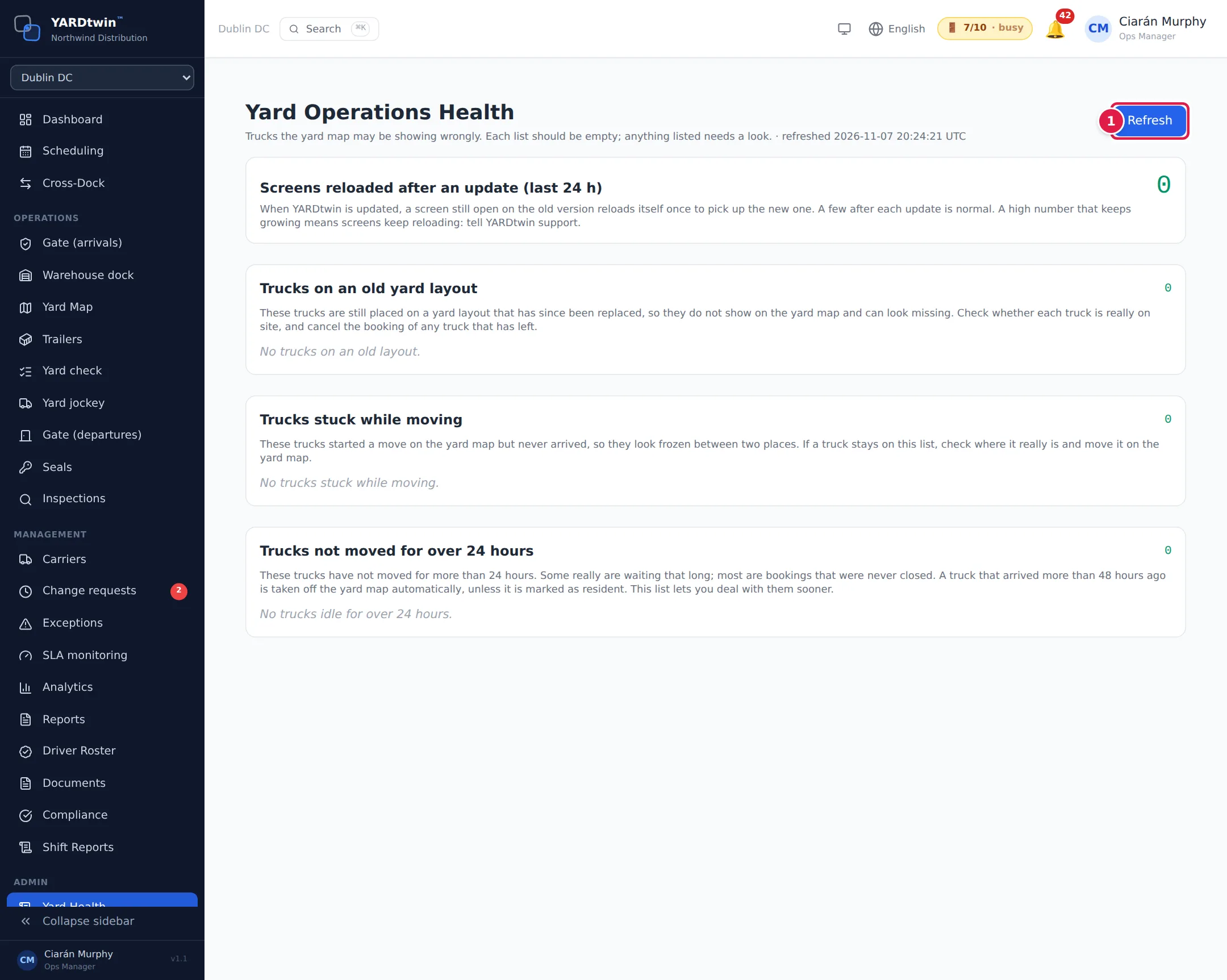
- Refresh checks again. The time of the last check is shown under the title, in UTC.
- Trucks on an old yard layout lists trucks still placed on an older version of the yard layout. This can happen after the layout is changed and published again. They don't appear on the yard map, so they're easy to miss.
- Trucks stuck while moving lists trucks whose move on the map should have finished but didn't. On the map, they look frozen between two points.
- Trucks not moved for over 24 hours lists trucks that haven't moved for more than 24 hours. Some are genuine long stays. Others are visits nobody closed, such as a truck that left without being checked out. After 48 hours, YARDtwin takes such trucks off the map by itself and closes their bookings as Checked Out, without a departure time. They aren't counted as no-shows, because the truck did arrive. This list lets you deal with them sooner, and correctly.
The number at the right of each section is how many trucks it holds: green for none, amber for a few, red for five or more. Each row shows the truck, its booking code and status, and when it last moved.
The Screens reloaded after an update (last 24 h) count at the top is a technical check for YARDtwin support. It counts how often a browser reloaded YARDtwin by itself in the last 24 hours, because a newer version came out while the page was open. A few after an update are normal.
Clear a truck
First check the truck in the yard. If it's still there, fix its booking on the scheduling board or at the gate instead. If it has really gone:
- Click Cancel booking on its row.
- Read the message, then click Cancel booking in the box.
YARDtwin cancels the booking, takes the truck off the yard map and frees its dock. The page shows Cancelled and the registration, and the row disappears.
Cancel booking here cancels the booking for good, with the reason Yard Health dashboard cleanup, and it's recorded in the audit log. Use it only for trucks that have really left. A truck that's still in the yard should be checked out at the gate instead. See Release a truck at departure.
If something goes wrong
- "… is not linked to a booking, so it cannot be cancelled from here.": the truck on the map isn't linked to a booking, so it can't be cleared here. Contact admin@yardtwin.com.
- "Cancel failed: …": the booking couldn't be cancelled, for example because it has already been closed. Click Refresh. If the row is still there, contact admin@yardtwin.com with the message.
- "Failed to load yard health: …": the check couldn't run. Click Refresh. If it keeps failing, report it from Report a Bug. See Get help.