Documents lists the paperwork attached to your bookings: the newest 100 documents in your organisation, with each one's booking, carrier and review status. Carriers and suppliers see only their own documents. A driver with an account sees only the documents they uploaded, and can upload to the bookings assigned to them.
Find and review documents
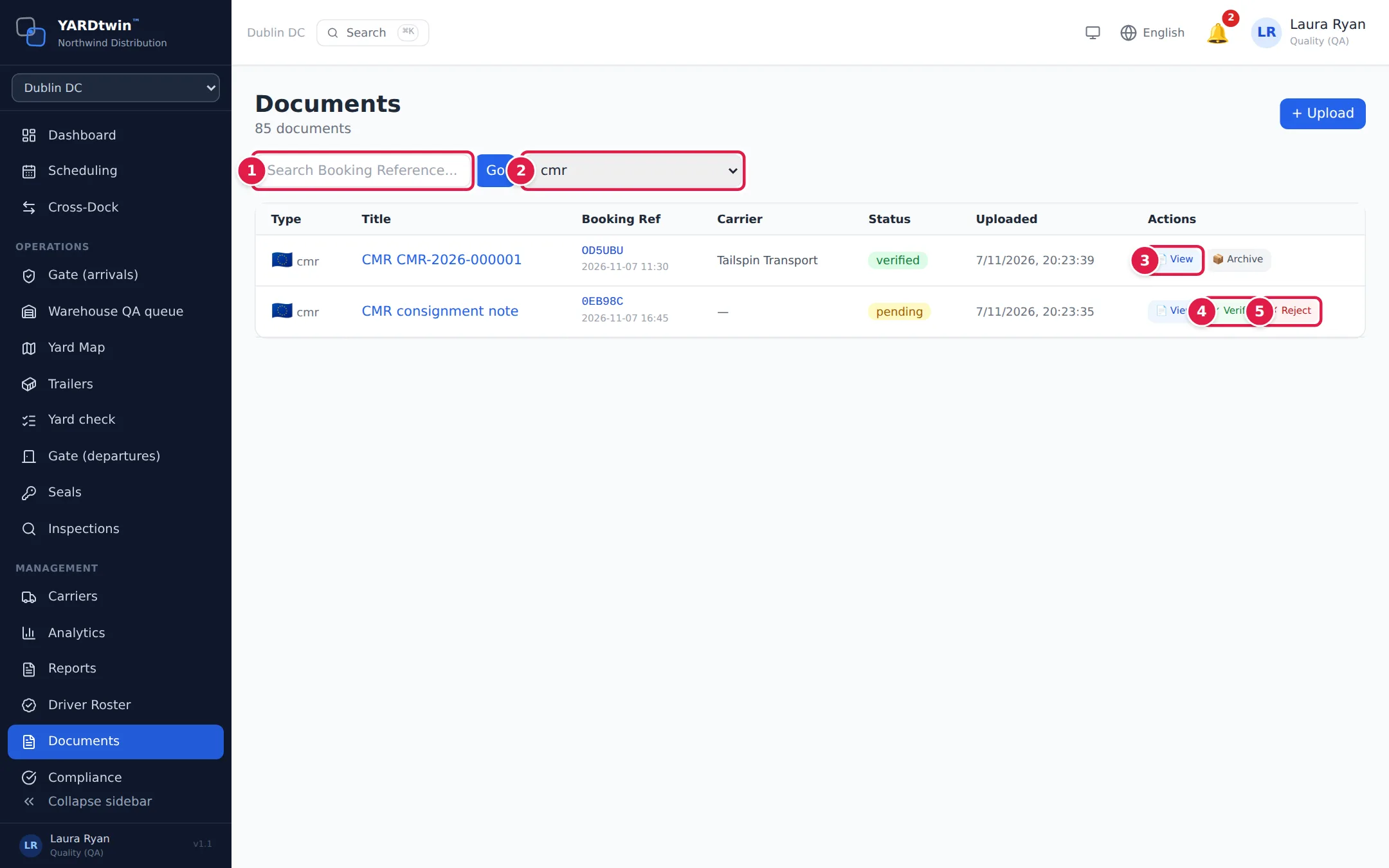
- Search Booking Reference...: type a booking reference and click Go (or press Enter). Click × to clear the search.
- Choose a type to list only that type: delivery note, bill of lading, pod, cmr, packing list, customs, certificate, photo, signature, inspection report, temperature log, advanced shipping notice or other.
- 📄 View opens a photo, PDF or text file in a viewer, with Download. Other files, such as Word or Excel, download straight away (⬇ Download). Clicking a document's title does the same.
- ✓ Verify confirms a pending document is correct.
- ✗ Reject marks a pending document as wrong.
Administrators, ops managers and QA review documents. Each document has one of four statuses:
| Status | Meaning |
|---|---|
| pending | Uploaded, not yet reviewed. |
| verified | Checked and accepted. YARDtwin records who verified it and when. |
| rejected | Checked and not accepted. |
| archived | Reviewed and filed away. Verified and rejected documents show 📦 Archive, except a signed record's signature image (below). |
Every status change is recorded in the audit log as a GMP-relevant event, with the old and new status.
A document tagged 🔒 Signed record is the signature image of a signed record, such as a departure sign-off or a consignment note signature. It stays verified as it was signed, so it has no Archive, Verify or Reject button and can't be removed.
Upload a document
Click + Upload.
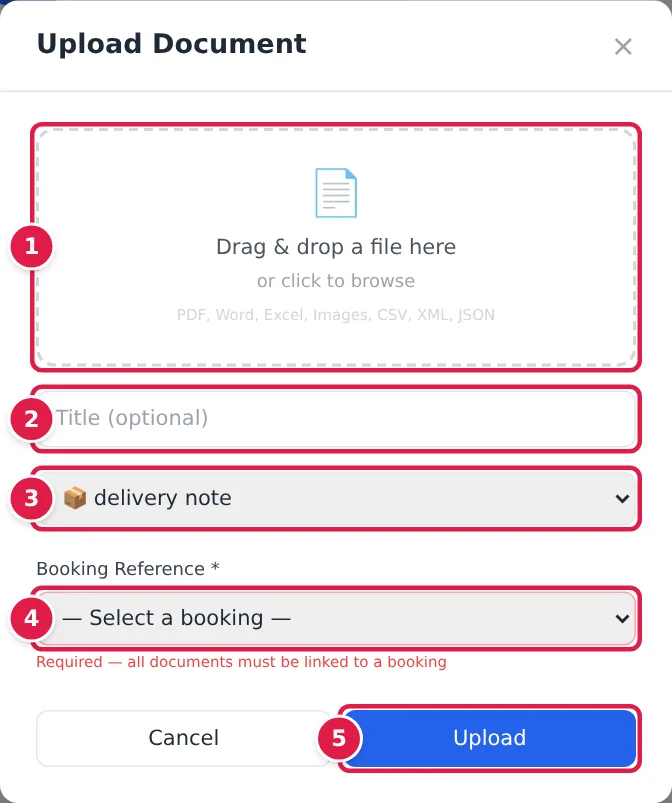
- Drag a file onto the box, or click it to browse. You can upload PDF, Word, Excel, images, CSV, XML and JSON files of up to 25 MB.
- Give it a Title (optional); the file name is used if you leave it empty.
- Choose the document type.
- Choose the Booking Reference. Every document must be linked to a booking; the list shows your site's bookings from the last two weeks onwards.
- Click Upload. The document starts as pending.
When a material type requires a document at the gate or the dock, YARDtwin counts it as attached when the document's title contains the required document's name. Title a CMR upload CMR …, for example.
How documents get attached
Besides uploads on this page, documents arrive from:
- carriers and suppliers, in their portals. They can remove their own uploads while they're still pending;
- the booking form (CMR / Bill of Lading) and the Required documents panels at the gate and the dock;
- the dock team: evidence photos, hold photos and outbound seal photos, see Monitor a load at the dock;
- the gate's departure sign-off: the driver's signature is filed as Departure signature — and the booking code, already verified. See Sign electronically.
If photo originals are archived at your organisation, a photo older than 7 days shows an archived tag, and the viewer shows a medium-resolution copy: Showing medium-resolution variant — full-resolution original was archived.
If something goes wrong
- "Please select a file": drop or choose a file first.
- "Booking reference is required. Please select or enter a booking reference.": pick the booking.
- "File type not allowed: …": upload one of the types listed above.
- "This is the signature image of a signed record and its status cannot be changed": a departure signature belongs to a signed record. It stays verified, and it can't be archived, rejected or removed. The list tags it 🔒 Signed record and offers no status buttons for it; reload the page if one still shows.
- "This document is evidence on a signed departure clearance and cannot be deleted"
- "Portal accounts cannot change document status": carriers and suppliers can't verify or reject documents.
- "Could not open file:" or "Could not download file:": try again. If it keeps failing, the file may have been removed under your retention policy.
- No Verify or Reject buttons. Only administrators, ops managers and QA review documents, and only pending documents can be verified or rejected.
- No Archive button on a verified document. It's tagged 🔒 Signed record: see above.