This page is for carriers.
You can't sign up for the carrier portal on your own: the site invites you. When a planner clicks Invite to Portal on your company's record, YARDtwin e-mails your company's contact address with a Set Up Your Account button. The link is valid for 7 days and works only with the e-mail address it was sent to. See Manage carriers for the site's side.
Register
Open the link in the invitation. The Carrier Portal Registration page opens.
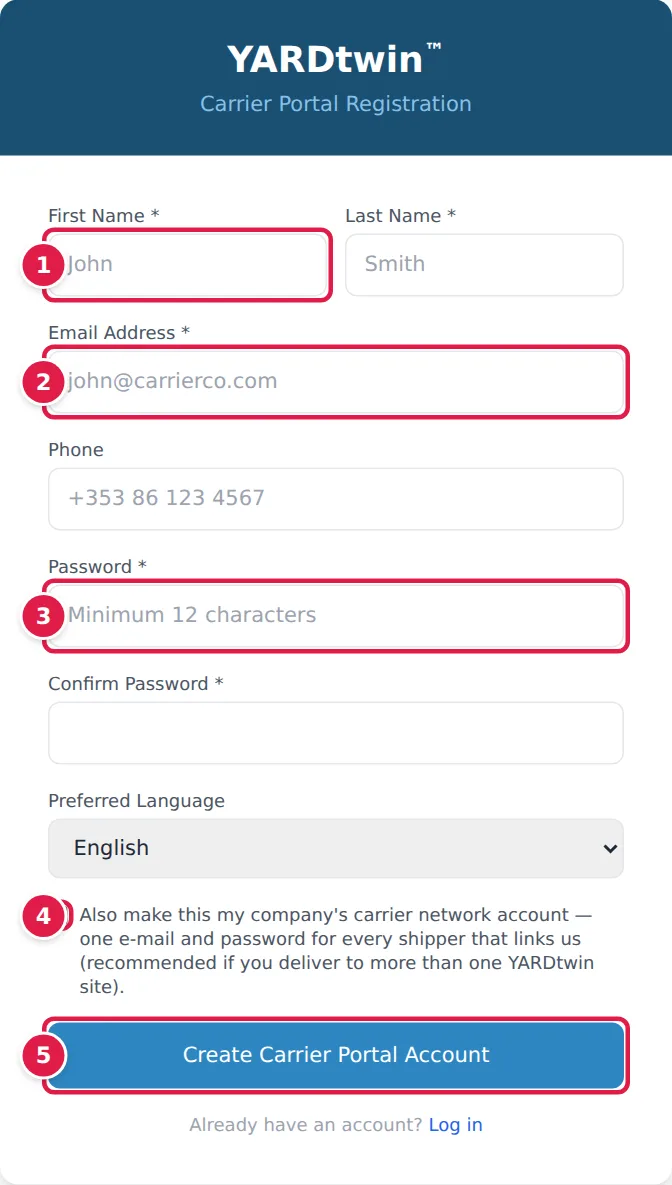
- Enter your First Name and Last Name.
- Enter the Email Address the invitation was sent to. Add a Phone number if you like.
- Choose a Password of at least 12 characters, with upper-case and lower-case letters and a digit, and type it again under Confirm Password. Choose your Preferred Language.
- If you deliver to more than one site that uses YARDtwin, tick Also make this my company's carrier network account. You then use one e-mail and password for every shipper that links your company.
- Click Create Carrier Portal Account.
You see Registration Complete. Click Go to Login, or Go to carrier network sign-in if you made a network account.
If your e-mail already belongs to a carrier network account, the page asks for its Carrier network password instead, and Link this shipper to my network account adds this site to your existing login.
Sign in
How you sign in depends on the kind of login you have:
- A portal login for one site. Use the main sign-in page with the site's Organisation ID, your e-mail and your password. Ask the site for its Organisation ID. See Sign in.
- A carrier network account. Use Carrier network sign-in: no Organisation ID is needed. The main sign-in page links to it: Haulier with a carrier network account? Sign in here.
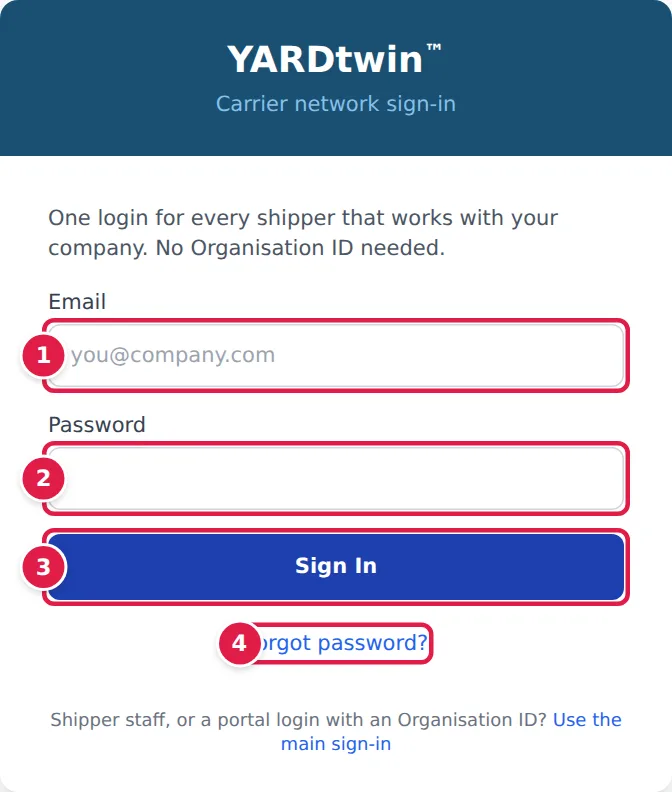
- Enter your Email.
- Enter your Password.
- Click Sign In. If you work for one shipper, its portal opens. Otherwise choose the shipper under Which shipper do you want to open?. Shippers asking to link your company are listed under Shippers asking to link your company, with Accept and Decline.
- Forgot password? e-mails you a reset link. Choose a new password and click Set new password.
You can also turn a one-site login into a network account later, from the One login for every shipper panel at the top of the portal. See The carrier portal.
If something goes wrong
- "No invitation token found. Please use the link from your invitation email." Open the page from the button in the e-mail, not by typing the address.
- "Invalid or expired invite token" or "Registration failed. The invite may have expired." The link is older than 7 days, or a newer invitation has replaced it. Ask the site to resend the invite.
- "Email already registered" You already have a login. Sign in instead.
- "Password must be at least 12 characters" or "Passwords do not match" Check the password and type it again.
- "Invalid credentials" The e-mail or password is wrong. After 5 failed attempts, sign-in is locked for 15 minutes.
- "This login uses two-factor authentication. Sign in on the main page with your shipper's Organisation ID." Use the main sign-in page.
- "This e-mail has portal logins at several shippers. …" Sign in on the main page with one shipper's Organisation ID, then upgrade that login to a network account from the portal.
- "No shipper has linked your account yet." Ask the shipper to link your company by VAT number, or accept a request under Shippers asking to link your company.