A sandbox is a separate test account that copies your configuration (sites, docks, layout, material types, carriers and rules) but none of your bookings. Use it to try out a new setting, to train someone, or to let an integrator build against YARDtwin without touching live data.
The sandbox never bills, never e-mails or texts anyone, and marks everything it sends to other systems as sandbox. It has its own API keys.
Create a sandbox
Open Site Admin and click Sandbox. Until your account has a sandbox, the tab shows Create a sandbox.
- Choose the Seed: Configuration only, or Configuration + six sample bookings to have something to work with straight away.
- Click Create sandbox. Only an administrator can create one.
Administrators and ops managers of your account automatically get their own login inside the sandbox, with no second password.
Use your sandbox
Once the sandbox exists, the tab shows its Status: its Name, State, when it was Last reset, the seed it was made with, and how many sites, docks, material types, carriers, bookings, users and API keys it has.
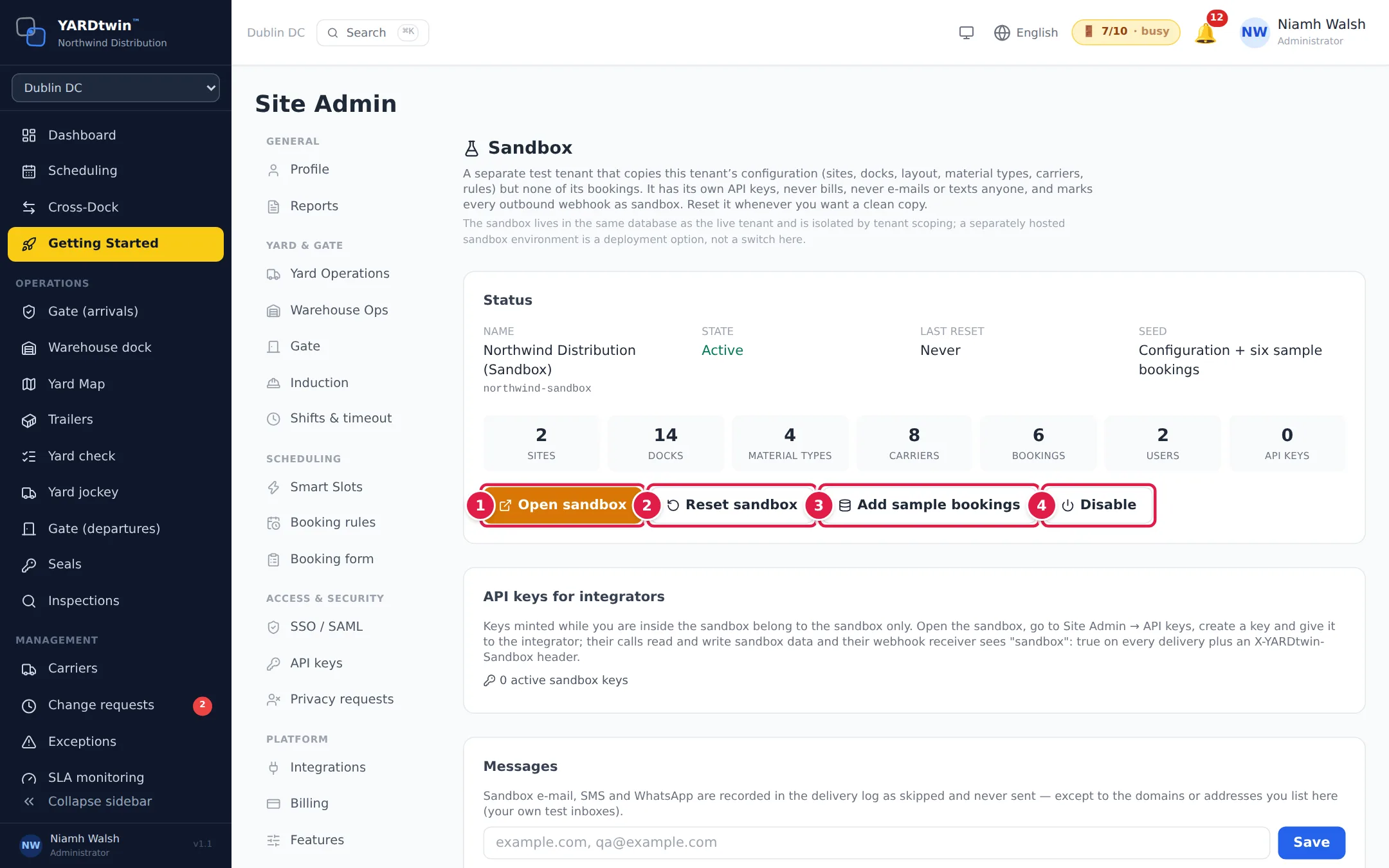
- Open sandbox takes you into it. A banner at the top reminds you that you are in the sandbox, and lets you reset it or go back to your live account.
- Reset sandbox deletes every booking, gate record and task in it, and copies your live configuration again. Use it whenever you want a clean start.
- Add sample bookings adds a few bookings to practise on.
- Disable switches the sandbox off: nobody can open it, and its API keys stop working. Enable switches it back on, keys included.
Resetting deletes everything that was done in the sandbox. It never touches your live account.
Give an integrator test API keys
Keys you create while you are inside the sandbox belong to the sandbox only. Open the sandbox, go to Site Admin → API keys, and create a key for the integrator. Their calls then read and write sandbox data, and every message YARDtwin sends them is marked as sandbox. See Create API keys.
Let test messages through
Normally sandbox e-mails, texts and WhatsApp messages are recorded but never sent. Under Messages, list the domains or addresses of your own test inboxes; messages to those are delivered.