Detention is what a carrier's truck runs up when it stays on site longer than its free time. Demurrage is charged once a visit has been on site so long it counts as storage. YARDtwin runs a clock for every visit, shows you the trucks that are close to or past their free time, and keeps a record of every charge.
Detention appears in the menu only when your site has the Detention & Demurrage Tracking module switched on. An administrator turns it on, and sets the free time, rates and clock, in Site Admin → Platform → Features. See Features.
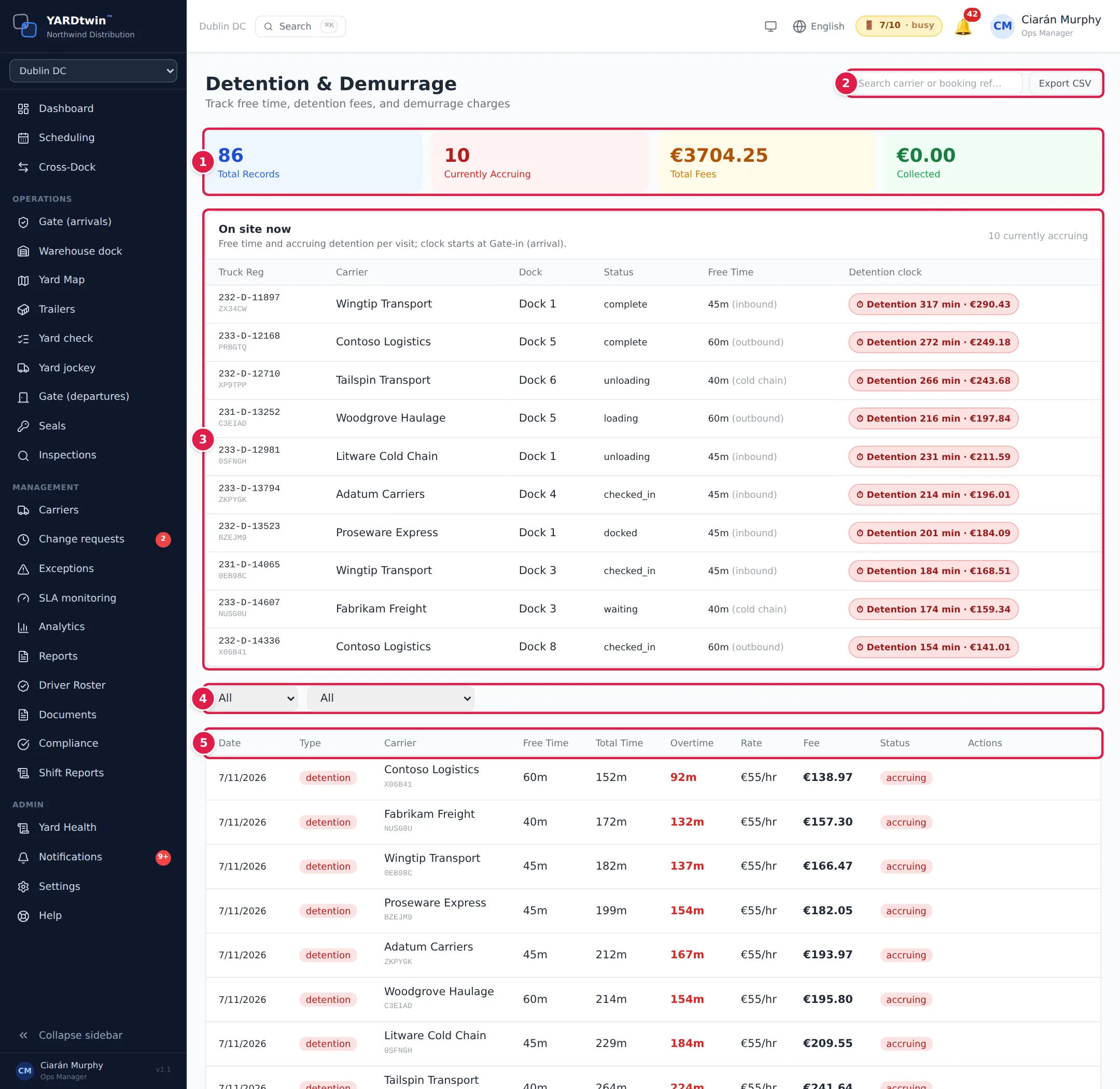
The page
- The totals: Total Records, records Currently Accruing, Total Fees and the fees Collected (records marked paid).
- Search and export. Type in the search box to show only the records for a carrier or a booking reference (the type and status words match too). Export CSV downloads the records the table is showing.
- On site now lists every truck on site with its dock, status, free time (and where that free time comes from, such as inbound or cold chain) and a live clock: … min free left, Free time ends in … min, Detention … min · €… or Demurrage … h · €…. It refreshes every 30 seconds. The same clock shows in a truck's details on the yard map.
- Filters: show records by status (accruing, calculated, invoiced, disputed, waived or paid) and by type.
- The records: one row per charge, with the Date, Type (detention or demurrage), Carrier (with the booking reference under it), Free Time, Total Time on site, Overtime, hourly Rate, Fee, Status and Actions.
Export the records
- Narrow the list if you want: type in the search box, or pick a status or type.
- Click Export CSV. The file has one row per record shown, with the date, type, carrier, booking reference, free time, actual time, excess minutes, rate, fee and status.
The file opens safely in a spreadsheet: a value typed by someone outside your company can't turn into a formula.
Invoice, waive or dispute a charge
Ops managers and administrators see actions on each record:
- Invoice on a calculated charge marks it invoiced.
- Mark Paid on an invoiced charge marks it paid.
- Waive or Dispute on a calculated or invoiced charge.
How the clock works
Your administrator sets the rules for the site:
- Free time is the first that applies of: the carrier's own free time (when it's switched on for that carrier), dangerous goods, cold chain, inbound or outbound, then the site default.
- The clock starts at gate-in (arrival) or at dock-in (the moment the truck is on a dock, so waiting time isn't counted).
- Ops are warned a set number of minutes before a truck's free time ends.
- Demurrage starts after a set number of hours on site, at the site's demurrage rate.
- Detention is charged at the carrier's own hourly rate from the Carriers screen, or the site's rate if the carrier has none.
The clock is updated every minute, and the figures are finalised when the truck leaves.
If something goes wrong
- "No detention records": no visit has gone past its free time yet, or none matches your filters. Set both filters back to All.
- "No records match your search." Clear the search box.
- Export CSV is greyed out. The table is empty; there is nothing to export.
- On site now is missing. The module is off for your site.
- No Invoice, Waive or Dispute buttons. Only ops managers and administrators can change a charge's status.