When the trailer is empty, or fully loaded, close it out from the monitor with ✓ Close out this load. The close-out screen has two parts: an optional hold at the top, for when something is wrong, and the close-out underneath.
Steps
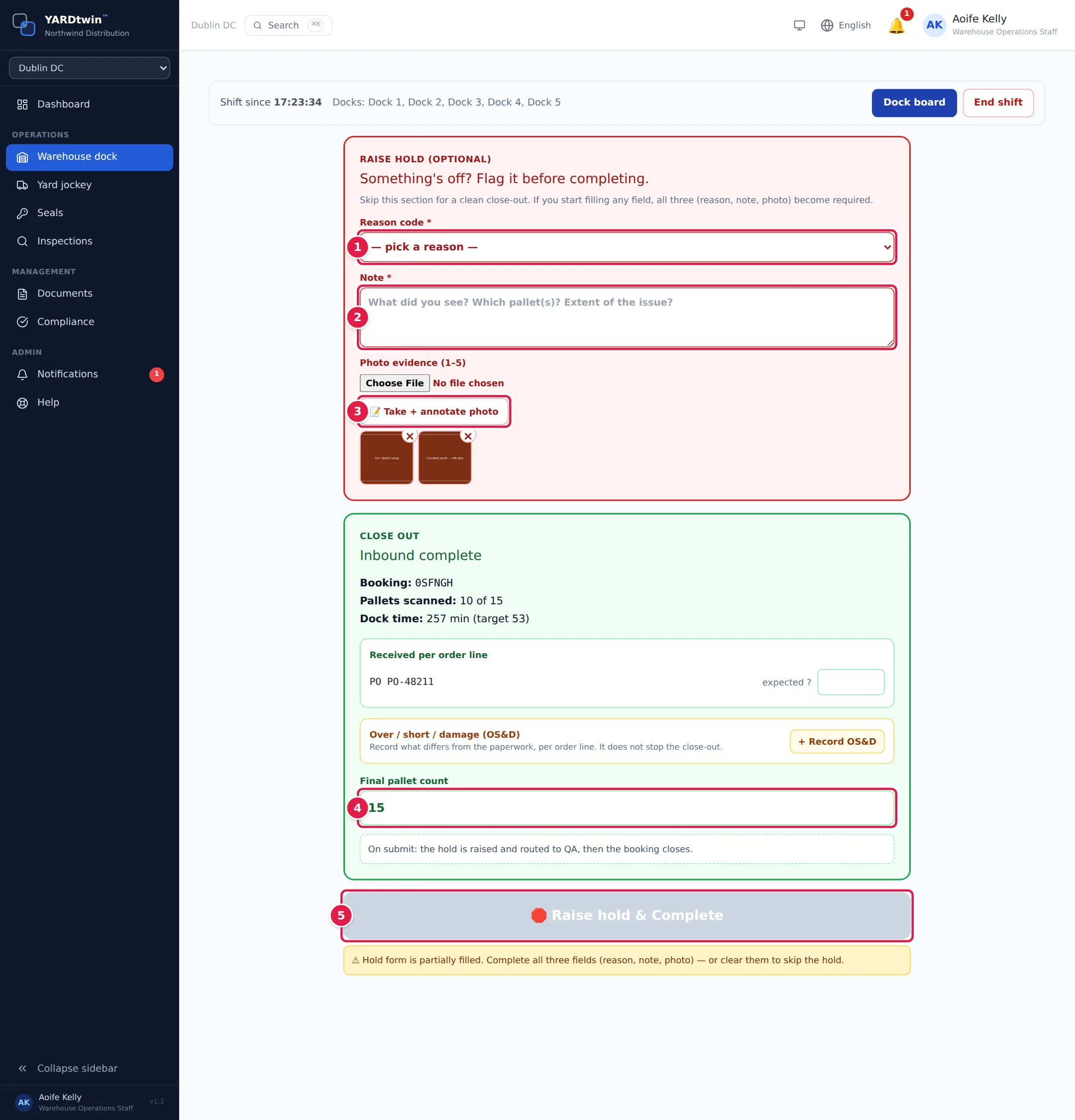
If the load is fine, skip the Raise hold (optional) box and go to step 4. If something is wrong (Something's off? Flag it before completing.), fill in all three hold fields:
- Reason code: Seal mismatch, Damage on pallet(s), Temperature excursion, Pallet / unit count mismatch, Paperwork / CMR / BoL issue, Quality defect or Other (describe).
- Note: what you saw, which pallets, and how bad it is.
- Photo evidence (1–5): choose a photo or take one with the camera, or tap 📝 Take + annotate photo to draw on it. Photos already taken of this load, such as the ones you snapped on the monitor, are here already; tap × to remove one.
- Check the Close out box: the booking, Pallets scanned against the booked count, and Dock time against the target. ⚠ Cold-chain excursion logged appears if a reading went out of range. Correct the Final pallet count if it's wrong; it starts with the booked count.
- Tap the button at the bottom:
- ✓ Complete for an inbound load, or ✓ Outbound Complete for an outbound load;
- with a hold filled in, the button turns red and reads 🛑 Raise hold & Complete (inbound) or 🛑 Raise hold & Outbound Complete (outbound).
If your site sends goods movements to SAP, a note above the button says what pressing it writes, for example Pressing complete writes SAP Goods Receipt and clears the booking. Where SAP isn't connected, there's no note, unless a hold is filled in: then it says the hold is raised and routed to QA before the booking closes.
Once any hold field is filled in, the reason, the note and at least one photo all become required, and the button stays grey until they are. Photos carried over from the monitor count. So if there are photos in the hold box but nothing is wrong, tap × on each one to close out without a hold; if something is wrong, add the reason and the note.
If the booking carries order lines, Received per order line asks for the quantity received on each line before you complete. You can also record over, short or damaged goods in the Over / short / damage (OS&D) panel; see Monitor a load at the dock.
Outbound loads: the seal
An outbound load is sealed in front of the driver before it leaves the dock. Whether a seal is needed depends on the load's material type (the Outbound seal at the dock setting):
- Required (also the setting when the load has no material type): Outbound Complete stays grey until a seal number is entered.
- Optional: the seal section is there with Seal Number · Optional. Enter the seal if you applied one, or complete without it.
- Off: there is no seal section.
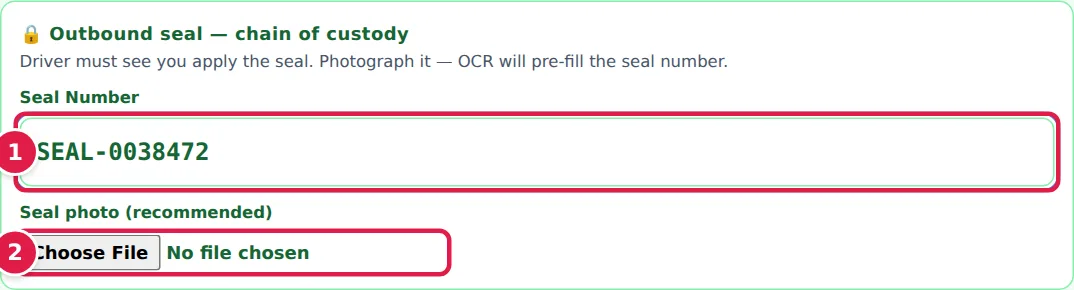
- Apply the seal while the driver watches, then type its number in Seal Number.
- Photograph the seal under Seal photo (recommended). YARDtwin reads the number from the photo (OCR read: …) and fills in the box if it's empty. Tap 🔍 View to check the photo, or Remove to take it again.
What happens when you complete
A panel confirms the close-out with the pallet count and dock time. It is green and reads Load cleared clean when no hold is open, or amber and reads 🛑 Load closed — hold open for QA when you raised a hold, completed with an open hold, or the material went into quarantine on receipt. Then YARDtwin:
- marks the booking complete. The truck stays at the dock on the yard map until the gate signs it out;
- lists the truck as ready to depart for the gate team (see Sign a truck out);
- e-mails the carrier, if it has a contact e-mail, that the load is finished and ready for departure;
- records the close-out in the audit log, with the pallet count and seal;
- if your site sends goods movements to SAP, writes the goods receipt (inbound) or goods issue (outbound). The panel then shows its reference. For a load weighed in and out at the gate, it explains that the movement is completed at the departure weighing instead.
Tap 📣 Notify gate — "ready to depart" to tell the gate straight away. The truck moves towards the gate on the yard map and the button changes to ✓ Gate notified. Tap Back to board → when you're done.
If the truck has more work on site, the panel says so: another delivery still on the same truck, or a paired outbound load that's ready to start loading.
What happens to a hold
The hold is raised first; then the load is completed with the hold left open for QA. The hold appears in the QA queue with your note and photos, and the dock board shows 🛑 ON HOLD: on the booking.
- An outbound load with an open hold can't leave: the gate's departure check Warehouse hold cleared stays failed until someone clears the hold, and it can't be overridden at the gate.
- For an inbound load, the hold flags the received goods for QA. If your site is connected to SAP, the goods receipt carries the hold.
Some holds are raised for you, depending on your site's settings: a temperature excursion at the dock, a pallet with too little shelf life, or a material that has to go into quarantine on receipt.
If something goes wrong
- "Outbound seal number is required to close out an outbound load." Enter the seal number.
- "Outbound seal number required to complete this load (material-type setting)." The material type needs a seal at the dock. If the seal section wasn't shown, the setting was changed while the screen was open: reload the page and enter the seal.
- "Hold form is partially filled — pick a reason code, write a note and attach at least one photo, or clear all three."
- "An uncleared hold is open on this load …": a hold raised earlier is still open. A new button appears: 🛑 Complete with the open hold (routes to QA). Tap it to close out and leave the hold with QA, or ask QA to clear it first.
- ⛟ This visit has more dock stops: a truck that visits several docks is closed out at its final dock. Tap Advance to next dock → and finish there.
- "Batch data missing on … unit(s) …" or "This site requires the batch and the SLED … of every unit before close-out": rescan the pallet labels, or enter the batch and best-before date on the monitor.
- "Cannot complete from status …": the load was never started, or it's already been completed.