Your own details live on the Profile tab of Settings. To get there, click your name at the top right of any screen, then Profile & Settings.
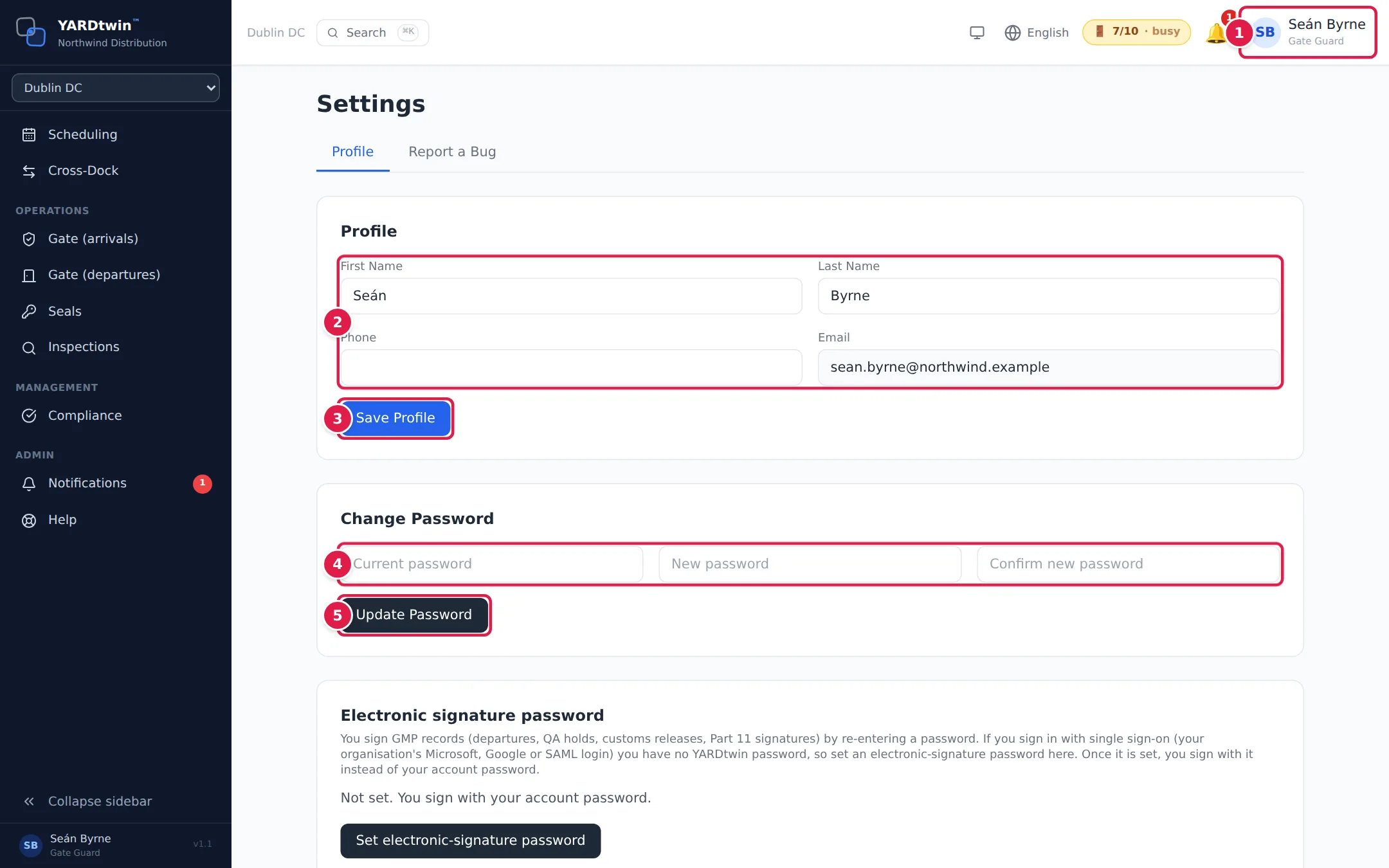
- Your name opens the menu with Profile & Settings and Sign Out.
- First Name, Last Name and Phone can be changed here. Email is greyed out, because only an administrator can change it.
- Save Profile saves your name and phone number.
- Current password, New password and Confirm new password let you choose a new password.
- Update Password saves the new password.
The other tabs you may see, such as Users or Site, are for administrators and managers. See Users and invitations. Report a Bug is described in Get help.
Change your name or phone number
- Type over First Name, Last Name or Phone.
- Click Save Profile. YARDtwin shows Profile updated.
To change your e-mail address, ask your administrator.
Change your password
- Type your Current password.
- Type the new one in New password and again in Confirm new password.
- Click Update Password.
YARDtwin shows Password changed. Your other sessions have been signed out. You stay signed in on this device, but you're signed out everywhere else, for example on a tablet at the gate.
Unless your organisation has set stricter rules, a password needs at least 12 characters, with an uppercase letter, a lowercase letter and a digit, and it can't contain the first part of your e-mail address.
Forgotten your current password? Sign out and use Forgot password? on the sign-in page. See Sign in and out.
The shift PIN
Earlier versions of YARDtwin had a Shift PIN card on this tab. YARDtwin doesn't ask for a PIN when you sign in, at the gate tablet or when you sign electronically (signatures ask for your password), so the card has been removed. A PIN set earlier is still kept on your profile, but nothing uses it.
Sign in with Microsoft
If your company has switched on Microsoft sign-in, a Sign in with Microsoft card appears on this tab.
- Click Link Microsoft account.
- Sign in to Microsoft when asked. You come back to this tab, which says Your Microsoft account is now linked.
From then on you can use the Microsoft button on the sign-in page. To stop, click Unlink Microsoft account and confirm. You then sign in with your e-mail and password.
If you have never set a YARDtwin password, use Forgot password? to set one before you unlink.
Two-step sign-in
Two-step sign-in (also called two-factor authentication, or MFA) asks for a code from an app on your phone each time you sign in, as well as your password. It's set up in Site Admin → Profile, which only administrators can open.
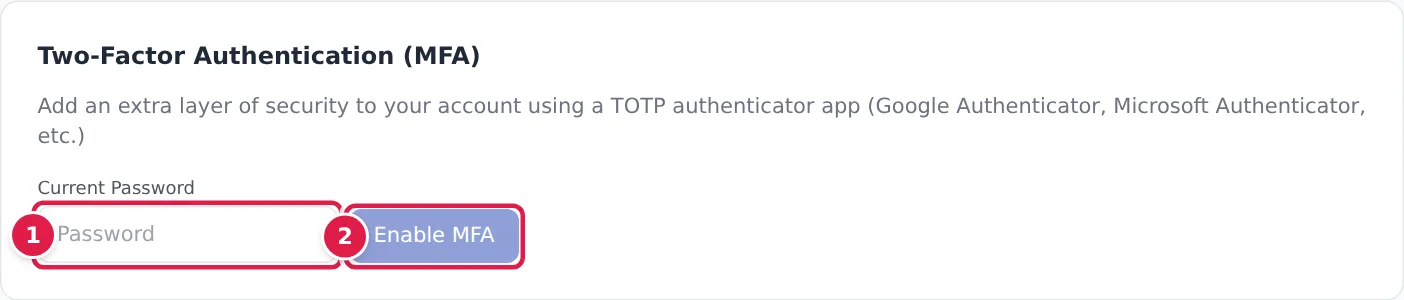
- In Two-Factor Authentication (MFA), type your Current Password.
- Click Enable MFA.
- Scan the QR code with an authenticator app, such as Google Authenticator or Microsoft Authenticator. If you can't scan it, type the Manual key into the app instead.
- Type the 6-digit code the app shows, then click Verify.
- YARDtwin shows your backup codes. Write them down and keep them somewhere safe.
The backup codes are shown only once. Each one signs you in once if you lose your phone.
Turning on two-step sign-in signs you out of every other device. To turn it off, click Disable MFA, then type your password and a current code (or a backup code). This is recorded in the audit log.
If something goes wrong
- "Passwords do not match": the two new passwords are different. Type them again.
- "Password must be at least 12 characters" or "The password must have …": the new password doesn't meet the rules. The message lists what's missing.
- "Current password is incorrect": check the password you're using now. After five wrong tries in 15 minutes, you see Too many wrong passwords. Changing the password is locked for … minute(s).
- "Enter your current password to set up MFA": type your password before clicking Enable MFA.
- "Invalid code. Please try again." when turning on two-step sign-in: check that your phone's clock is set automatically, then type the newest code.