The monitor is open for as long as a trailer is being worked. It shows the clock against the target, and it's where you record what happens at the dock: pallets, temperatures, damage and photos. It opens by itself when you start a trailer; from the dock board, tap Monitor → on the truck being worked.
The top line shows the booking code, carrier, truck and dock, and whether you're UNLOADING or LOADING. 📊 Timeline opens the booking's history; see Follow a booking's timeline.
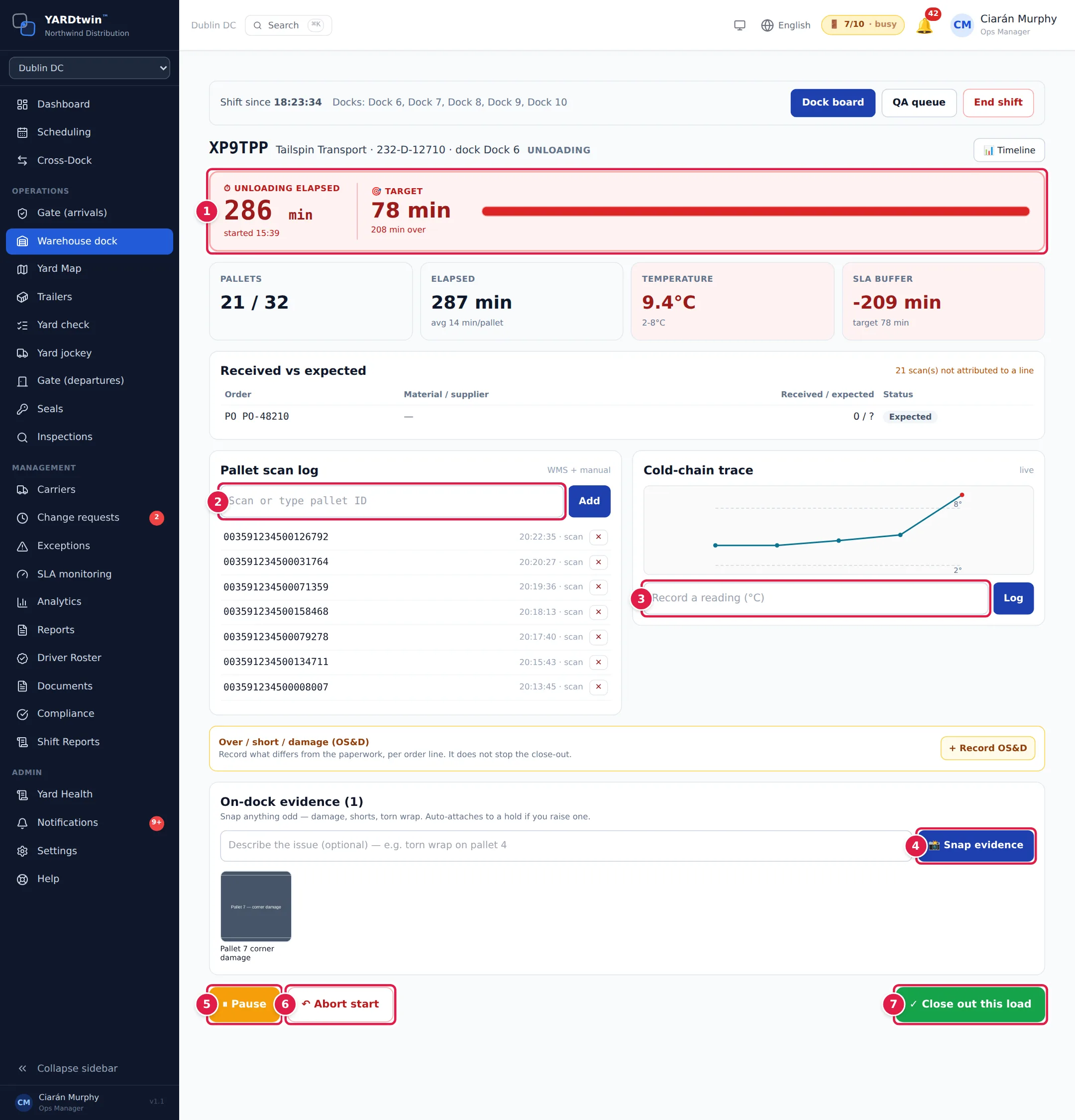
- The clock. Unloading elapsed (or Loading elapsed) counts the minutes worked, with the start time underneath. Target shows the time allowed and how many minutes remain or how far over you are. The panel is green, turns amber within 10 minutes of the target and red once it's over. Under it, four tiles show:
- Pallets: scanned so far against the booked count.
- Elapsed: minutes worked, and the average minutes per pallet once you've scanned a few.
- Temperature: the latest reading, red after an excursion. N/A means the material type doesn't track temperature at the dock.
- SLA buffer: minutes to spare (+) or over (−).
- Scan or type pallet ID, then Add (or press Enter). A handheld scanner types into this box. Each pallet appears in the Pallet scan log with the time and how it was captured. If you scanned a pallet by mistake, tap ✕ next to it and confirm. The removal is recorded in the audit trail.
- Record a reading (°C), then Log. The reading is added to the Cold-chain trace. Dashed lines mark the required range, and readings outside it show as red dots. A reading outside the range is logged as a cold-chain excursion. If your site has chosen to, it also puts the load on hold automatically, once per load.
- 📸 Snap evidence photographs anything odd, such as damage, missing pallets or torn wrap. Type a description first in Describe the issue (optional). Photos appear under On-dock evidence, and they're added to the hold for you if you raise one when you close out.
- ⏸ Pause holds the clock, for example while you wait for a forklift. The screen shows Paused — clock is held. Tap ▶ Resume to carry on. Paused time doesn't count towards dock time.
- ↶ Abort start undoes a start you made by mistake. Pick a reason (Data correction, System error, Manual recovery, Override with approval or Other (detail required)), add any Detail, and confirm. The trailer goes back to waiting, and the reason is recorded in the audit log. You can do this yourself within 5 minutes of starting; after that, only an administrator, ops manager or yard manager can.
- ✓ Close out this load when the work is done. See Complete a load or put it on hold.
The clock ticks every second, and the rest of the screen refreshes every 10 seconds.
Pallet labels, orders and batches
What you see under the scan box depends on the booking and your site's settings:
- Warnings after a scan. YARDtwin checks each label against the delivery and warns you, without refusing the scan, when:
- a pallet was already scanned on this load,
- a label is not a valid SSCC (check digit), so rescan it or check it for damage, or
- a pallet is not on the delivery (ASN). On an outbound load the warning says to check the pick before loading it.
- Order lines. When the booking carries order references, Received vs expected lists each line with what has been received so far, marked Expected, Partial, Received or Over. With more than one line, choose the line in the drop-down next to the scan box before you scan.
- Batch and shelf life. If your site captures batch data, fields appear for Batch, Production date, Best before / expiry and Country of origin. Scanning a GS1 label fills them in; otherwise type them before you scan. Fields marked * are required before close-out. YARDtwin warns you when a date is expired or leaves less shelf life than the material type needs; your site may also put the load on hold for QA.
Record over, short or damaged goods (OS&D)
In the Over / short / damage (OS&D) panel, tap + Record OS&D. Choose the Order line (or Whole booking (no specific line)), the type (Short, Over or Damage), the Quantity and Unit, and optionally the SSCC / HU. Add a Note and Photos; damage needs at least one of the two. Tap Save OS&D. An OS&D record doesn't stop the close-out; it's there so the difference against the paperwork is on file.
When your site scans pallets in its WMS or SAP EWM
Your administrator chooses where pallets are scanned, under Site Admin → Warehouse Ops → Pallet / HU scanning at the dock. If your site scans in its WMS or SAP EWM:
- the scan log isn't shown. A blue strip, Pallet / HU scanning in followed by the system's name, reminds you to scan there, and to record the seal check, temperatures, damage and close-out here;
- handling units that the WMS reports back are listed, read-only;
- the first tile shows Pallets (booked).
For bulk materials that aren't counted in pallets, the first tile shows the Net weight from the weighbridge instead.
Other things you may see
- A dangerous-goods banner, when the load carries hazardous goods. A load SAP flagged as dangerous goods without UN details shows Dangerous goods — flagged by SAP. when your site applies the SAP flag.
- ⛟ Multi-dock visit, for a truck that unloads at more than one dock. When you've finished at this dock, tap Advance to next dock →; pallets scanned here stay with this dock. The visit is closed out at the final dock.
- 🔒 Read-only — this load has been closed out. You can look at what was recorded, but not change it.
If something goes wrong
- "Pallet / HU scanning for this site is done in … — YARDtwin does not record dock scans here": scan in your WMS instead.
- "Load is closed — scans can no longer be changed": scans can only be removed while the load is open.
- "Start is older than 5 minutes (… m) — only ops_manager+ can abort now": ask an ops manager, yard manager or administrator to abort the start.
- "Reason required to abort a start": pick a reason in the abort dialog.
- "Already paused" or "Not paused": someone else paused or resumed the load on another screen. The screen catches up within 10 seconds.