There are four ways to get help, from quickest to most thorough:
- Ask the assistant, the round chat button at the bottom right of every screen.
- Search this manual at yardtwin.com/help, or the shorter Help Centre articles.
- Report a bug from Settings if something isn't working.
- E-mail YARDtwin support at admin@yardtwin.com.
Ask the assistant
The round blue chat button sits at the bottom right of every screen, including the sign-in page. Click it to open the YARDtwin Assistant.
- It knows which page you're on, and only explains the parts of YARDtwin your role can use.
- It opens with a few Suggested questions for the page you're on. Click one, or type your own in Ask me anything about YARDtwin... and press Enter.
- It answers in the language you've chosen for YARDtwin.
- If your browser supports it, click the microphone (Tap to speak) and ask out loud. Your question is sent when you stop talking.
- Answers are read aloud by a text-to-speech service unless you turn it off: click the speaker at the top of the chat (Voice read-out is on — turn it off). YARDtwin remembers your choice in this browser. With the voice on, click the speaker next to an answer (Read aloud) to hear it again. Closing the chat stops the voice.
- If your organisation has switched off external AI processing, the assistant isn't shown. Ask your administrator.
Good questions are specific, for example "How do I move this booking to Dock 4?" or "Why is this truck on hold?".
The assistant explains how YARDtwin works. It's an AI, so it can be wrong. For anything that matters, such as a GMP record, check this manual or ask your administrator.
Read the manual and the Help Centre
- This manual is at yardtwin.com/help. It covers every screen, step by step, with screenshots, and can be downloaded as a PDF.
- The Help Centre is a shorter set of articles about setup, scheduling, the gate, the yard map and compliance. Anyone can read it at yardtwin.com/help-centre, without signing in. The same articles are inside the app at /app/help.
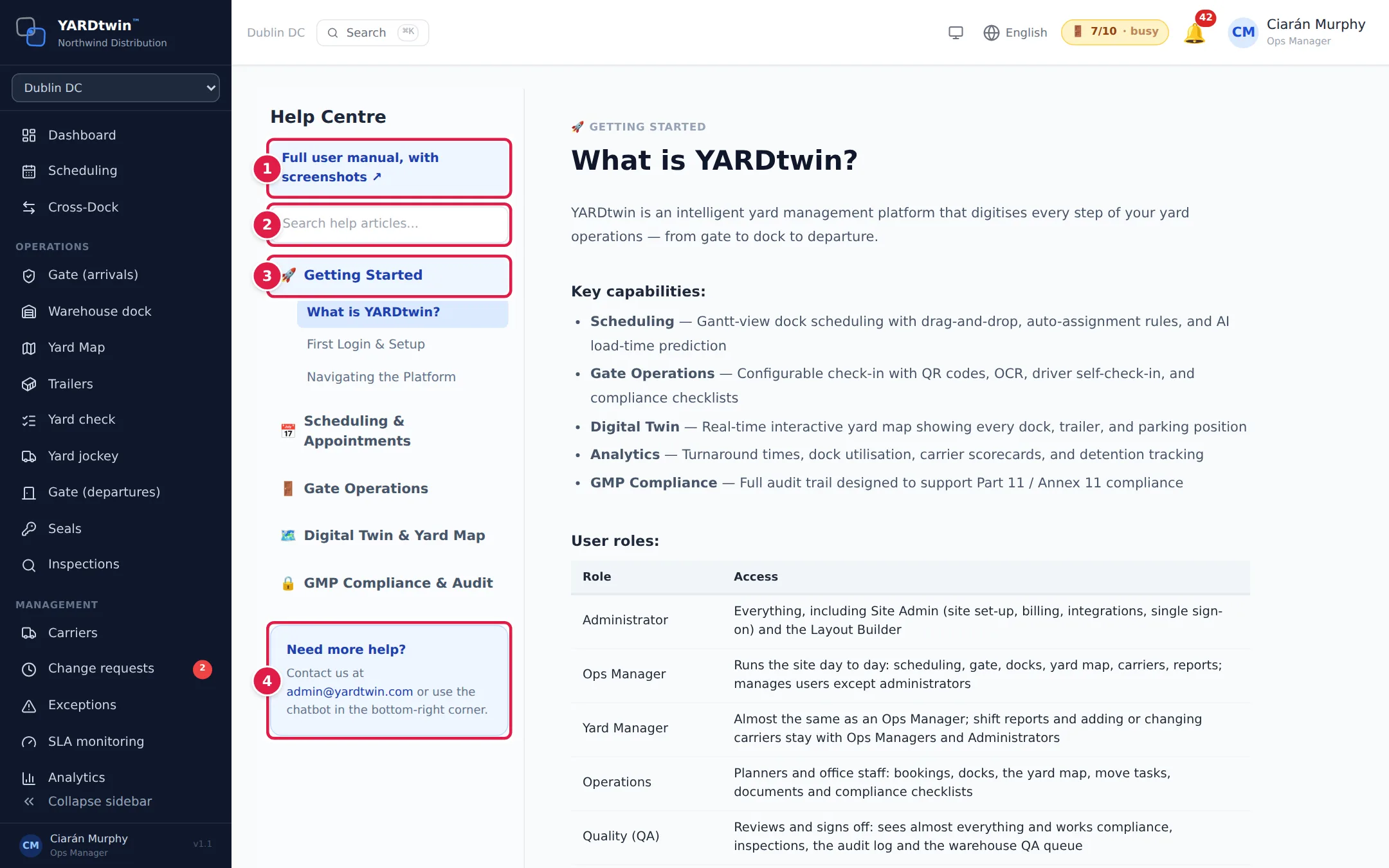
- Full user manual, with screenshots opens this manual in a new tab.
- Search help articles... finds articles that contain the words you type (three letters or more).
- Click a section, such as Getting Started, to see its articles, then click an article to read it.
- Need more help? gives the support e-mail address.
The in-app Help Centre has no menu item. Bookmark /app/help (for example yardtwin.com/app/help), or use the link to this manual.
Report a bug
If something in YARDtwin doesn't work as it should, tell us from inside the app. Everyone can do this, whatever their role. Click your name at the top right, then Profile & Settings, then the Report a Bug tab.
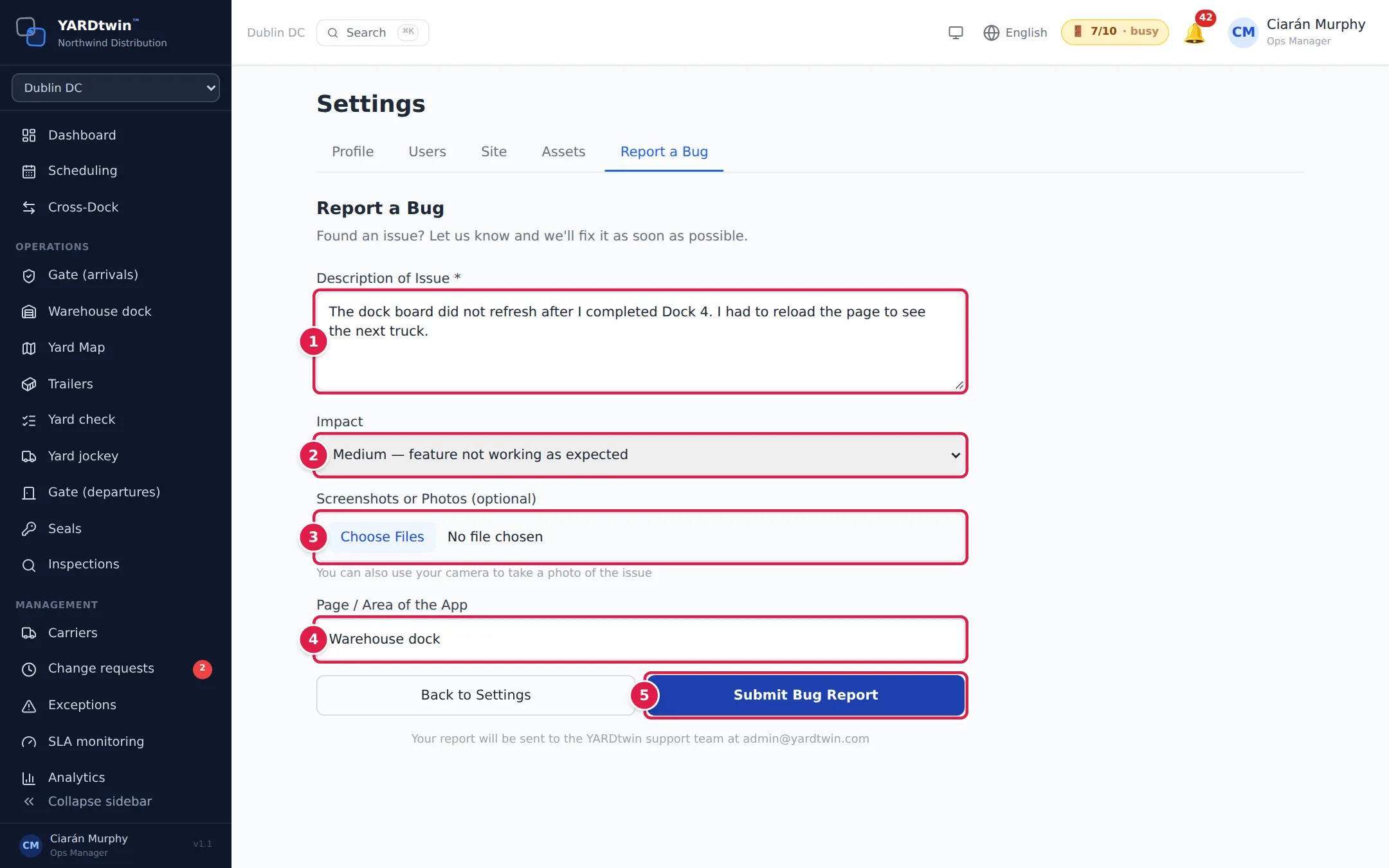
- Under Description of Issue, say what happened, what you expected, and the steps that led to it.
- Choose the Impact: from Low — cosmetic issue or minor inconvenience to Critical — data loss, security, or system down.
- Under Screenshots or Photos (optional), add pictures of the problem. On a phone or tablet you can take a photo with the camera.
- Under Page / Area of the App, say where it happened, for example Gate Check-In.
- Click Submit Bug Report.
YARDtwin shows Bug Report Submitted. Your report goes to the YARDtwin support team at admin@yardtwin.com.
Never put passwords, API keys or other secrets in a bug report or an e-mail. YARDtwin support will never ask for them.
Contact support
E-mail admin@yardtwin.com. It's the main support channel on every plan. Say which organisation you're from, what you were doing, and what you saw. A screenshot helps.
The Support page at yardtwin.com/support gives support hours, the severity levels, first-response targets and what to include in a ticket.
If something goes wrong
- "Sorry, I couldn't connect. Please try again." in the chat: the assistant couldn't be reached. Wait a moment and ask again.
- "Too many messages — please wait a few minutes." in the chat: you've sent a lot of questions in a short time. Wait a few minutes.
- "Failed to submit report" after Submit Bug Report: try again. If it keeps failing, e-mail the details to admin@yardtwin.com.