The Layout Builder is where you draw your yard: the docks, gates, parking spots, staging areas, zones and roads. The live yard map shows trucks on this plan, and your docks come from it. Draw the yard once when you set up, and come back whenever the yard changes.
You always edit a draft. Nobody else sees your changes until you publish.
Steps
Open Layout Builder in the menu.
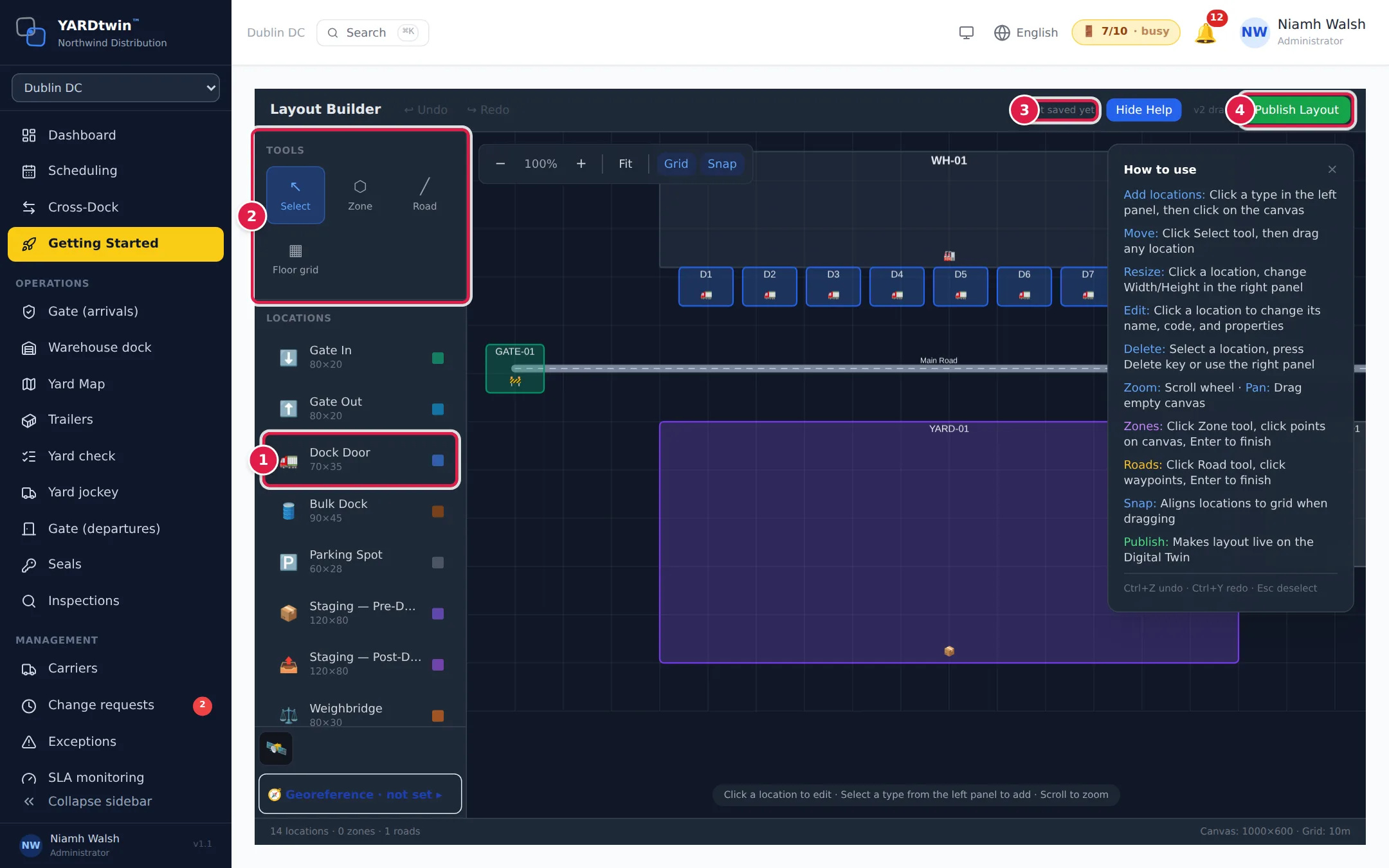
- Add a location. Click a type in the left panel, such as Dock Door, then click the canvas where it goes. Press Esc to cancel.
- Tools. Select moves things: drag a location to its place. Zone draws an area: click the corners, then press Enter, and choose its type (for example Temperature Zone, Hazmat Zone, GMP Zone or Quarantine Zone). Road draws a road: click each bend, then press Enter, and choose Two-way or One-way. Floor grid drops a numbered grid of floor slots: set the rows, columns and zone letter, then click the canvas.
- Saved. Every change saves itself to the draft after a moment. This shows when it last saved, next to the draft's version, for example v2 draft.
- When the plan is right, click Publish Layout, then Publish.
To change a location, click it. The panel on the right shows its Name, Code, position, size and rotation, and the settings for its type. For a dock door these include the Dock Type (inbound, outbound or both), Temperature, GMP Class, Height Limit (m), Dock Leveller, Dock Shelter and Door Group. To remove a location, select it and press Delete, or use the panel.
Scroll to zoom and drag an empty part of the canvas to move around. Ctrl + Z undoes and Ctrl + Y redoes. While you're typing in a field or choosing from a list, these keys and Delete work on what you're typing, not on the layout. Help shows these tips on the canvas.
Undoing a delete brings the location or zone back, with its settings, and redoing it deletes it again. A location you deleted and didn't bring back is never published, even if it still shows somewhere in the draft. Undo works in the draft you are editing: after you publish, the new draft starts with nothing to undo. A deleted road can't be brought back with undo; draw it again.
What you'll see
Layout published successfully! The new plan becomes the live yard layout straight away, and a fresh draft opens for your next changes. Bookings you already have keep their docks. Publishing waits for any delete or undo you have just made to be saved first. If the message adds … deleted location(s) or zone(s) were left out, something you had deleted was still in the saved plan; it was not published.
Deleting and restoring locations and zones is recorded in the audit log. The live layout is only changed by publishing: a tab still open on a layout that has since been published can't delete from it.
Publishing also updates the site's dock list from the dock doors on the plan: their names, types and equipment. Bookings, scheduling rules and the yard map all use that list. You'll find it under Site Admin → Yard Operations, where you can also set maintenance windows for each dock.
Which locations matter
| Location | What YARDtwin uses it for |
|---|---|
| Dock Door, Bulk Dock | The docks trucks are booked to. |
| Gate In, Gate Out | Where trucks enter and leave the yard on the map. Without a Gate Out, the Gate In is used both ways. |
| Staging — Pre-Dock | Where a truck waits when its dock is busy, or when its material needs a stop before the dock. |
| Staging — Post-Dock | Where a truck parks after unloading when its material needs a final check before it leaves. |
| Parking Spot | A place for a dropped trailer, when parking slots are switched on for drop and hook. |
| Weighbridge, Wash Bay, Inspection Bay, Fuel Station | Fixed points on the plan. |
| Roads | The paths trucks follow on the live yard map. |
Whether a material needs pre-dock or post-dock staging is set on its material type. See Set up yard operations.
Older layouts can contain a single Gate (legacy — both) or Staging (legacy — both). They still show and work on the map, but the palette no longer offers them for new objects: use Gate In / Gate Out and the pre-dock / post-dock staging areas instead.
At the bottom of the left panel you can put a satellite image of your site behind the plan and trace over it. Georeference links the plan to real map coordinates, so that GPS positions can be shown on the map.
If something goes wrong
- A dock is on the plan but not in the dock list (or the other way round). Publish the layout again. Or, under Site Admin → Yard Operations, click Sync from layout to copy the docks from the published plan without publishing again.
- I renamed a dock and now there are two. Renaming a dock on the plan creates a new dock in the list. Bookings tied to the old dock move to the new one automatically.
- Publishing failed. The message gives the reason. Your draft is kept, so you can fix it and publish again.
- "The change could not be saved on the server. Reload the editor before publishing.": an undo or redo of a delete didn't reach the server, for example because the connection dropped. Reload the page: the editor then shows what the draft really holds. Check the location and publish.