The qualification register holds the certificates that let a carrier, a vehicle, a container or a monitoring device be used: GDP accreditation, temperature mapping, calibration and so on. Qualifications appears in the menu when an administrator has switched on Site Admin → Features → Life Sciences & Clinical Trials for the site. On such a site the gate uses the register: when a truck checks in, YARDtwin checks every qualification held by the carrier, the truck and the trailer.
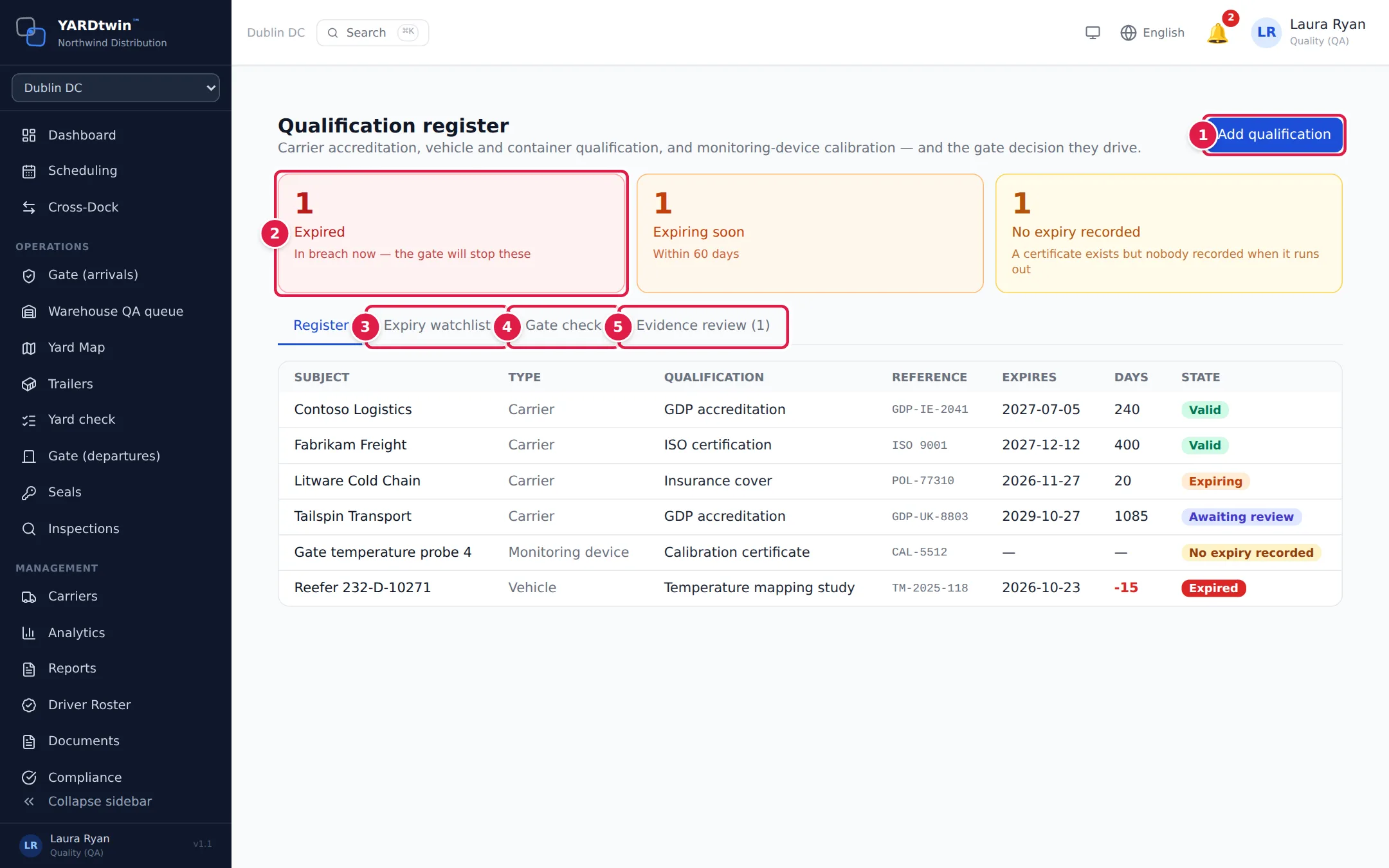
- Add qualification records a new certificate. Administrators, ops managers and QA can add them.
- The three tiles count Expired (In breach now — the gate will stop these), Expiring soon (within the site's alert window, 60 days unless your site has changed it) and No expiry recorded (A certificate exists but nobody recorded when it runs out). They're counted separately because they're different problems.
- Expiry watchlist lists only the qualifications that are expired, expiring or without an expiry date.
- Gate check runs the gate's decision for one booking.
- Evidence review lists certificates that carriers have sent in, waiting for someone to accept them.
The Register tab lists every qualification with its Subject, Type, Qualification, Reference, Expires date, Days left (red once it's past) and State: Valid, Expiring, Expired, Revoked, Rejected, Awaiting review or No expiry recorded.
Add a qualification
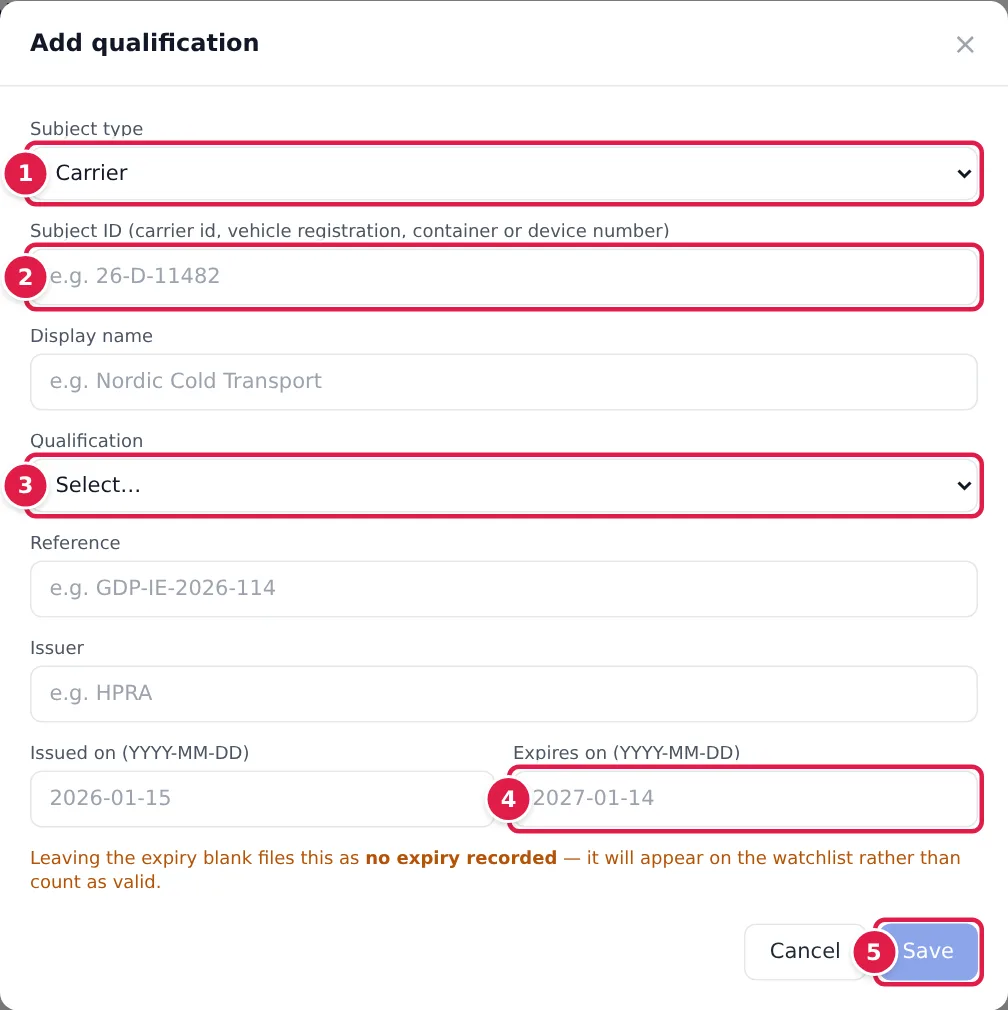
- Subject type: Carrier, Vehicle, Container or Monitoring device.
- Subject ID: the vehicle registration, container or trailer number, or device number. For a carrier it's the carrier's ID in YARDtwin. Add a Display name so people recognise it.
- Qualification: the list depends on the subject type: for a carrier, for example, GDP accreditation, Wholesale Distribution Authorisation, IATA CEIV Pharma, Insurance cover or ISO certification; for a vehicle, IQ/OQ/PQ qualification or Temperature mapping study; for a device, Calibration certificate. Add the Reference, the Issuer and the Issued on date (YYYY-MM-DD).
- Expires on (YYYY-MM-DD). Leaving the expiry blank files this as no expiry recorded — it will appear on the watchlist rather than count as valid.
- Click Save.
What the gate does
On a site with Life Sciences switched on, when a truck checks in, YARDtwin looks up the qualifications of the booking's carrier, its truck registration and its trailer number:
- an expired, revoked or rejected qualification is a BLOCK finding;
- an expiring one, one with no expiry recorded, or one awaiting review is a WARN finding.
Your site decides what a BLOCK finding does: warn the gate (the default), stop the truck, or nothing at all.
To see the result before the truck arrives, open Gate check, enter the booking's Appointment ID and click Run check. The result is Cleared, Warnings or Blocked, with each finding listed. An administrator, ops manager or QA can let a blocked movement through: write the reason under Override rationale (at least 10 characters) and click Override and let this movement proceed. The override is recorded against the booking with your name and reason.
Review evidence from carriers
Certificates that carriers send in arrive as Awaiting review; they never count as valid on their own. On Evidence review, check each one, then click Accept, or write a note and click Reject. A rejection needs a note.
If something goes wrong
- "subjectType must be one of: carrier, vehicle, container, device" or "Unknown qualType": choose the subject type and qualification from the lists.
- Save is grey. Fill in the Subject ID and choose a Qualification.
- "Appointment not found" on Gate check: enter the booking's appointment ID (the long ID in the booking's web address), not its confirmation code.
- "A rationale of at least 10 characters is required."
- "Your role cannot override a qualification block. A QA, ops-manager or admin user must record the decision."